How to configure site to sell goods
How it works
The site builder is Xsolla’s tool for creating web stores. You can use it to sell virtual items, virtual currency packs, bundles, and game keys. The site builder lets you create both single-page stores and multi-page web portals.
To find the integration that best fits your needs, we recommend starting with a ready-made solution:
- Web Shop — a ready-made web store for direct-to-consumer (D2C) sales to monetize a mobile game on the web. If you are configuring a Web Shop for the first time, use the express scenario.
- Xsolla Publishing Suite — a ready-made D2C ecosystem for PC game developers that enables direct sales of games, DLCs, and virtual items through branded storefronts.
If neither solution fits your needs, or if you prefer to configure the store manually, review the available blocks and follow the instructions below.
We recommend starting with a ready-made solution — Xsolla Publishing Suite. It is a ready-made D2C ecosystem for PC game developers that enables direct sales of games, DLCs, and virtual items through branded storefronts.
If it doesn’t fit your needs, or if you prefer to configure the store manually, review the available blocks and follow the instructions below.
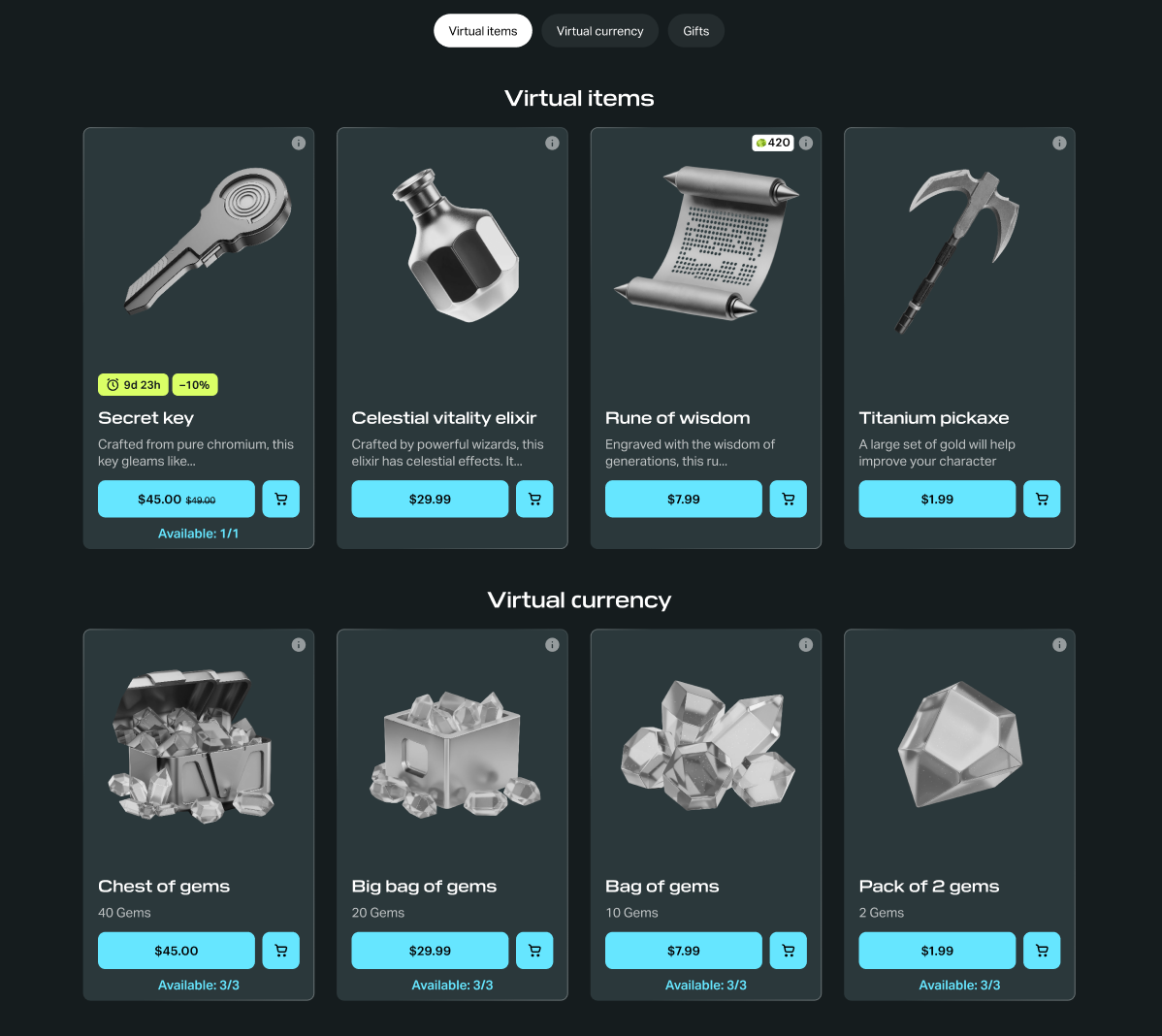
Store block
A block for selling items from the catalog with automatic data updates and a consistent card style across the entire section.
Features:
- Automatic item loading from the catalog — changes appear on the site without republishing.
- Support for item grouping and sorting.
- Personalized catalog support — different users see different items.
- Consistent card style across the entire section.
When to use:
- The catalog is too large and dynamic to update each card manually.
- You need rotating offers or time-limited promotions.
- You need personalization.
For detailed information, refer to the Blocks section.
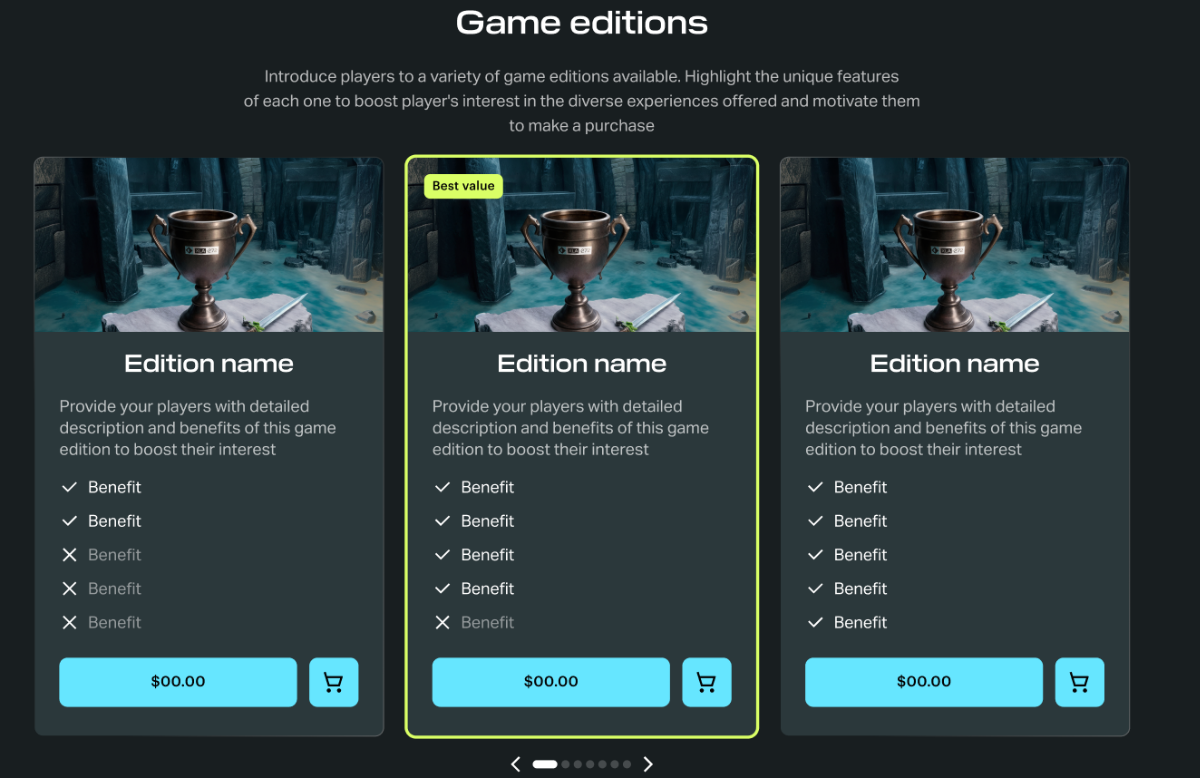
Game editions block
A block for selling a small, fixed set of editions or bundles with flexible per-card visual customization.
Features:
- Individual card configuration: components, layout, visual highlights.
- Feature list with icons — useful for displaying what’s included in an offer.
- Two display modes: slider or large cards.
- Highlighting a recommended edition.
When to use:
- You are selling 2–5 editions of one game or bundles.
- You need full control over the appearance of each card.
- The offer changes infrequently.
- You are selling a Battle Pass, season pass, or large bundles with a list of included content.
For detailed information, refer to the Blocks section.
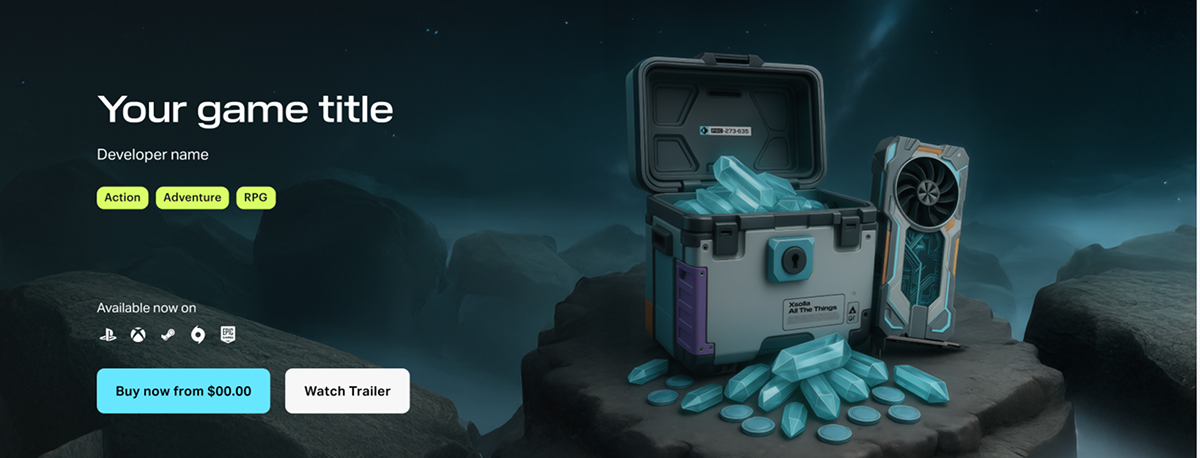
Lead block
A block for selling a single game — a large visual block at the top of the page with a background image or video, game title, and a purchase button.
Features:
- Full customization of all components: background, title, buttons.
- Background image or video.
- Primary button (Buy) and secondary button (Watch Trailer, Add to Wishlist).
- Platform display and release date.
When to use:
- The page is dedicated to a single game.
- You need a prominent visual block at the very top of the page.
- You are creating a dedicated game landing page.
For detailed information, refer to the Blocks section.
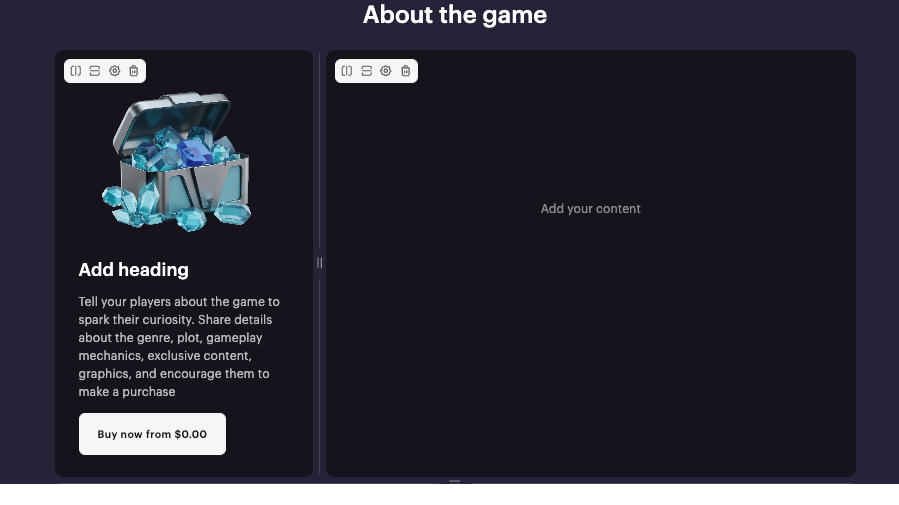
Card grid block
A flexible bento-style block (asymmetric grid of cards of different sizes) for custom promo sections when other blocks do not fit your use case.
Features:
- Individual configuration for each card.
- Cards of different sizes in the same grid.
- Any content type: text, images, purchase buttons.
When to use:
- You need a custom design that doesn’t fit the Store, Game editions, or Lead block.
- You are selling a fixed set of items and need full control over the appearance of each card.
- You need full layout flexibility.
For detailed information, refer to the Blocks section.
Quick comparison
| Criteria | Store | Game Editions | Lead Block | Card grid | Purchase Button |
| Data source | Item catalog | Manual | Manual | Manual | Manual |
| Catalog size | Large, dynamic | 2–5 items | Single item | Small, fixed | Single item |
| Personalization | Yes | No | No | No | No |
| Customization | One style per section | Per card | One block, fully editable | Per card | Button style |
| Item types | All | All | All | All | Bundles and game keys |
| Use case | Many items, LiveOps | Game edition, Battle Pass | Single-game landing page | Custom promo sections | Single-item sale |
How to get it
This guide covers the basic setup for selling items. For detailed information about selling specific item types, refer to:
This guide covers the basic setup for selling items. For detailed information about selling specific item types, refer to the Game keys section.
This guide covers the basic setup for selling items. For detailed information about selling specific item types, refer to the Virtual items for free-to-play games section.
To configure a site to sell items:
Create catalog
On the site, you can sell the following item types:
- virtual currency packages
- virtual items
- game keys
- bundles
To create a catalog, you can use Publisher Account, API calls, or import the catalog from a JSON file or external platforms.
To create a catalog, you can use your acount, API calls, or import the catalog from a JSON file or external platforms.
Set up virtual currencies, virtual items in your Publisher Account following the step-by-step instructions:
Set up virtual currencies, virtual items in your account for premium PC games following the step-by-step instructions:
Set up virtual currencies, virtual items in your account for free-to-play PC games following the step-by-step instructions:
Create virtual currency
Virtual currency is virtual money that is used for purchasing and selling in-game items. Depending on its purpose, a virtual currency affects the game economy balance or is connected to the monetization of the app. You can also create hard currency — a virtual currency that is linked to the platform of purchase and can be purchased only for real money.
You can sell the virtual currency in predefined amounts. For a package, you can define a special price that doesn’t equal the amount of virtual currency in it.
See the Virtual currency section to learn more about virtual currency.
- Open your project in Publisher Account and go to the Items catalog > All items > Virtual currencies section.
- Open the project in your account and go to the Items catalog > All items > Virtual currencies section.
- Open the project in your account and go to the Items catalog > All items > Virtual currencies section.
- Open the project in your account and go to the Items catalog > All items > Virtual currencies section.
- Open your project in the account for mobile games and go to the Catalog section.
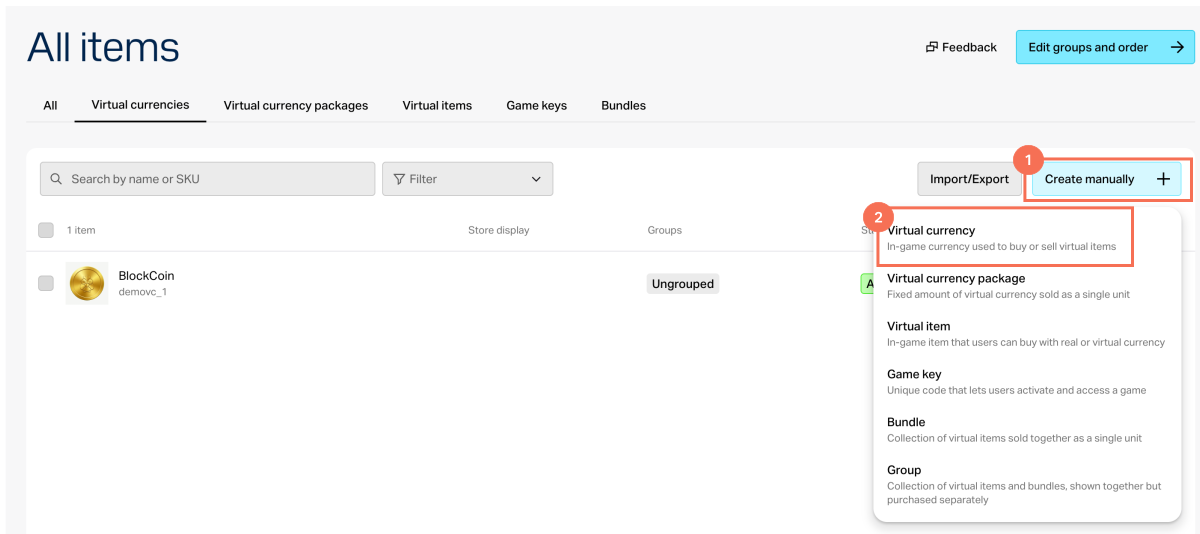
- Click Create manually and select Virtual currency from the drop-down list.
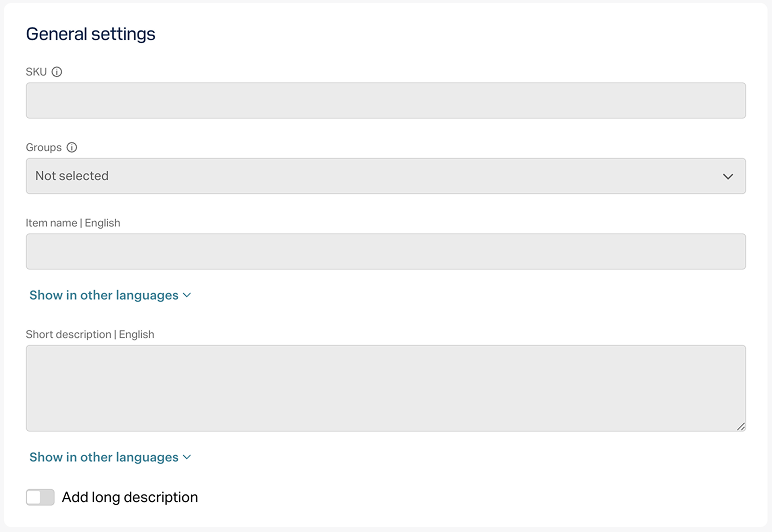
- In the General settings section, specify the following:
- SKU
- One or several groups the item should belong to (optional)
- Name
- Short description
- Extended description — to add it, turn on the corresponding toggle (optional)
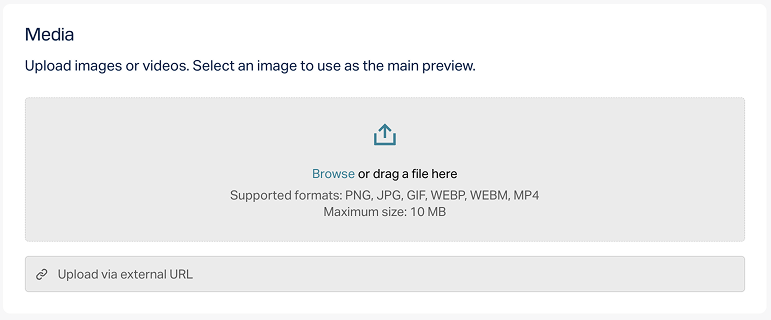
- In the Media section, upload one or more images or videos (optional) — from your device or via a link. In the store created with the Xsolla site editor, all item cards display the file marked as Main, while the remaining files are available only in item cards with a media gallery. The file marked as Main is also returned in the responses of the catalog retrieval API calls.
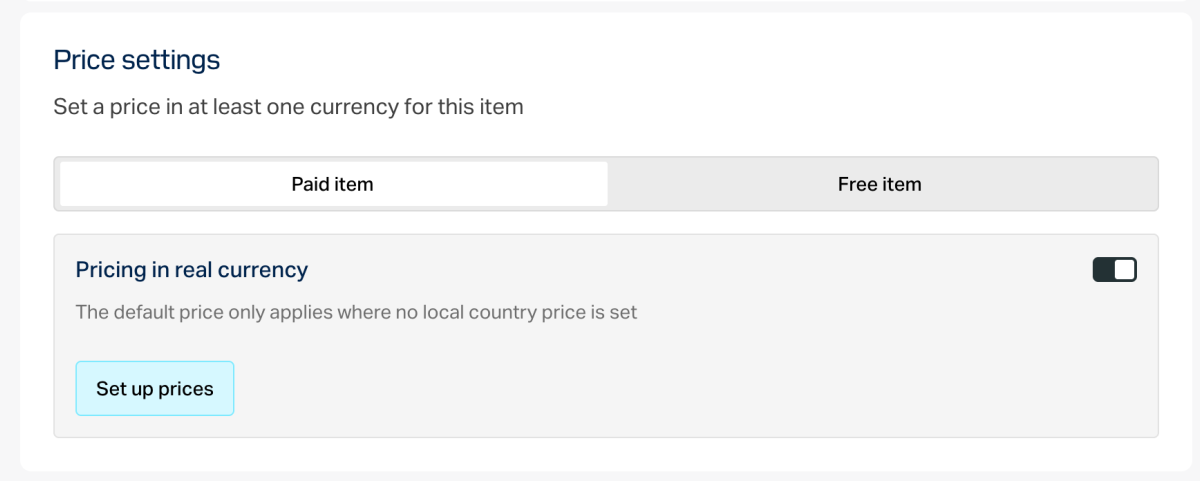
- In the Price settings section, set prices or create a free item:
- To set a price, select Paid item, turn on the Pricing in real currency toggle, and specify the price. If needed, configure regional prices.
- To create a free item, select Free item.
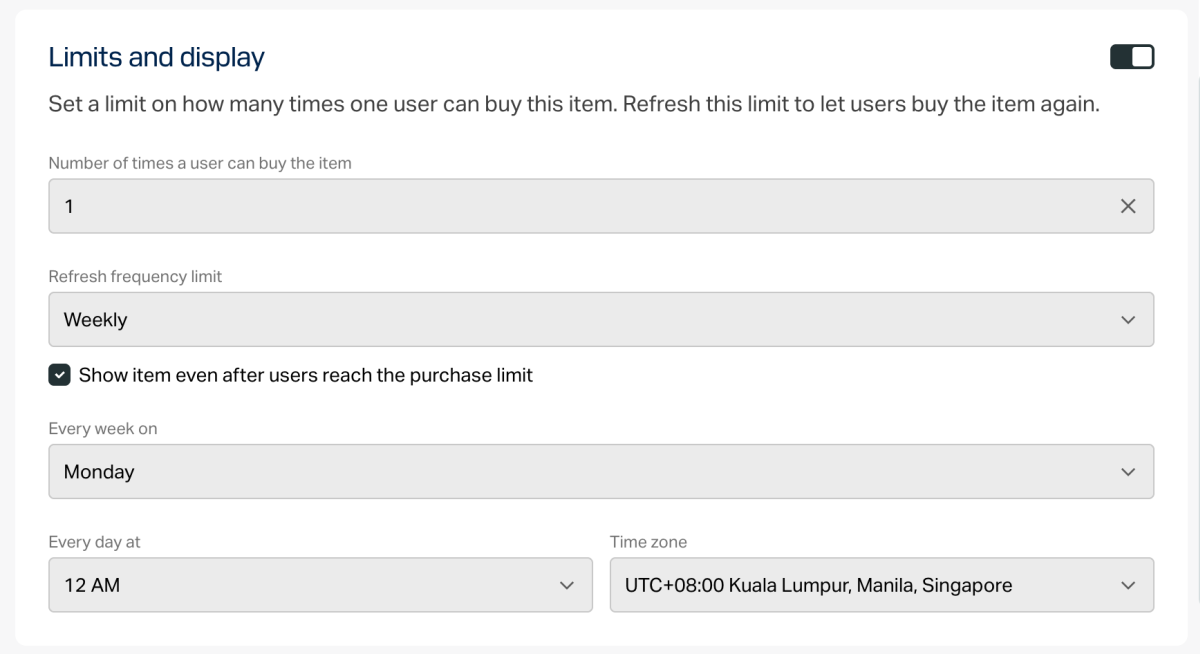
- To limit the number of items available for purchase:
- Turn on the toggle in the Limits section and specify the quantity.
- Configure the limit reset frequency. To do this, select a period from the drop-down list:
- Daily.
- Weekly.
- Monthly.
- Custom interval. The interval is calculated from the item’s display start date in the store.
- No regular refresh.
- Set up the reset schedule by specifying the parameters that correspond to the selected period.
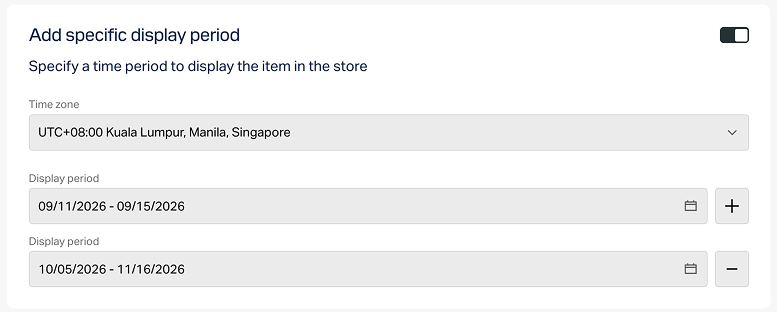
To configure a display time limit for the item (optional):
- Turn on the toggle in the Add specific display period section.
- Specify the time zone and the beginning and the end of the period.
To leave the end of the item’s display period unspecified, turn on the No end date toggle.
- Configure attributes using one of the following options (optional):
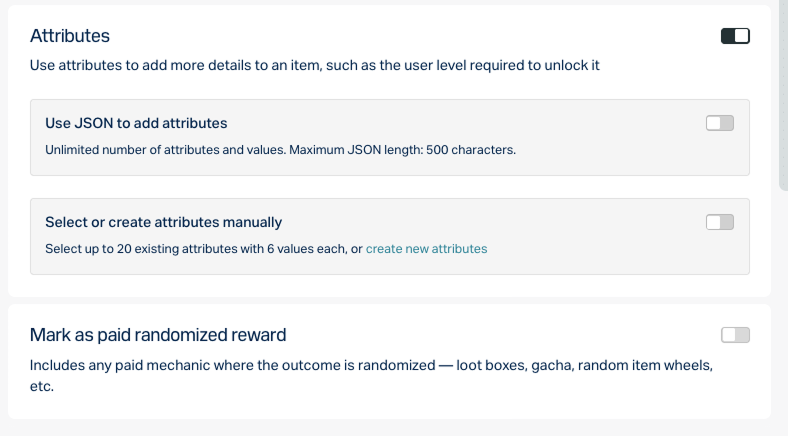
- If the paid item will be used in any mechanics with a random reward (e.g., loot boxes or gacha), enable the Mark as paid randomized reward toggle.
Click Create.
In the window that opens, select the item status and click Continue.
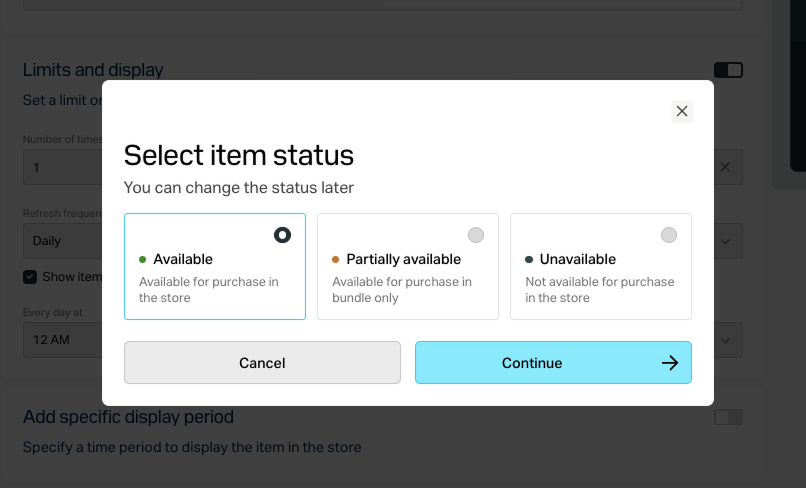
The created item will appear in the All items section.
Create virtual currency package
- Open your project in Publisher Account and go to the Items catalog > All items > Virtual currency packages section.
- Open the project in your account and go to the Items catalog > All items > Virtual currency packages section.
- Open the project in your account and go to the Items catalog > All items > Virtual currency packages section.
- Open the project in your account and go to the Items catalog > All items > Virtual currency packages section.
- Open your project in the account for mobile games and go to the Catalog section.
- Click Create manually and select Virtual currency from the drop-down list.
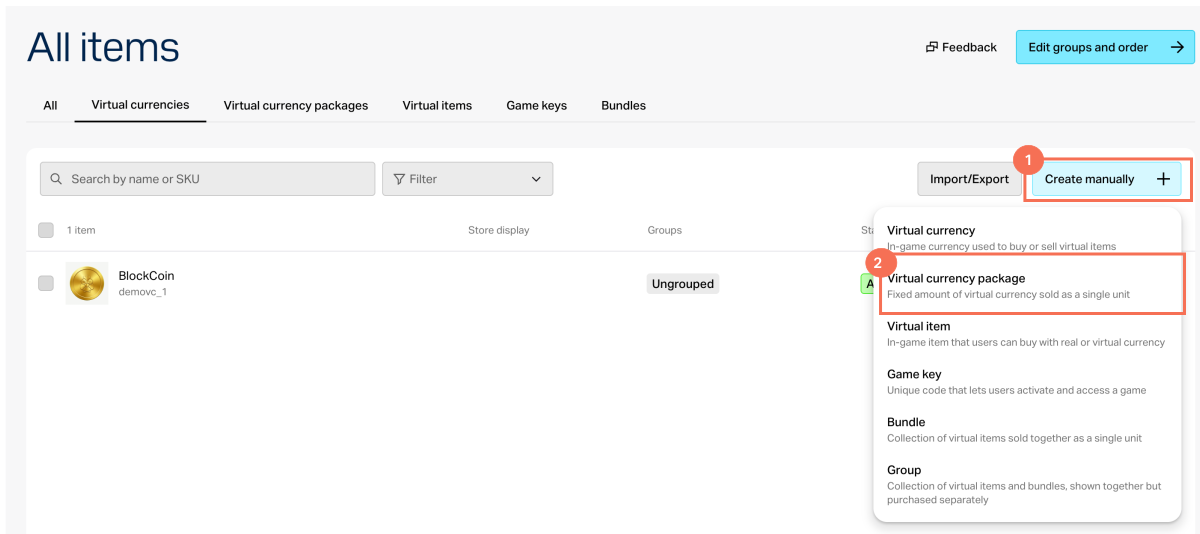
- In the General settings section, specify the following:
- SKU
- One or several groups the item should belong to (optional)
- Name
- Short description
- Extended description — to add it, turn on the corresponding toggle (optional)
- In the Media section, upload one or more images or videos (optional) — from your device or via a link. In the store created with the Xsolla site editor, all item cards display the file marked as Main, while the remaining files are available only in item cards with a media gallery. The file marked as Main is also returned in the responses of the catalog retrieval API calls.
Specify the virtual currency included in the package and its amount.
In the Price settings section, set prices or create a free item:
- To set a price, select Paid item, turn on the Pricing in real currency and/or Pricing in virtual currency toggle, and specify the price. If needed, configure regional prices.
- To create a free item, select Free item.
An item can have prices in several real and virtual currencies. In this case, you must specify a default currency for each type — one among the real currencies and one among the virtual currencies.
You can specify a price in virtual currency only if the virtual currency has already been created in the project.
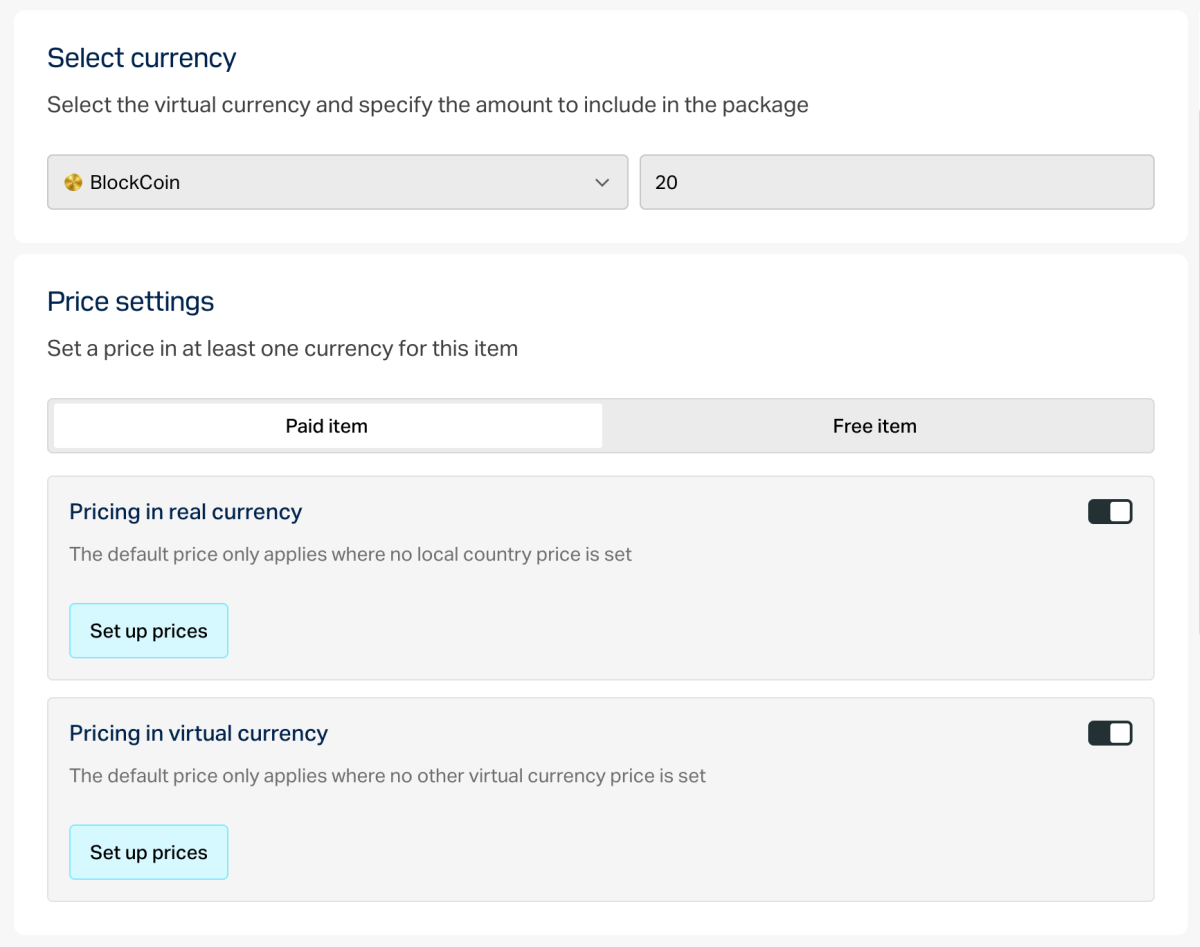
- To limit the number of items available for purchase:
- Turn on the toggle in the Limits section and specify the quantity.
- Configure the limit reset frequency. To do this, select a period from the drop-down list:
- Daily.
- Weekly.
- Monthly.
- Custom interval. The interval is calculated from the item’s display start date in the store.
- No regular refresh.
- Set up the reset schedule by specifying the parameters that correspond to the selected period.
To configure a display time limit for the item (optional):
- Turn on the toggle in the Add specific display period section.
- Specify the time zone and the beginning and the end of the period.
To leave the end of the item’s display period unspecified, turn on the No end date toggle.
- Configure attributes using one of the following options (optional):
- If the paid item will be used in any mechanics with a random reward (e.g., loot boxes or gacha), enable the Mark as paid randomized reward toggle.
Click Create.
In the window that opens, select the item status and click Continue.
The created item will appear in the All items section.
Create virtual items
Virtual items are the in-game content that you can sell for real and virtual currency.
See the Virtual items section to learn more about virtual items.
- Open your project in Publisher Account and go to the Items catalog > All items > Virtual items section.
- Open the project in your account and go to the Items catalog > All items > Virtual items section.
- Open the project in your account and go to the Items catalog > All items > Virtual items section.
- Open the project in your account and go to the Items catalog > All items > Virtual items section.
- Open your project in the account for mobile games and go to the Catalog section.
- Click Create manually and select Virtual item from the drop-down list.
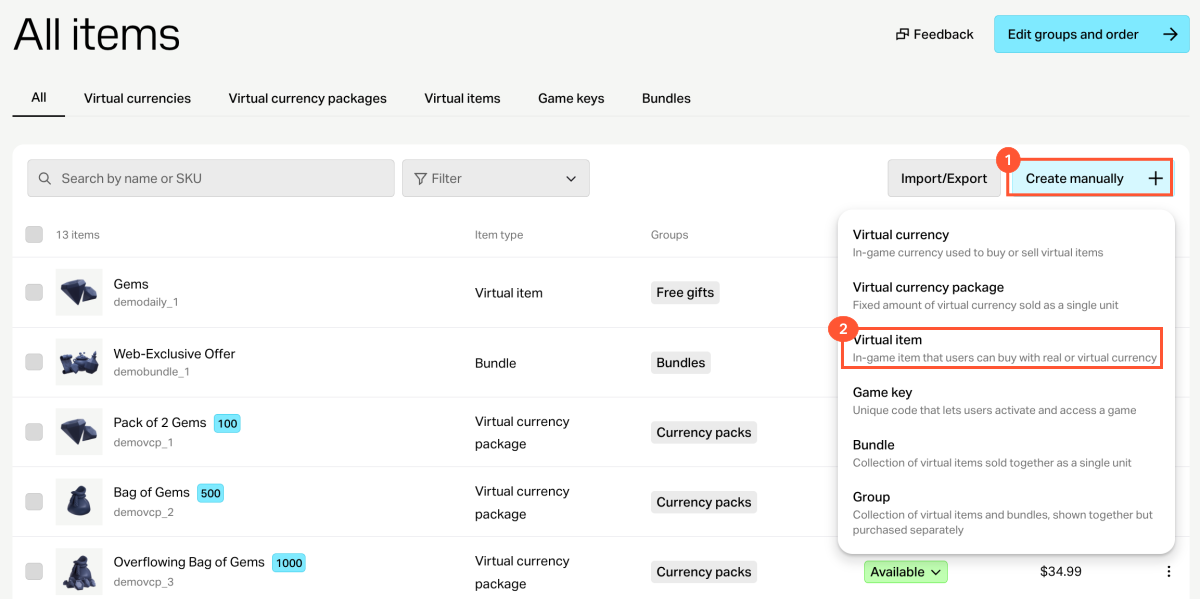
- In the General settings section, specify the following:
- SKU
- One or several groups the item should belong to (optional)
- Name
- Short description
- Extended description — to add it, turn on the corresponding toggle (optional)
- In the Media section, upload one or more images or videos (optional) — from your device or via a link. In the store created with the Xsolla site editor, all item cards display the file marked as Main, while the remaining files are available only in item cards with a media gallery. The file marked as Main is also returned in the responses of the catalog retrieval API calls.
- In the Price settings section, set prices or create a free item:
- To set a price, select Paid item, turn on the Pricing in real currency and/or Pricing in virtual currency toggle, and specify the price. If needed, configure regional prices.
- To create a free item, select Free item.
An item can have prices in several real and virtual currencies. In this case, you must specify a default currency for each type — one among the real currencies and one among the virtual currencies.
You can specify a price in virtual currency only if the virtual currency has already been created in the project.
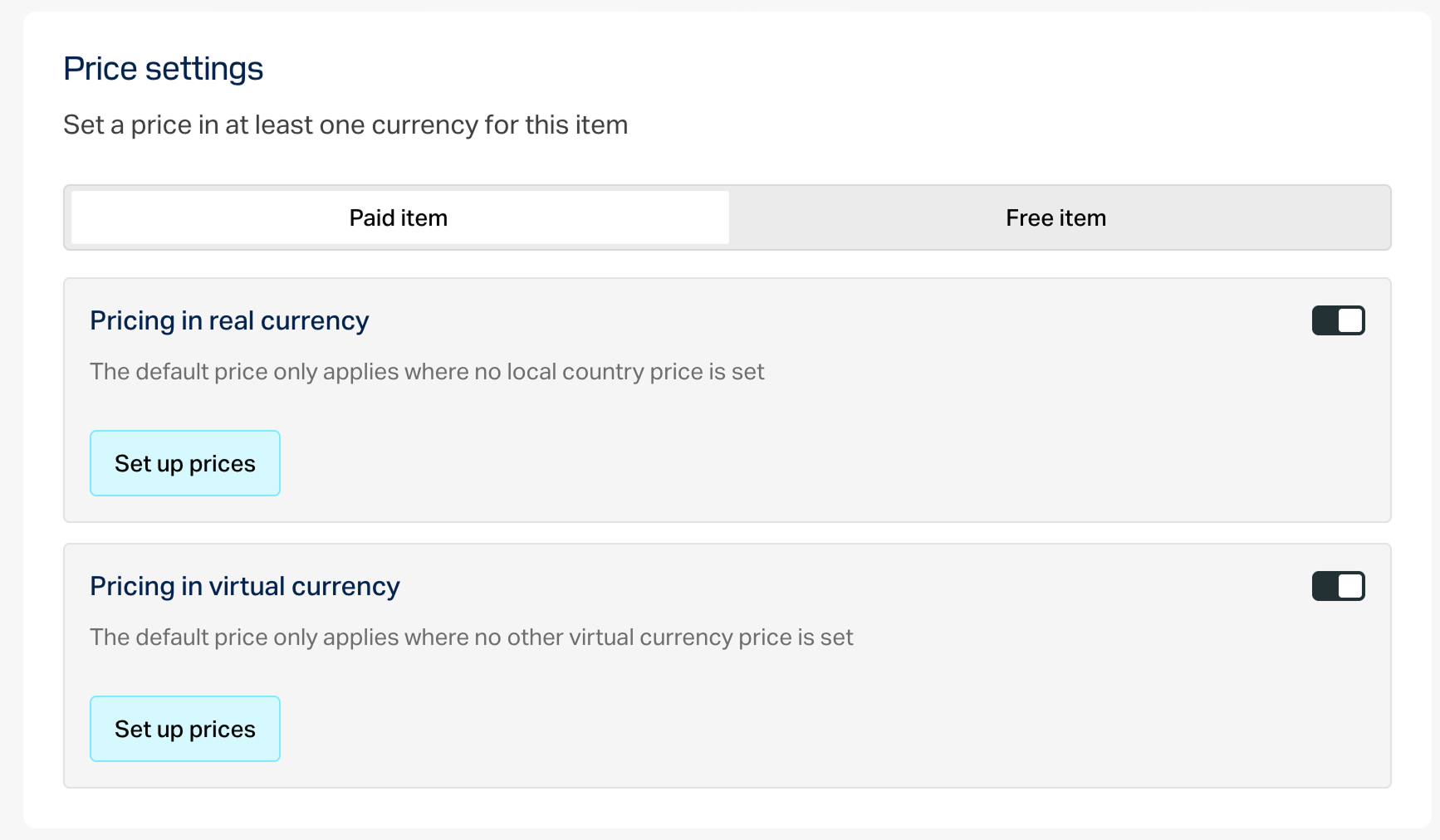
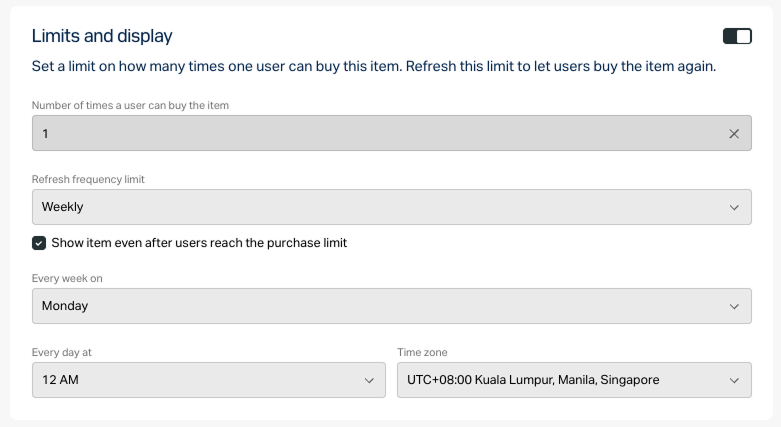
- To limit the number of items available for purchase:
- Turn on the toggle in the Limits section and specify the quantity.
- Configure the limit reset frequency. To do this, select a period from the drop-down list:
- Daily.
- Weekly.
- Monthly.
- Custom interval. The interval is calculated from the item’s display start date in the store.
- No regular refresh.
- Set up the reset schedule by specifying the parameters that correspond to the selected period.
To configure a display time limit for the item (optional):
- Turn on the toggle in the Add specific display period section.
- Specify the time zone and the beginning and the end of the period.
To leave the end of the item’s display period unspecified, turn on the No end date toggle.
- Configure attributes using one of the following options (optional):
- If the paid item will be used in any mechanics with a random reward (e.g., loot boxes or gacha), enable the Mark as paid randomized reward toggle.
Click Create.
In the window that opens, select the item status and click Continue.
The created item will appear in the All items section.
Create bundle
Bundle is a set of several items that are sold as a single unit. You can add items of different types to a bundle:
- Virtual currency.
- Package of virtual currency.
- Virtual items including time-limited items.
- Bundles.
See the Bundles section to learn more about bundles.
To create a bundle:
- Open your project in Publisher Account and go to the Items catalog > All items > Bundles section.
- Open the project in your account and go to the Items catalog > All items > Bundles section.
- Open the project in your account and go to the Items catalog > All items > Bundles section.
- Open the project in your account and go to the Items catalog > All items > Bundles section.
- Open your project in the account for mobile games and go to the Catalog section.
- Click Create manually and select Bundle from the drop-down list.
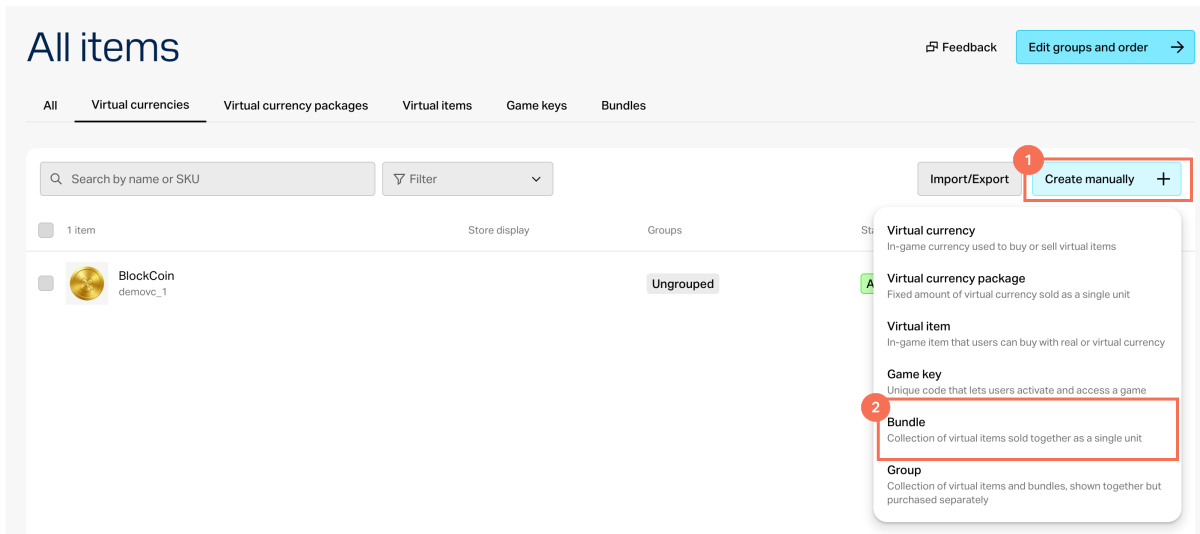
- In the General settings section, specify the following:
- SKU
- One or several groups the item should belong to (optional)
- Name
- Short description
- Extended description — to add it, turn on the corresponding toggle (optional)
- In the Media section, upload one or more images or videos (optional) — from your device or via a link. In the store created with the Xsolla site editor, all item cards display the file marked as Main, while the remaining files are available only in item cards with a media gallery. The file marked as Main is also returned in the responses of the catalog retrieval API calls.
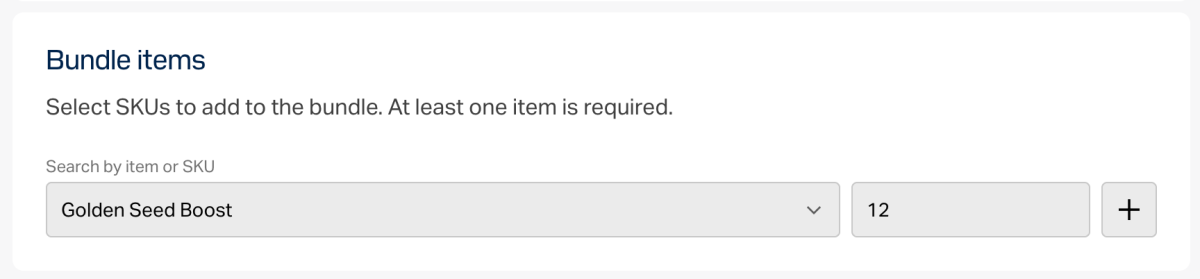
- In the Bundle items section, select SKUs to add to the bundle. At least one item is required.
- In the Price settings section, set prices or create a free item:
- To set a price, select Paid item, turn on the Pricing in real currency and/or Pricing in virtual currency toggle, and specify the price. If needed, configure regional prices.
- To create a free item, select Free item.
- To limit the number of items available for purchase:
- Turn on the toggle in the Limits section and specify the quantity.
- Configure the limit reset frequency. To do this, select a period from the drop-down list:
- Daily.
- Weekly.
- Monthly.
- Custom interval. The interval is calculated from the item’s display start date in the store.
- No regular refresh.
- Set up the reset schedule by specifying the parameters that correspond to the selected period.
To configure a display time limit for the item (optional):
- Turn on the toggle in the Add specific display period section.
- Specify the time zone and the beginning and the end of the period.
To leave the end of the item’s display period unspecified, turn on the No end date toggle.
- Configure attributes using one of the following options (optional):
- If the paid item will be used in any mechanics with a random reward (e.g., loot boxes or gacha), enable the Mark as paid randomized reward toggle.
Click Create.
In the window that opens, select the item status and click Continue.
The created item will appear in the All items section.
You can automate the creation and updating of the catalog with Catalog API calls. With automation, you can keep your catalog up to date without spending a lot of time on it. Catalog automate allows you to create and update items and promotions and import data from external systems.
Basic authorization is used for API calls to create and update items and promotions. Pass the Authorization:Basic <your_authorization_basic_key>, where <your_authorization_basic_key> is the merchant ID:API key pair encoded according to the Base64 standard. Go to Publisher Account to find these parameters:
Basic authorization is used for API calls to create and update items and promotions. Pass the Authorization:Basic <your_authorization_basic_key>, where <your_authorization_basic_key> is the merchant ID:API key pair encoded according to the Base64 standard. Go to your account to find these parameters:
Basic authorization is used for API calls to create and update items and promotions. Pass the Authorization:Basic <your_authorization_basic_key>, where <your_authorization_basic_key> is the merchant ID:API key pair encoded according to the Base64 standard. Go to your account to find these parameters:
Basic authorization is used for API calls to create and update items and promotions. Pass the Authorization:Basic <your_authorization_basic_key>, where <your_authorization_basic_key> is the merchant ID:API key pair encoded according to the Base64 standard. Go to your account to find these parameters:
Authorization:Basic <your_authorization_basic_key>, where <your_authorization_basic_key> is the merchant ID:API key pair encoded according to the Base64 standard. Go to your account for mobile games to find these parameters:- Merchant ID is shown:
- In the Company settings > Company section.
- In the URL in the browser address bar on any Publisher Account page. The URL has the following format:
https://publisher.xsolla.com/<merchant_id>/.
- API key is shown in Publisher Account only once when it is created and must be stored on your side. You can create a new key in the following section:
- Merchant ID is shown:
- In the Company settings section.
- In the URL in the browser address bar on any account page. The URL has the following format:
https://xsolla.com/for/free-to-play-pc/account/<merchant_id>/.
- API key is shown in the account only once when it is created and must be stored on your side. You can create a new key in the following section:
- Merchant ID is shown:
- In the Company settings section.
- In the URL in the browser address bar on any account page. The URL has the following format:
https://xsolla.com/for/premium-pc-games/account/<merchant_id>/.
- API key is shown in the account only once when it is created and must be stored on your side. You can create a new key in the following section:
- Merchant ID is shown:
- In the Company settings > General info section.
- In the URL in the browser address bar on any account page. The URL has the following format:
https://xsolla.com/for/web-games/account/<merchant_id>/.
- API key is shown in the account only once when it is created and must be stored on your side. You can create a new key in the following section:
- Merchant ID is shown:
- In the Company settings > Company section.
- In the URL in the browser address bar on any account page. The URL has the following format:
https://xsolla.com/for/mobile-games/account/<merchant_id>/.
- API key is shown in your account only once when it is created and must be stored on your side. You can create a new key in the following section:
To create items via API:
- Export the item data from your system.
- Transform the exported data into a format that matches the data format in the API call of the required item type.
- Create a script that calls the required API method for each item in the export:
If you want to use item groups, create them in advance in Publisher Account.
If you want to use item groups, create them in advance in your account.
If you want to use item groups, create them in advance in your account.
If you want to use item groups, create them in advance in your account.
- Open your project in Publisher Account and go to the Items catalog > All items section.
- Open your project in the account and go to the Item catalog > All items section.
- Open your project in the account and go to the Item catalog > All items section.
- Open your project in the account and go to the Item catalog > All items section.
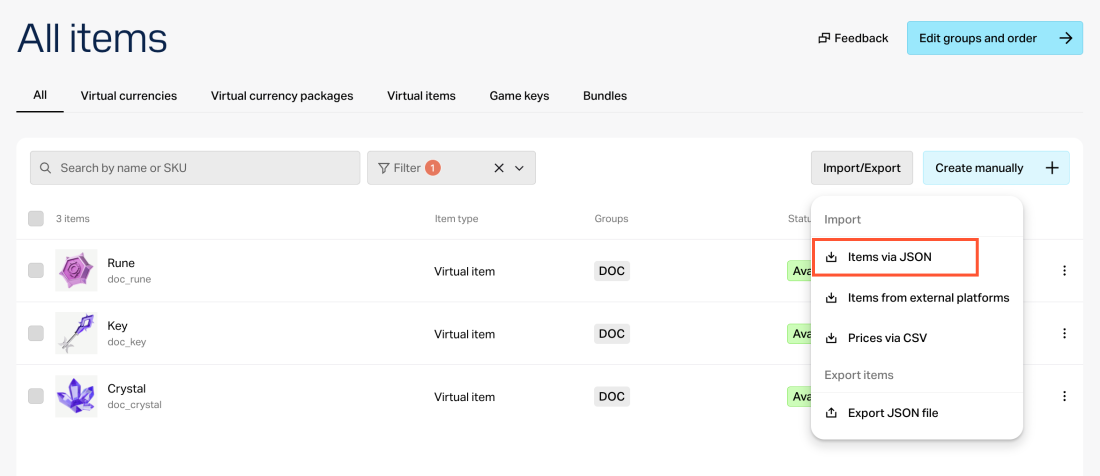
- Open your project in the account for mobile games and go to the Catalog section.
- Click Import/Export and select Items via JSON from the drop-down list.
- Choose the action:
- Add new items — only items with new SKUs will be added.
- Add new items and update existing ones — items with new SKUs will be added and data of existing items will be updated.
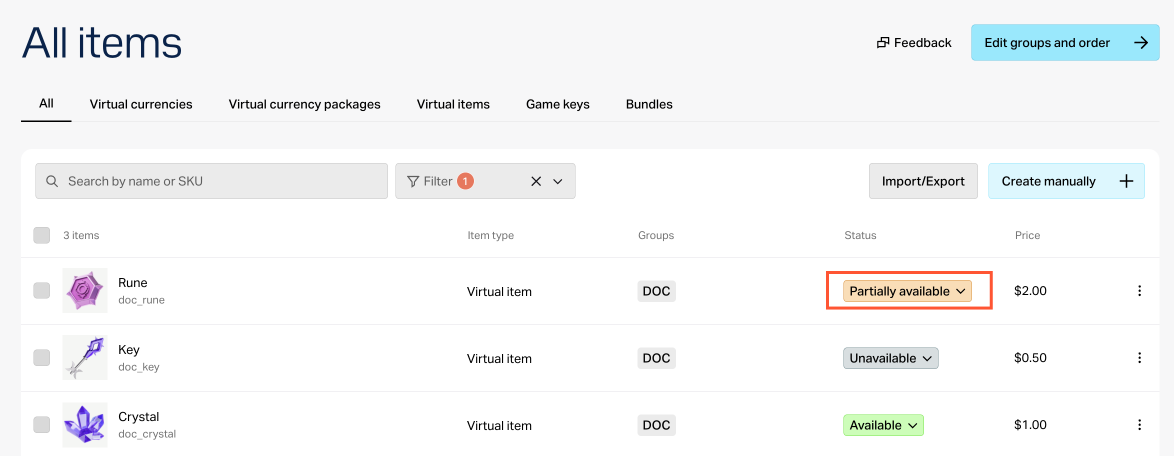
- Add new, update existing, disable missing items — items with SKUs from the file will be added/updated. If there is an item in the catalog, but there is no such SKU in the file, the status of the item in the Publisher Account will be changed to Partially available — item cannot be purchased separately but is available as part of a bundle or bonus.
- Click Continue.
- Choose the action:
- Add new items — only items with new SKUs will be added.
- Add new items and update existing ones — items with new SKUs will be added and data of existing items will be updated.
- Add new, update existing, disable missing items — items with SKUs from the file will be added/updated. If there is an item in the catalog, but there is no such SKU in the file, the status of the item in the account will be changed to Partially available — item cannot be purchased separately but is available as part of a bundle or bonus.
- Click Continue.
- Choose the action:
- Add new items — only items with new SKUs will be added.
- Add new items and update existing ones — items with new SKUs will be added and data of existing items will be updated.
- Add new, update existing, disable missing items — items with SKUs from the file will be added/updated. If there is an item in the catalog, but there is no such SKU in the file, the status of the item in account for mobile games will be changed to Partially available — item cannot be purchased separately but is available as part of a bundle or bonus.
- Click Continue.
- Fill in the file for import:
- Download the file template in the download window and fill it in according to the example below.
- Export the items and use the exported file as a template.
- Create your own JSON file and fill it out as per the example below.
An example of a full JSON file:
- json
1{
2 "virtual_currency": [
3 {
4 "item_id": 952122,
5 "sku": "11cog1005",
6 "name": {
7 "en": "Gearlings"
8 },
9 "type": "virtual_currency",
10 "description": null,
11 "image_url": "https:\/\/cdn3.xsolla.com\/img\/misc\/images\/c9fac97d44242e73c4b74e9b5c7b3ae0.webp",
12 "long_description": null,
13 "attributes": [],
14 "is_free": true,
15 "order": 1,
16 "groups": [],
17 "regional_prices": [],
18 "prices": [],
19 "media_list": [],
20 "vc_prices": [],
21 "is_enabled": true,
22 "is_show_in_store": true,
23 "regions": [],
24 "limits": {
25 "per_user": null,
26 "per_item": null,
27 "recurrent_schedule": null
28 },
29 "periods": [],
30 "inventory_options": {
31 "consumable": true,
32 "expiration_period": null
33 },
34 "is_hard": false
35 },
36 {
37 "item_id": 952108,
38 "sku": "11cog1003",
39 "name": {
40 "en": "Brass Bits"
41 },
42 "type": "virtual_currency",
43 "description": null,
44 "image_url": "https:\/\/cdn3.xsolla.com\/img\/misc\/images\/26232b5a9e550818f094f769b388a4a2.webp",
45 "long_description": null,
46 "attributes": [],
47 "is_free": true,
48 "order": 1,
49 "groups": [],
50 "regional_prices": [],
51 "prices": [],
52 "media_list": [],
53 "vc_prices": [],
54 "is_enabled": true,
55 "is_show_in_store": true,
56 "regions": [],
57 "limits": {
58 "per_user": null,
59 "per_item": null,
60 "recurrent_schedule": null
61 },
62 "periods": [],
63 "inventory_options": {
64 "consumable": true,
65 "expiration_period": null
66 },
67 "is_hard": false
68 },
69 {
70 "item_id": 952103,
71 "sku": "11cog1002",
72 "name": {
73 "en": "Steam Tokens"
74 },
75 "type": "virtual_currency",
76 "description": null,
77 "image_url": "https:\/\/cdn3.xsolla.com\/img\/misc\/images\/2985a68253dd10c0d1edbed1d11d1c00.webp",
78 "long_description": null,
79 "attributes": [],
80 "is_free": true,
81 "order": 1,
82 "groups": [],
83 "regional_prices": [],
84 "prices": [],
85 "media_list": [],
86 "vc_prices": [],
87 "is_enabled": true,
88 "is_show_in_store": true,
89 "regions": [],
90 "limits": {
91 "per_user": null,
92 "per_item": null,
93 "recurrent_schedule": null
94 },
95 "periods": [],
96 "inventory_options": {
97 "consumable": true,
98 "expiration_period": null
99 },
100 "is_hard": false
101 },
102 {
103 "item_id": 952092,
104 "sku": "11cog1001",
105 "name": {
106 "en": "Cogcoins"
107 },
108 "type": "virtual_currency",
109 "description": null,
110 "image_url": "https:\/\/cdn3.xsolla.com\/img\/misc\/images\/5af6212dba648b7a9192311a786baf5a.webp",
111 "long_description": null,
112 "attributes": [],
113 "is_free": true,
114 "order": 1,
115 "groups": [],
116 "regional_prices": [],
117 "prices": [],
118 "media_list": [],
119 "vc_prices": [],
120 "is_enabled": true,
121 "is_show_in_store": true,
122 "regions": [],
123 "limits": {
124 "per_user": null,
125 "per_item": null,
126 "recurrent_schedule": null
127 },
128 "periods": [],
129 "inventory_options": {
130 "consumable": true,
131 "expiration_period": null
132 },
133 "is_hard": false
134 },
135 {
136 "item_id": 952118,
137 "sku": "11cog1004",
138 "name": {
139 "en": "Clockwork Crowns"
140 },
141 "type": "virtual_currency",
142 "description": null,
143 "image_url": "https:\/\/cdn3.xsolla.com\/img\/misc\/images\/ca9b753f23a129f8caa52f85a3d9b287.png",
144 "long_description": null,
145 "attributes": [],
146 "is_free": true,
147 "order": 1,
148 "groups": [],
149 "regional_prices": [],
150 "prices": [],
151 "media_list": [],
152 "vc_prices": [],
153 "is_enabled": true,
154 "is_show_in_store": true,
155 "regions": [],
156 "limits": {
157 "per_user": null,
158 "per_item": null,
159 "recurrent_schedule": null
160 },
161 "periods": [],
162 "inventory_options": {
163 "consumable": true,
164 "expiration_period": null
165 },
166 "is_hard": false
167 }
168 ],
169 "virtual_items": [
170 {
171 "item_id": 952158,
172 "sku": "23svvs1007",
173 "name": {
174 "en": "Hypnotic Lantern \"Hypnomouse\""
175 },
176 "type": "virtual_good",
177 "description": {
178 "en": "A lantern with mesmerizing lenses that temporarily stuns enemies."
179 },
180 "image_url": "https:\/\/cdn3.xsolla.com\/img\/misc\/images\/eedc2397bcf5d52745bd07e9c18eb02c.webp",
181 "long_description": null,
182 "attributes": [],
183 "is_free": false,
184 "order": 1,
185 "groups": [
186 "214njksv001"
187 ],
188 "regional_prices": [],
189 "prices": [],
190 "media_list": [],
191 "vc_prices": [
192 {
193 "sku": "11cog1001",
194 "is_default": true,
195 "amount": 20
196 }
197 ],
198 "is_enabled": true,
199 "is_show_in_store": true,
200 "regions": [],
201 "limits": {
202 "per_user": null,
203 "per_item": null,
204 "recurrent_schedule": null
205 },
206 "periods": [],
207 "inventory_options": {
208 "consumable": true,
209 "expiration_period": null
210 }
211 },
212 {
213 "item_id": 952160,
214 "sku": "23svvs1005",
215 "name": {
216 "en": "Noise Generator \"Echo\""
217 },
218 "type": "virtual_good",
219 "description": {
220 "en": "A small device that emits a loud sound, distracting enemies."
221 },
222 "image_url": "https:\/\/cdn3.xsolla.com\/img\/misc\/images\/98a6f1856e530ef86a3ecf32abc4fac7.webp",
223 "long_description": null,
224 "attributes": [],
225 "is_free": false,
226 "order": 1,
227 "groups": [
228 "214njksv001"
229 ],
230 "regional_prices": [],
231 "prices": [],
232 "media_list": [],
233 "vc_prices": [
234 {
235 "sku": "11cog1001",
236 "is_default": true,
237 "amount": 15
238 }
239 ],
240 "is_enabled": true,
241 "is_show_in_store": true,
242 "regions": [],
243 "limits": {
244 "per_user": null,
245 "per_item": null,
246 "recurrent_schedule": null
247 },
248 "periods": [],
249 "inventory_options": {
250 "consumable": true,
251 "expiration_period": null
252 }
253 },
254 {
255 "item_id": 952161,
256 "sku": "23svvs1004",
257 "name": {
258 "en": "\"Infra-Gear\" Goggles"
259 },
260 "type": "virtual_good",
261 "description": {
262 "en": "Special steampunk glasses revealing invisible lasers and hidden mechanisms."
263 },
264 "image_url": "https:\/\/cdn3.xsolla.com\/img\/misc\/images\/d2039a7e0cb290b0dfe3e3baedbdaa88.webp",
265 "long_description": null,
266 "attributes": [],
267 "is_free": false,
268 "order": 1,
269 "groups": [
270 "214njksv001"
271 ],
272 "regional_prices": [],
273 "prices": [],
274 "media_list": [],
275 "vc_prices": [
276 {
277 "sku": "11cog1001",
278 "is_default": true,
279 "amount": 10
280 }
281 ],
282 "is_enabled": true,
283 "is_show_in_store": true,
284 "regions": [],
285 "limits": {
286 "per_user": null,
287 "per_item": null,
288 "recurrent_schedule": null
289 },
290 "periods": [],
291 "inventory_options": {
292 "consumable": true,
293 "expiration_period": null
294 }
295 },
296 {
297 "item_id": 952163,
298 "sku": "23svvs1002",
299 "name": {
300 "en": "Steam Hook \"Harpooner\""
301 },
302 "type": "virtual_good",
303 "description": {
304 "en": "A miniature steam-powered grappling hook that pulls the user toward distant platforms."
305 },
306 "image_url": "https:\/\/cdn3.xsolla.com\/img\/misc\/images\/2192f4936fbf048f4d3ae88e68f7d0b8.webp",
307 "long_description": null,
308 "attributes": [],
309 "is_free": false,
310 "order": 1,
311 "groups": [
312 "214njksv001"
313 ],
314 "regional_prices": [],
315 "prices": [],
316 "media_list": [],
317 "vc_prices": [
318 {
319 "sku": "11cog1001",
320 "is_default": true,
321 "amount": 5
322 }
323 ],
324 "is_enabled": true,
325 "is_show_in_store": true,
326 "regions": [],
327 "limits": {
328 "per_user": null,
329 "per_item": null,
330 "recurrent_schedule": null
331 },
332 "periods": [],
333 "inventory_options": {
334 "consumable": true,
335 "expiration_period": null
336 }
337 },
338 {
339 "item_id": 952157,
340 "sku": "23svvs1008",
341 "name": {
342 "en": "\"Shadow Leaf\" Cloak"
343 },
344 "type": "virtual_good",
345 "description": {
346 "en": "A lightweight metallic fabric that makes the mouse harder to spot in darkness."
347 },
348 "image_url": "https:\/\/cdn3.xsolla.com\/img\/misc\/images\/31936e094096d3250d69ccbdbbee139b.webp",
349 "long_description": null,
350 "attributes": [],
351 "is_free": false,
352 "order": 1,
353 "groups": [
354 "214njksv002"
355 ],
356 "regional_prices": [],
357 "prices": [],
358 "media_list": [],
359 "vc_prices": [
360 {
361 "sku": "11cog1002",
362 "is_default": true,
363 "amount": 25
364 }
365 ],
366 "is_enabled": true,
367 "is_show_in_store": true,
368 "regions": [],
369 "limits": {
370 "per_user": null,
371 "per_item": null,
372 "recurrent_schedule": null
373 },
374 "periods": [],
375 "inventory_options": {
376 "consumable": true,
377 "expiration_period": null
378 }
379 },
380 {
381 "item_id": 952156,
382 "sku": "23svvs1009",
383 "name": {
384 "en": "Gear Shield \"Brassguard\""
385 },
386 "type": "virtual_good",
387 "description": {
388 "en": "A rotating shield made of interlocked gears, deflecting attacks."
389 },
390 "image_url": "https:\/\/cdn3.xsolla.com\/img\/misc\/images\/527058d1b9cdb73613c9e8db978e216a.webp",
391 "long_description": null,
392 "attributes": [],
393 "is_free": false,
394 "order": 1,
395 "groups": [
396 "214njksv002"
397 ],
398 "regional_prices": [],
399 "prices": [],
400 "media_list": [],
401 "vc_prices": [
402 {
403 "sku": "11cog1002",
404 "is_default": true,
405 "amount": 25
406 }
407 ],
408 "is_enabled": true,
409 "is_show_in_store": true,
410 "regions": [],
411 "limits": {
412 "per_user": null,
413 "per_item": null,
414 "recurrent_schedule": null
415 },
416 "periods": [],
417 "inventory_options": {
418 "consumable": true,
419 "expiration_period": null
420 }
421 },
422 {
423 "item_id": 952152,
424 "sku": "23svvs1013",
425 "name": {
426 "en": "Steam Teleporter \"Jumper\""
427 },
428 "type": "virtual_good",
429 "description": {
430 "en": "A small device that allows short-range teleportation, bypassing obstacles."
431 },
432 "image_url": "https:\/\/cdn3.xsolla.com\/img\/misc\/images\/a329e818f53be7ff0ff45a71c9e8925e.webp",
433 "long_description": null,
434 "attributes": [],
435 "is_free": false,
436 "order": 1,
437 "groups": [
438 "214njksv003"
439 ],
440 "regional_prices": [],
441 "prices": [],
442 "media_list": [],
443 "vc_prices": [
444 {
445 "sku": "11cog1003",
446 "is_default": true,
447 "amount": 40
448 }
449 ],
450 "is_enabled": true,
451 "is_show_in_store": true,
452 "regions": [],
453 "limits": {
454 "per_user": null,
455 "per_item": null,
456 "recurrent_schedule": null
457 },
458 "periods": [],
459 "inventory_options": {
460 "consumable": true,
461 "expiration_period": null
462 }
463 },
464 {
465 "item_id": 952150,
466 "sku": "23svvs1015",
467 "name": {
468 "en": "Remote-Controlled Beetle \"Bug-Bot\""
469 },
470 "type": "virtual_good",
471 "description": {
472 "en": "A tiny mechanical insect capable of crawling into tight spaces and activating switches."
473 },
474 "image_url": "https:\/\/cdn3.xsolla.com\/img\/misc\/images\/c469d00554d49968886eee8ebf7211fa.webp",
475 "long_description": null,
476 "attributes": [],
477 "is_free": false,
478 "order": 1,
479 "groups": [
480 "214njksv003"
481 ],
482 "regional_prices": [],
483 "prices": [],
484 "media_list": [],
485 "vc_prices": [
486 {
487 "sku": "11cog1003",
488 "is_default": true,
489 "amount": 45
490 }
491 ],
492 "is_enabled": true,
493 "is_show_in_store": true,
494 "regions": [],
495 "limits": {
496 "per_user": null,
497 "per_item": null,
498 "recurrent_schedule": null
499 },
500 "periods": [],
501 "inventory_options": {
502 "consumable": true,
503 "expiration_period": null
504 }
505 },
506 {
507 "item_id": 952149,
508 "sku": "23svvs1016",
509 "name": {
510 "en": "Key of the Mechmaster"
511 },
512 "type": "virtual_good",
513 "description": {
514 "en": "A legendary artifact that grants control over the most intricate mechanisms."
515 },
516 "image_url": "https:\/\/cdn3.xsolla.com\/img\/misc\/images\/640e580b7be16210cf9262987bc51a1d.webp",
517 "long_description": null,
518 "attributes": [],
519 "is_free": false,
520 "order": 1,
521 "groups": [
522 "214njksv004"
523 ],
524 "regional_prices": [],
525 "prices": [],
526 "media_list": [],
527 "vc_prices": [
528 {
529 "sku": "11cog1004",
530 "is_default": true,
531 "amount": 45
532 }
533 ],
534 "is_enabled": true,
535 "is_show_in_store": true,
536 "regions": [],
537 "limits": {
538 "per_user": null,
539 "per_item": null,
540 "recurrent_schedule": null
541 },
542 "periods": [],
543 "inventory_options": {
544 "consumable": true,
545 "expiration_period": null
546 }
547 },
548 {
549 "item_id": 952148,
550 "sku": "23svvs1017",
551 "name": {
552 "en": "Heart of the Clockwork King"
553 },
554 "type": "virtual_good",
555 "description": {
556 "en": "A rare component capable of reactivating broken automatons."
557 },
558 "image_url": "https:\/\/cdn3.xsolla.com\/img\/misc\/images\/d279721a03809d530ad26bd87feae9d7.webp",
559 "long_description": null,
560 "attributes": [],
561 "is_free": false,
562 "order": 1,
563 "groups": [
564 "214njksv004"
565 ],
566 "regional_prices": [],
567 "prices": [],
568 "media_list": [],
569 "vc_prices": [
570 {
571 "sku": "11cog1004",
572 "is_default": true,
573 "amount": 50
574 }
575 ],
576 "is_enabled": true,
577 "is_show_in_store": true,
578 "regions": [],
579 "limits": {
580 "per_user": null,
581 "per_item": null,
582 "recurrent_schedule": null
583 },
584 "periods": [],
585 "inventory_options": {
586 "consumable": true,
587 "expiration_period": null
588 }
589 },
590 {
591 "item_id": 952147,
592 "sku": "23svvs1018",
593 "name": {
594 "en": "Anti-Gravity Generator"
595 },
596 "type": "virtual_good",
597 "description": {
598 "en": "A mysterious steampunk device that temporarily allows levitation."
599 },
600 "image_url": "https:\/\/cdn3.xsolla.com\/img\/misc\/images\/b81801ad7b7e870d8834e24eb388721c.webp",
601 "long_description": null,
602 "attributes": [],
603 "is_free": false,
604 "order": 1,
605 "groups": [
606 "214njksv004"
607 ],
608 "regional_prices": [],
609 "prices": [],
610 "media_list": [],
611 "vc_prices": [
612 {
613 "sku": "11cog1004",
614 "is_default": true,
615 "amount": 55
616 }
617 ],
618 "is_enabled": true,
619 "is_show_in_store": true,
620 "regions": [],
621 "limits": {
622 "per_user": null,
623 "per_item": null,
624 "recurrent_schedule": null
625 },
626 "periods": [],
627 "inventory_options": {
628 "consumable": true,
629 "expiration_period": null
630 }
631 },
632 {
633 "item_id": 952146,
634 "sku": "23svvs1019",
635 "name": {
636 "en": "Alchemical Reactor \"Philosopher\u2019s Steam\""
637 },
638 "type": "virtual_good",
639 "description": {
640 "en": "An artifact capable of temporarily transmuting mechanisms into gold."
641 },
642 "image_url": "https:\/\/cdn3.xsolla.com\/img\/misc\/images\/529c0d2107d2861f64bb94a94787020a.webp",
643 "long_description": null,
644 "attributes": [],
645 "is_free": false,
646 "order": 1,
647 "groups": [
648 "214njksv004"
649 ],
650 "regional_prices": [],
651 "prices": [],
652 "media_list": [],
653 "vc_prices": [
654 {
655 "sku": "11cog1004",
656 "is_default": true,
657 "amount": 60
658 }
659 ],
660 "is_enabled": true,
661 "is_show_in_store": true,
662 "regions": [],
663 "limits": {
664 "per_user": null,
665 "per_item": null,
666 "recurrent_schedule": null
667 },
668 "periods": [],
669 "inventory_options": {
670 "consumable": true,
671 "expiration_period": null
672 }
673 },
674 {
675 "item_id": 975277,
676 "sku": "demopaid_2",
677 "name": {
678 "en": "Power-Up Puzzle Booster"
679 },
680 "type": "virtual_good",
681 "description": {
682 "en": "Boost your puzzle-solving skills with the Power-Up Puzzle Booster! Gain extra moves and power-ups to conquer challenging levels."
683 },
684 "image_url": "https:\/\/cdn3.xsolla.com\/img\/misc\/images\/529456d9bfddb50b29fa85d1d6ec787d.png",
685 "long_description": null,
686 "attributes": [],
687 "is_free": false,
688 "order": 0,
689 "groups": [
690 "demo-vi-1"
691 ],
692 "regional_prices": [],
693 "prices": [
694 {
695 "amount": 4.99,
696 "currency": "USD",
697 "is_default": true,
698 "is_enabled": true
699 }
700 ],
701 "media_list": [],
702 "vc_prices": [],
703 "is_enabled": true,
704 "is_show_in_store": true,
705 "regions": [],
706 "limits": {
707 "per_user": null,
708 "per_item": null,
709 "recurrent_schedule": null
710 },
711 "periods": [],
712 "inventory_options": {
713 "consumable": true,
714 "expiration_period": null
715 }
716 },
717 {
718 "item_id": 975278,
719 "sku": "demopaid_3",
720 "name": {
721 "en": "Golden Key to Secrets"
722 },
723 "type": "virtual_good",
724 "description": {
725 "en": "Unlock hidden treasures in your home with the Golden Key! Discover exclusive design options and rare collectibles."
726 },
727 "image_url": "https:\/\/cdn3.xsolla.com\/img\/misc\/images\/762acdbcd55056d444221061e172fadc.png",
728 "long_description": null,
729 "attributes": [],
730 "is_free": false,
731 "order": 0,
732 "groups": [
733 "demo-vi-1"
734 ],
735 "regional_prices": [],
736 "prices": [
737 {
738 "amount": 9.99,
739 "currency": "USD",
740 "is_default": true,
741 "is_enabled": true
742 }
743 ],
744 "media_list": [],
745 "vc_prices": [],
746 "is_enabled": true,
747 "is_show_in_store": true,
748 "regions": [],
749 "limits": {
750 "per_user": null,
751 "per_item": null,
752 "recurrent_schedule": null
753 },
754 "periods": [],
755 "inventory_options": {
756 "consumable": true,
757 "expiration_period": null
758 }
759 },
760 {
761 "item_id": 975281,
762 "sku": "demofree_2",
763 "name": {
764 "en": "Weekly Puzzle Challenge"
765 },
766 "type": "virtual_good",
767 "description": {
768 "en": "Join the Weekly Puzzle Challenge! Complete the puzzle to earn special rewards and boost your gameplay."
769 },
770 "image_url": "https:\/\/cdn3.xsolla.com\/img\/misc\/images\/cc3c05847f3c2afa8a190e8ce79fca05.png",
771 "long_description": null,
772 "attributes": [],
773 "is_free": true,
774 "order": 0,
775 "groups": [
776 "demo-free-vi-1"
777 ],
778 "regional_prices": [],
779 "prices": [],
780 "media_list": [],
781 "vc_prices": [],
782 "is_enabled": true,
783 "is_show_in_store": true,
784 "regions": [],
785 "limits": {
786 "per_user": 1,
787 "per_item": null,
788 "recurrent_schedule": {
789 "per_user": {
790 "interval_type": "weekly",
791 "day_of_week": 1,
792 "day_of_month": null,
793 "time": "00:00:00+00:00"
794 }
795 }
796 },
797 "periods": [],
798 "inventory_options": {
799 "consumable": true,
800 "expiration_period": null
801 }
802 },
803 {
804 "item_id": 975280,
805 "sku": "demofree_1",
806 "name": {
807 "en": "Daily Design Boost"
808 },
809 "type": "virtual_good",
810 "description": {
811 "en": "Claim your Daily Design Boost! Receive a surprise item to help you in your home renovation journey."
812 },
813 "image_url": "https:\/\/cdn3.xsolla.com\/img\/misc\/images\/8598fec375d90826d8afdc2cb27cefbc.png",
814 "long_description": null,
815 "attributes": [],
816 "is_free": true,
817 "order": 0,
818 "groups": [
819 "demo-free-vi-1"
820 ],
821 "regional_prices": [],
822 "prices": [],
823 "media_list": [],
824 "vc_prices": [],
825 "is_enabled": true,
826 "is_show_in_store": true,
827 "regions": [],
828 "limits": {
829 "per_user": 1,
830 "per_item": null,
831 "recurrent_schedule": {
832 "per_user": {
833 "interval_type": "daily",
834 "day_of_week": null,
835 "day_of_month": null,
836 "time": "00:00:00+00:00"
837 }
838 }
839 },
840 "periods": [],
841 "inventory_options": {
842 "consumable": true,
843 "expiration_period": null
844 }
845 }
846 ],
847 "virtual_currency_packages": [
848 {
849 "item_id": 952185,
850 "sku": "11cog1011",
851 "type": "bundle",
852 "name": {
853 "en": "Small Cogcoin Pack"
854 },
855 "bundle_type": "virtual_currency_package",
856 "description": {
857 "en": "A handful of Cogcoins, enough to grab some basic tools or a minor upgrade. A perfect start for any daring mouse."
858 },
859 "image_url": "https:\/\/cdn3.xsolla.com\/img\/misc\/images\/832a9ee7fc64cc017ebc9c116abe9404.webp",
860 "vc_prices": [],
861 "regional_prices": [],
862 "prices": [
863 {
864 "amount": 5,
865 "currency": "USD",
866 "is_default": true,
867 "is_enabled": true
868 }
869 ],
870 "is_enabled": true,
871 "is_show_in_store": true,
872 "regions": [],
873 "limits": {
874 "per_user": null,
875 "per_item": null,
876 "recurrent_schedule": null
877 },
878 "periods": [],
879 "attributes": [],
880 "long_description": null,
881 "media_list": [],
882 "order": 1,
883 "is_free": false,
884 "groups": [],
885 "content": [
886 {
887 "sku": "11cog1001",
888 "quantity": 10
889 }
890 ]
891 },
892 {
893 "item_id": 952186,
894 "sku": "11cog1012",
895 "type": "bundle",
896 "name": {
897 "en": "Medium Cogcoin Pack"
898 },
899 "bundle_type": "virtual_currency_package",
900 "description": {
901 "en": "A solid stash of Cogcoins, ideal for purchasing advanced gadgets and small contraptions."
902 },
903 "image_url": "https:\/\/cdn3.xsolla.com\/img\/misc\/images\/2deef82e20f3f234817544fc5f603b84.webp",
904 "vc_prices": [],
905 "regional_prices": [],
906 "prices": [
907 {
908 "amount": 13,
909 "currency": "USD",
910 "is_default": true,
911 "is_enabled": true
912 }
913 ],
914 "is_enabled": true,
915 "is_show_in_store": true,
916 "regions": [],
917 "limits": {
918 "per_user": null,
919 "per_item": null,
920 "recurrent_schedule": null
921 },
922 "periods": [],
923 "attributes": [],
924 "long_description": null,
925 "media_list": [],
926 "order": 1,
927 "is_free": false,
928 "groups": [],
929 "content": [
930 {
931 "sku": "11cog1001",
932 "quantity": 50
933 }
934 ]
935 },
936 {
937 "item_id": 952187,
938 "sku": "11cog1013",
939 "type": "bundle",
940 "name": {
941 "en": "Large Cogcoin Pack"
942 },
943 "bundle_type": "virtual_currency_package",
944 "description": {
945 "en": "A well-stocked reserve of Cogcoins, enough to afford top-tier equipment and rare steampunk devices."
946 },
947 "image_url": "https:\/\/cdn3.xsolla.com\/img\/misc\/images\/9ce48d3243db8222f70ecbd3899abc72.webp",
948 "vc_prices": [],
949 "regional_prices": [],
950 "prices": [
951 {
952 "amount": 27,
953 "currency": "USD",
954 "is_default": true,
955 "is_enabled": true
956 }
957 ],
958 "is_enabled": true,
959 "is_show_in_store": true,
960 "regions": [],
961 "limits": {
962 "per_user": null,
963 "per_item": null,
964 "recurrent_schedule": null
965 },
966 "periods": [],
967 "attributes": [],
968 "long_description": null,
969 "media_list": [],
970 "order": 1,
971 "is_free": false,
972 "groups": [],
973 "content": [
974 {
975 "sku": "11cog1001",
976 "quantity": 100
977 }
978 ]
979 }
980 ],
981 "bundles": [
982 {
983 "item_id": 953085,
984 "sku": "bndl1404v01",
985 "type": "bundle",
986 "name": {
987 "en": "Tinkerer's Starter Kit"
988 },
989 "bundle_type": "standard",
990 "description": {
991 "en": "A perfect bundle for new players looking to get started with essential tools and currency. Whether you're disarming traps or crafting clever contraptions, this bundle will set you on the right track."
992 },
993 "image_url": "https:\/\/cdn3.xsolla.com\/img\/misc\/images\/af1b43f928b0854951b0bb0971b619ac.webp",
994 "regional_prices": [],
995 "prices": [
996 {
997 "amount": 25,
998 "currency": "USD",
999 "is_default": true,
1000 "is_enabled": true
1001 }
1002 ],
1003 "virtual_prices": [],
1004 "is_enabled": true,
1005 "is_show_in_store": true,
1006 "regions": [],
1007 "limits": {
1008 "per_user": null,
1009 "per_item": null,
1010 "recurrent_schedule": null
1011 },
1012 "periods": [],
1013 "attributes": [],
1014 "long_description": null,
1015 "media_list": [],
1016 "order": 1,
1017 "is_free": false,
1018 "groups": [],
1019 "content": [
1020 {
1021 "sku": "23svvs1012",
1022 "quantity": 1
1023 },
1024 {
1025 "sku": "23svvs1001",
1026 "quantity": 1
1027 },
1028 {
1029 "sku": "11cog1051",
1030 "quantity": 1
1031 },
1032 {
1033 "sku": "11cog1031",
1034 "quantity": 1
1035 }
1036 ]
1037 },
1038 {
1039 "item_id": 953086,
1040 "sku": "bndl1404v02",
1041 "type": "bundle",
1042 "name": {
1043 "en": "Steam-Powered Explorer Pack"
1044 },
1045 "bundle_type": "standard",
1046 "description": {
1047 "en": "Perfect for adventurers seeking speed, stealth, and some extra Steam Tokens to power their way through obstacles."
1048 },
1049 "image_url": "https:\/\/cdn3.xsolla.com\/img\/misc\/images\/68cdd1197607a225e6891aaffebcc2a1.webp",
1050 "regional_prices": [],
1051 "prices": [
1052 {
1053 "amount": 27,
1054 "currency": "USD",
1055 "is_default": true,
1056 "is_enabled": true
1057 }
1058 ],
1059 "virtual_prices": [],
1060 "is_enabled": true,
1061 "is_show_in_store": true,
1062 "regions": [],
1063 "limits": {
1064 "per_user": null,
1065 "per_item": null,
1066 "recurrent_schedule": null
1067 },
1068 "periods": [],
1069 "attributes": [],
1070 "long_description": null,
1071 "media_list": [],
1072 "order": 2,
1073 "is_free": false,
1074 "groups": [],
1075 "content": [
1076 {
1077 "sku": "23svvs1006",
1078 "quantity": 1
1079 },
1080 {
1081 "sku": "23svvs1008",
1082 "quantity": 1
1083 },
1084 {
1085 "sku": "11cog1021",
1086 "quantity": 1
1087 },
1088 {
1089 "sku": "11cog1032",
1090 "quantity": 1
1091 }
1092 ]
1093 },
1094 {
1095 "item_id": 953087,
1096 "sku": "bndl1404v03",
1097 "type": "bundle",
1098 "name": {
1099 "en": "Clockwork Warrior\u2019s Arsenal"
1100 },
1101 "bundle_type": "standard",
1102 "description": {
1103 "en": "Equipped with powerful defenses and mechanical mastery, this bundle is ideal for mice who prefer to fight their way through dangers."
1104 },
1105 "image_url": "https:\/\/cdn3.xsolla.com\/img\/misc\/images\/ead1ac351c5a4351e6e7a2bdd832f693.webp",
1106 "regional_prices": [],
1107 "prices": [
1108 {
1109 "amount": 31,
1110 "currency": "USD",
1111 "is_default": true,
1112 "is_enabled": true
1113 }
1114 ],
1115 "virtual_prices": [],
1116 "is_enabled": true,
1117 "is_show_in_store": true,
1118 "regions": [],
1119 "limits": {
1120 "per_user": null,
1121 "per_item": null,
1122 "recurrent_schedule": null
1123 },
1124 "periods": [],
1125 "attributes": [],
1126 "long_description": null,
1127 "media_list": [],
1128 "order": 3,
1129 "is_free": false,
1130 "groups": [],
1131 "content": [
1132 {
1133 "sku": "23svvs1009",
1134 "quantity": 1
1135 },
1136 {
1137 "sku": "23svvs1010",
1138 "quantity": 1
1139 },
1140 {
1141 "sku": "11cog1041",
1142 "quantity": 1
1143 },
1144 {
1145 "sku": "11cog1012",
1146 "quantity": 1
1147 }
1148 ]
1149 },
1150 {
1151 "item_id": 953089,
1152 "sku": "bndl1404v04",
1153 "type": "bundle",
1154 "name": {
1155 "en": "Master Engineer\u2019s Blueprint Bundle"
1156 },
1157 "bundle_type": "standard",
1158 "description": {
1159 "en": "A bundle made for master engineers looking to shape the world around them using the most advanced technology and resources."
1160 },
1161 "image_url": "https:\/\/cdn3.xsolla.com\/img\/misc\/images\/e2e2036079229214274d2e3e488c7863.webp",
1162 "regional_prices": [],
1163 "prices": [
1164 {
1165 "amount": 35,
1166 "currency": "USD",
1167 "is_default": true,
1168 "is_enabled": true
1169 }
1170 ],
1171 "virtual_prices": [],
1172 "is_enabled": true,
1173 "is_show_in_store": true,
1174 "regions": [],
1175 "limits": {
1176 "per_user": null,
1177 "per_item": null,
1178 "recurrent_schedule": null
1179 },
1180 "periods": [],
1181 "attributes": [],
1182 "long_description": null,
1183 "media_list": [],
1184 "order": 4,
1185 "is_free": false,
1186 "groups": [],
1187 "content": [
1188 {
1189 "sku": "23svvs1015",
1190 "quantity": 1
1191 },
1192 {
1193 "sku": "23svvs1013",
1194 "quantity": 1
1195 },
1196 {
1197 "sku": "11cog1053",
1198 "quantity": 1
1199 },
1200 {
1201 "sku": "11cog1043",
1202 "quantity": 1
1203 }
1204 ]
1205 },
1206 {
1207 "item_id": 953092,
1208 "sku": "bndl1404v05",
1209 "type": "bundle",
1210 "name": {
1211 "en": "Relics of the Clockwork King"
1212 },
1213 "bundle_type": "standard",
1214 "description": {
1215 "en": "A treasure trove of rare artifacts and powerful resources, reserved for the most daring explorers of the mechanical realm."
1216 },
1217 "image_url": "https:\/\/cdn3.xsolla.com\/img\/misc\/images\/60c8af7c07a62e30d9e82778f5a12283.webp",
1218 "regional_prices": [],
1219 "prices": [
1220 {
1221 "amount": 39,
1222 "currency": "USD",
1223 "is_default": true,
1224 "is_enabled": true
1225 }
1226 ],
1227 "virtual_prices": [],
1228 "is_enabled": true,
1229 "is_show_in_store": true,
1230 "regions": [],
1231 "limits": {
1232 "per_user": null,
1233 "per_item": null,
1234 "recurrent_schedule": null
1235 },
1236 "periods": [],
1237 "attributes": [],
1238 "long_description": null,
1239 "media_list": [],
1240 "order": 5,
1241 "is_free": false,
1242 "groups": [],
1243 "content": [
1244 {
1245 "sku": "23svvs1016",
1246 "quantity": 1
1247 },
1248 {
1249 "sku": "23svvs1019",
1250 "quantity": 1
1251 },
1252 {
1253 "sku": "11cog1033",
1254 "quantity": 1
1255 },
1256 {
1257 "sku": "11cog1023",
1258 "quantity": 1
1259 }
1260 ]
1261 }
1262 ]
1263}
- Upload the full file to the corresponding field in the import window.
- If there are errors during import, a list of these errors and recommendations for correction will be displayed in the import window. Make the necessary changes to the file and upload it again.
After successful upload, the items with the specified SKUs will be created, updated, or disabled.
You can also import items using the Import items via JSON file API call.
You can also import a catalog from external platforms, e.g., Google Play or App Store.
You can also import a catalog from external platforms, e.g., Google Play or App Store.
Add block or purchase button
Add a block or purchase button to the site depending on the item types and the way you want to sell them.
Depending on the selected template, the Store, Game editions, Lead block, and Card grid blocks may be added to the site automatically.
To add a block manually:
- In your project in Publisher Account, go to Storefronts > Websites.
- In your project in the account, go to the Storefronts > Websites section.
- In your project in the account, go to the Storefronts > Websites section.
- In your project in the account, go to the Storefronts > Websites section.
- In your project in the account for mobile games, go to the Web Shop section.
- Click the pane of your site.
- If your site has multiple pages, select the required page:
- Click the current page name at the top of the site builder.
- Select a page from the dropdown.
- Click Add block in the site template.
- Select the required block from the list.
- In the left menu, select the item type and item group from the dropdown lists.
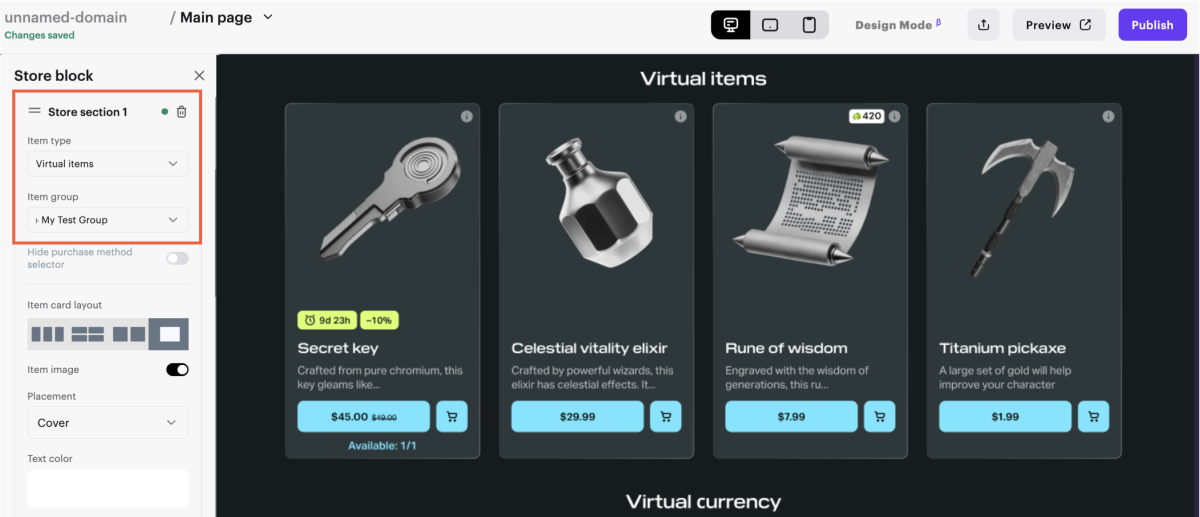
- To sell items in different parts of the site, add additional sales blocks.
A tool for quickly selling a specific item directly from a block — without adding a separate catalog. The purchase button is available in the following blocks: Card grid, Header, Call-to-Action, Game editions, and Promotional slider. In the Game Page template, the button is also available in the Lead block.
Using the purchase button, you can only sell bundles and game keys.
To customize the button:
- Go to one of the specified blocks.
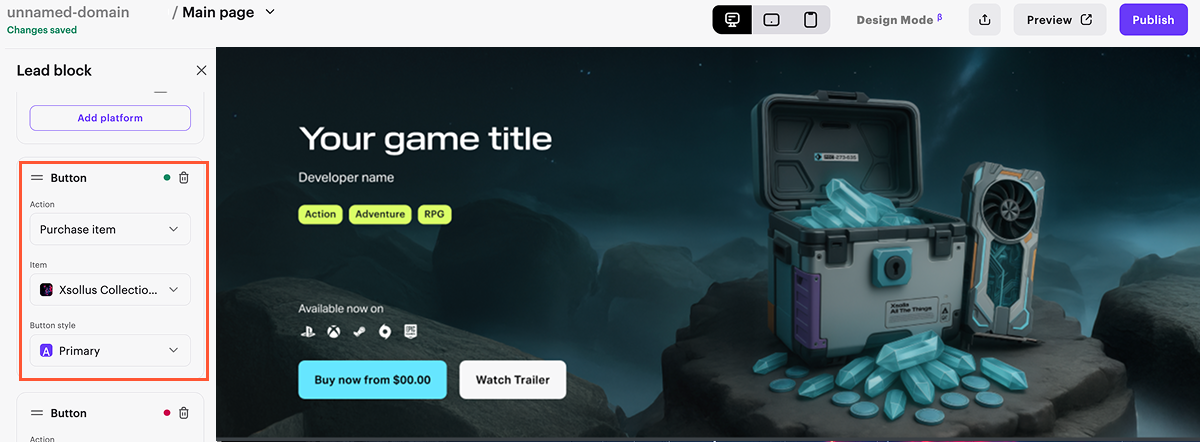
- In the left panel of the site builder, go to the button.
- In the drop-down list for Action, select Purchase Item.
- In the drop-down list for Item, choose the item.
- In the Button style dropdown, select one of the preset styles or create a custom one by clicking Create and configuring the parameters: style name, font color, background, and border.
Useful links
Last updated: October 7, 2026Found a typo or other text error? Select the text and press Ctrl+Enter.
