Integration with Tenjin

词汇表

Tenjin

A platform for mobile attribution and marketing analytics. It allows application developers and marketers to track, measure, and optimize marketing campaigns across various channels and devices.

Refer to the Tenjin documentation for detailed information about the platform.

Application ID
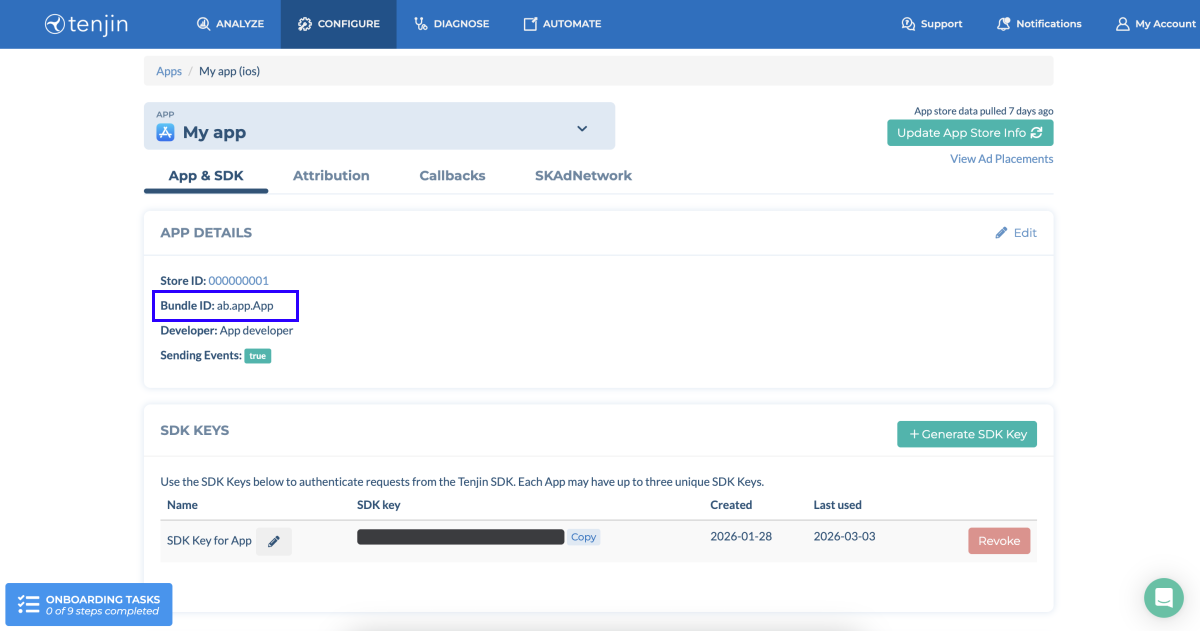
Mobile application ID that is automatically generated when adding an application to Tenjin. It corresponds to the Bundle ID. To find its value:
  1. In your account in Tenjin, go to the Configure > All apps section.
  2. Open the page for a necessary application.
  3. In the Add details section, copy the Bundle ID.
SDK key

Token that is used to authorize server-to-server (S2S) calls for sending event data to Tenjin. It’s generated on the Tenjin side. To find its value:

  1. In your account in Tenjin, go to the Configure > All apps section.
  2. Open the page for a necessary application.
  3. In the SDK keys section, copy the value in the row of a necessary key.

注:
If your application is published on both iOS and Android platforms, you need to get an account level key. To do so, contact your Tenjin manager.
Account level key

Token that is used to authorize server-to-server (S2S) calls when your application is published on both iOS and Android platforms. It is generated manually by Tenjin. To get it, contact your Tenjin manager.

Keep in mind that bundle IDs are unique for each platform.

Tenjin ID
User ID generated by Tenjin (analytics_installation_id).
Lifetime value (LTV)
Average revenue that a user generates during the time they use your application. Refer to the Tenjin documentation for detailed information about the LTV.
Return on advertising spend (ROAS)
Metric that measures the effectiveness of an advertising campaign by calculating the revenue earned per unit of advertising spend. Refer to the Tenjin documentation for detailed information about the ROAS.
Return on investment (ROI)
Metric that measures the return on investment by calculating the percentage of profit earned relative to the total cost. Refer to the Tenjin documentation for detailed information about the ROI.
In-app event
User action within the application. User actions in Web Shop are also considered in-app events in the case of S2S integration and sent to Tenjin from the Xsolla back end.
User acquisition
The process of attracting new users to a site, service, platform, or application through marketing activity.
Customer user ID (CUID)

User ID generated and set by the application owner at the time of user registration. The СUID should be the same for Web Shop and Tenjin. This parameter enables user matching and attribution.

注意
如果网页商城和您的移动应用程序中的CUID不匹配,请联系您的客户成功经理或发送邮件至csm@xsolla.com以实现网页商城中的用户验证Webhook或通过深度链接进行身份认证
Callback
Process of receiving data on in-app events. Refer to the Tenjin documentation for detailed information.

Integration scenario

Tenjin and Xsolla support the mobile application S2S integration that allows completion of full LTV, ROAS, and ROI measurement for the purchases within the application and on Web Shop. Xsolla sends information about Web Shop purchases to Tenjin as mobile in-app events, which Tenjin then attributes to the number of mobile application installations and user acquisition campaigns.

You can configure mobile application integration to get advanced event analytics if you:

  • have a mobile application on the Android/iOS platform
  • use Tenjin
  • use Web Shop solution to sell in-game items

The following event is available via the Xsolla and Tenjin S2S integration:

事件描述
xsolla-billing-payment商品购买。事件参数包含购买信息。

运行机制

The integration includes a bidirectional data flow between Xsolla and Tenjin. Below is the system interaction scenario when a user makes a purchase.

  1. The user signs up or logs in to the mobile application.
  2. Your application sends an in-app event that includes the CUID to Tenjin.
  3. Tenjin sends a callback to Xsolla, which includes the application ID, Tenjin ID, CUID, and other related data parameters.
  4. The user logs in to Web Shop using the CUID.
  5. The user makes a purchase in Web Shop.
  6. The purchase event is sent to the Xsolla server and matched with the data received from Tenjin.
  7. Xsolla’s server sends an S2S in-app event to Tenjin, which contains the Tenjin ID, application ID, and other parameters received from Tenjin.

Tenjin attributes a new event, purchase, and revenue back to the media source.

How to set up in Publisher Account

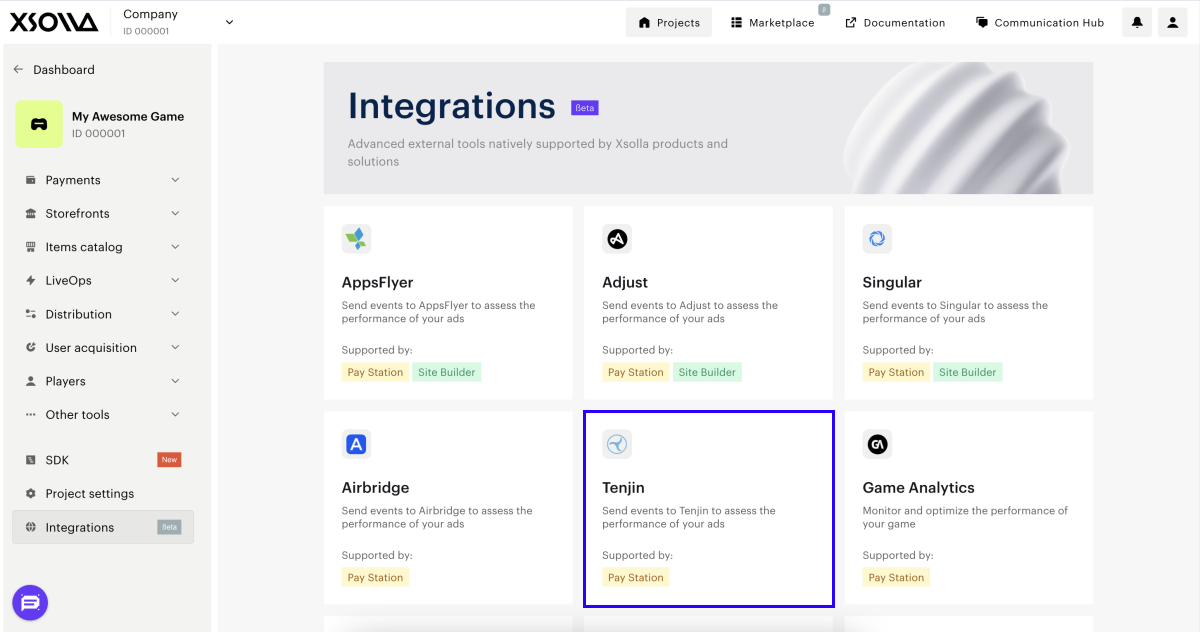
  1. Open your project in the Publisher Account and go to the Integrations section.
  2. Click the Tenjin pane.
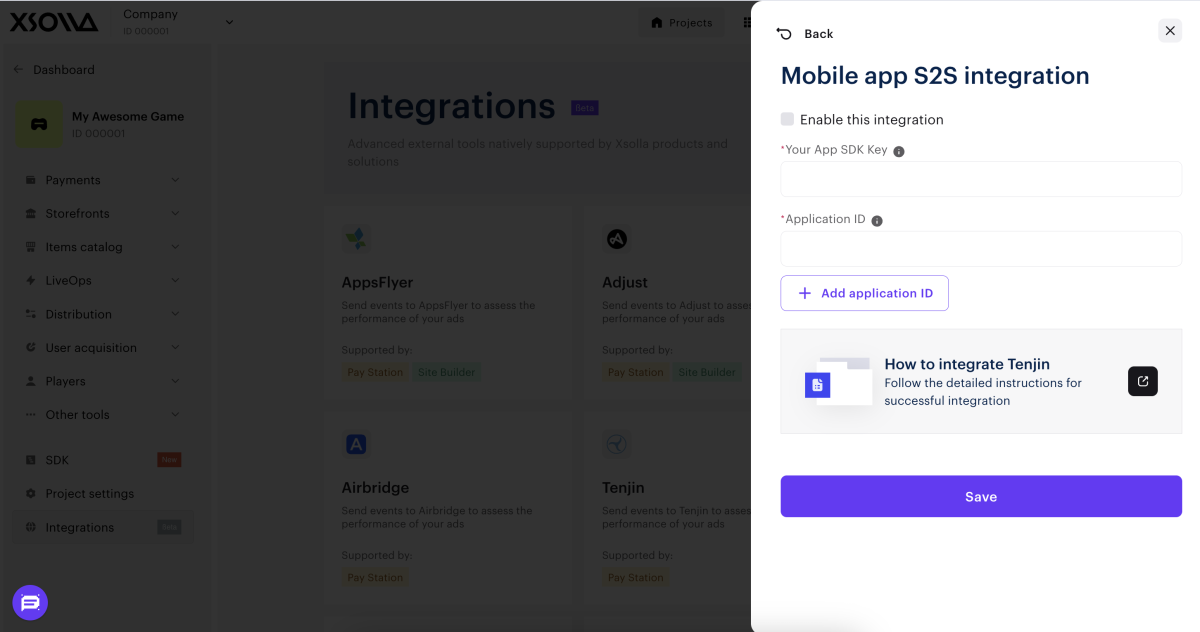
  1. In the Mobile app S2S integration pane, click Configure.
  2. Check the Enable this integration box.
  3. Enter the following data:
  4. Click Save.
  5. Enable the integration in Tenjin.

保存设置后,S2S集成面板上将显示一个绿色指示器。

To make changes to the active integration:

  1. Click the Tenjin pane.
  2. In the window that opens, make the necessary changes.
  3. Click Save.

How to set up in Tenjin

In Tenjin, you need to:

  1. Configure passing CUID to Tenjin.
  2. Add Xsolla as an ad channel.
  3. Configure a callback.

Pass CUID

Configure the CUID transfer from your mobile application to Tenjin by calling the setCustomerUserId method:

Copy
Full screen
Small screen

java

  • java
  • swift
  • C#
1TenjinSDK instance = TenjinSDK.getInstance(this, "<TENJIN_SDK_KEY>");
2instance.setCustomerUserId(cuid);   // CUID generated by your backend
3instance.connect();
1TenjinSDK.initialize("<TENJIN_SDK_KEY>")
2TenjinSDK.setCustomerUserId(userId: cuid);  // CUID used for Web Shop
3TenjinSDK.connect();
1BaseTenjin instance = Tenjin.getInstance("<TENJIN_SDK_KEY>");
2instance.SetCustomerUserId(cuid);   // CUID used for Web Shop
3instance.Connect();

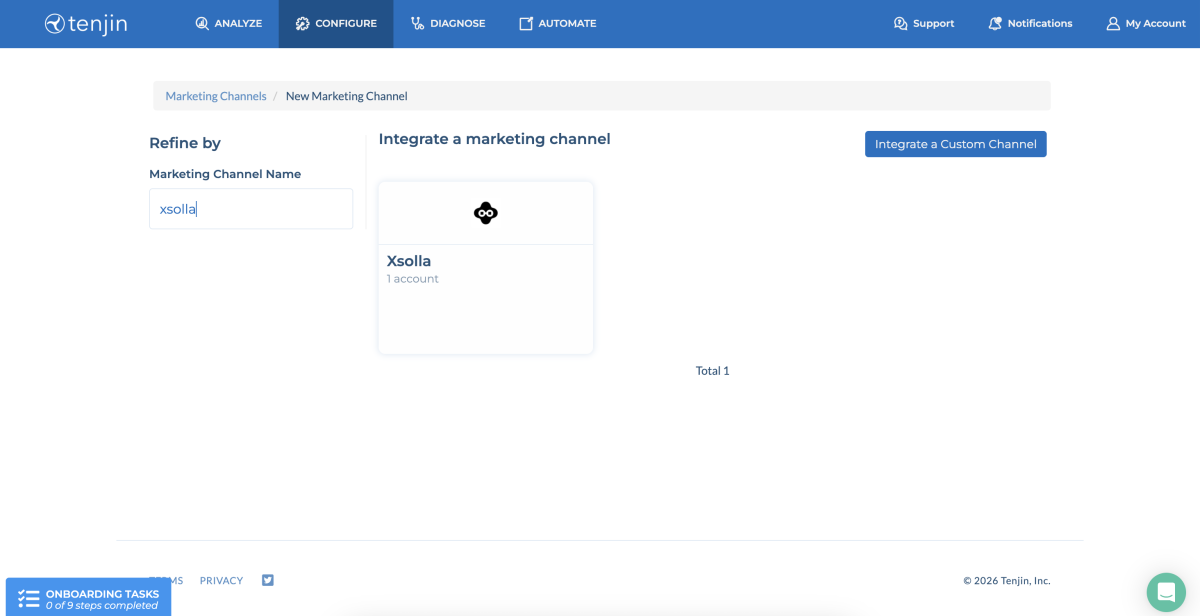
Add Xsolla as add channel

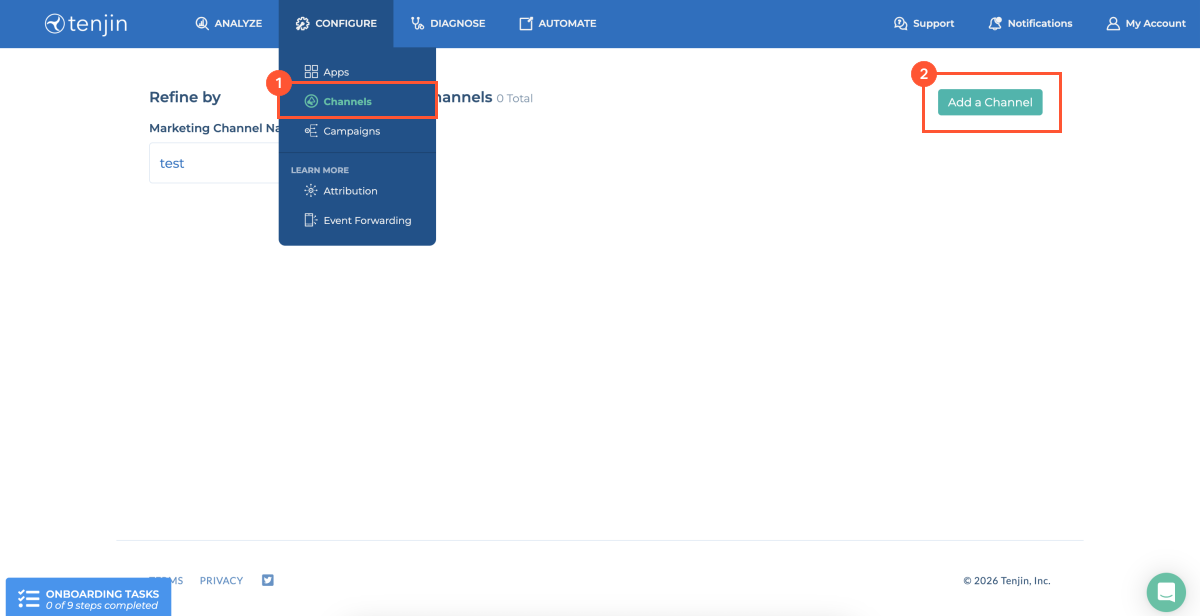
  1. Log in to your Tenjin account.
  2. Go to the Configure > Channels section.
  3. Click Add a channel.
  1. In the search bar, enter and select Xsolla.
  2. Click the Xsolla pane.
  1. Click Add ad account.

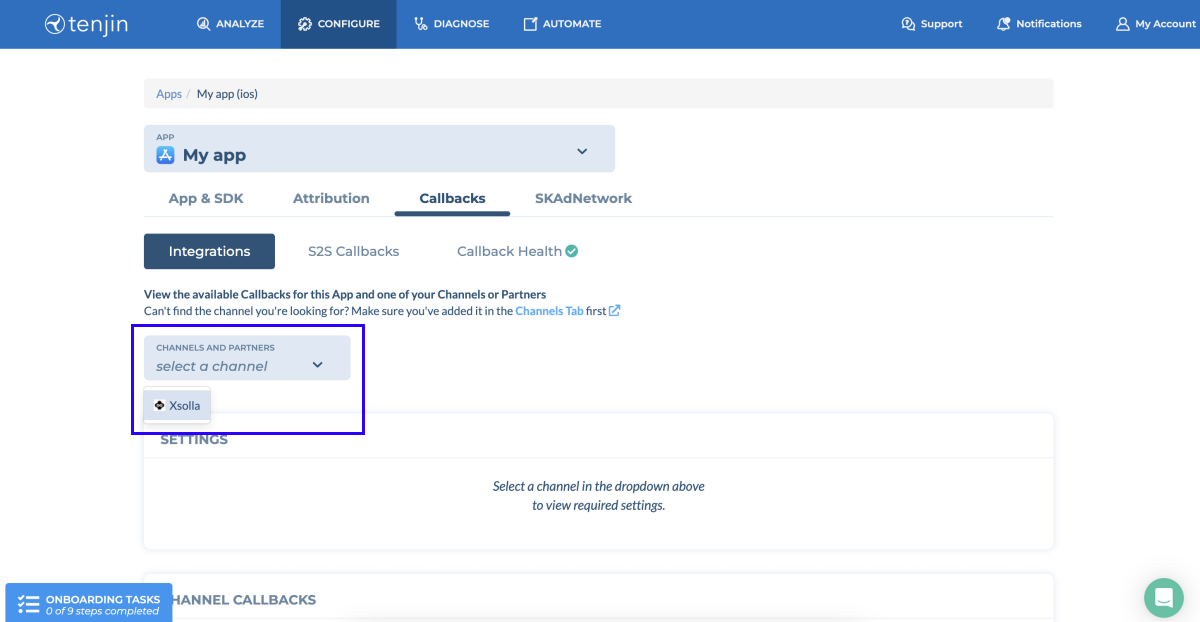
Configure callback

  1. Log in to your Tenjin account.
  2. Go to the Configure > Channels section.
  3. Go to the page for a necessary application.
  4. Go to the Callbacks tab.
  5. In the drop-down list of ad channels, select Xsolla.
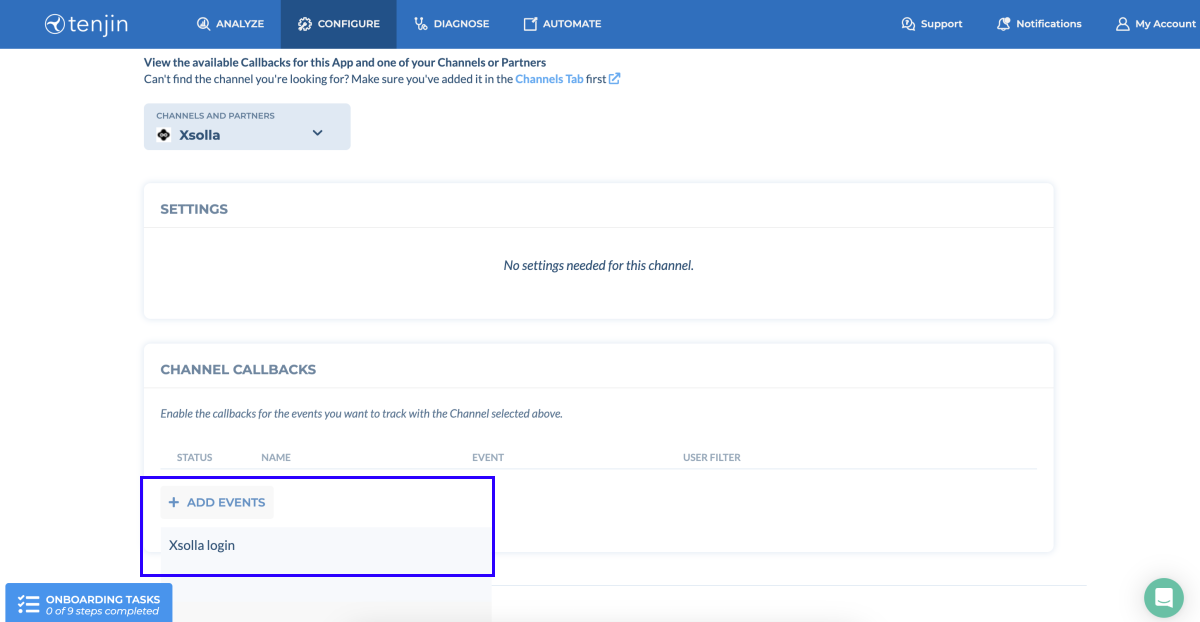
  1. In the Channel callbacks section, click Add events and select Xsolla login.
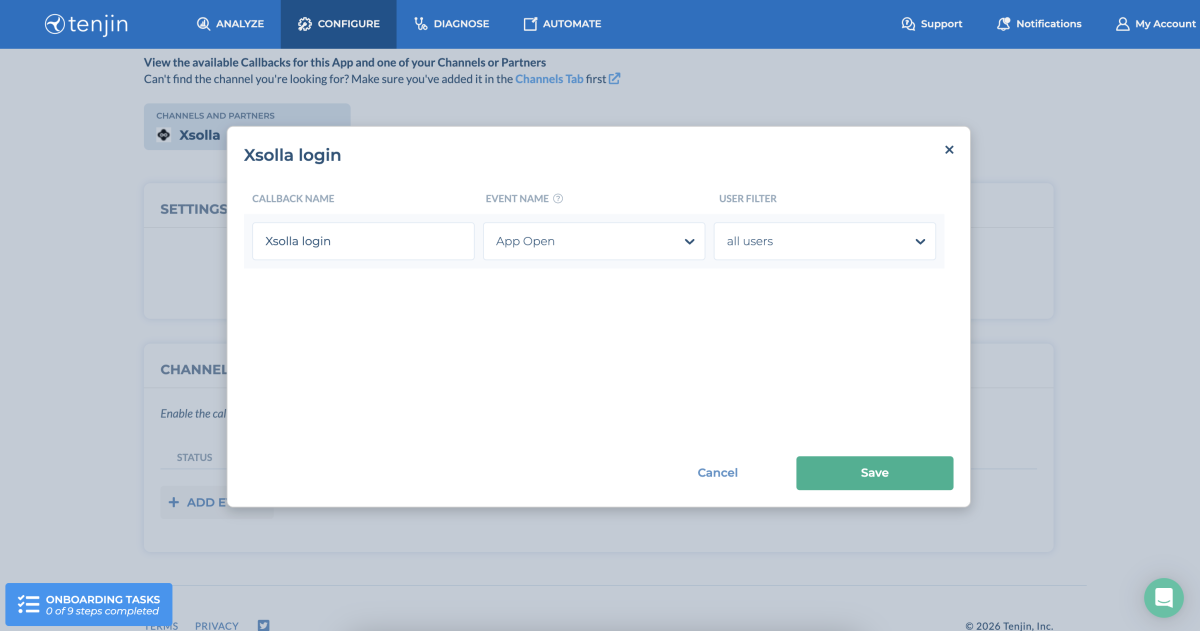
  1. In the modal window, select the event that contains CUID and click Save.
注:
We recommend using a login or app open event and passing the CUID there.

Event value structure

如果想设置特定事件或当前集成方案无法满足您的需求,请联系您的客户成功经理或发送邮件至csm@xsolla.com

Item purchase

When a user makes a purchase in Web Shop, Xsolla sends the xsolla-billing-payment event to Tenjin. The following purchase information is passed in the event parameters:

参数描述
date_paymentPayment date.
invoice_idTransaction ID.
payment_amountAmount the user actually paid.

At the Tenjin side, the amount will be converted to USD regardless of the currency the user paid in.

payment_currencyCurrency in which the user actually paid for the purchase, after conversion or selecting a payment method (payment currency).
payout_amountPurchase amount received by the merchant (game) after deducting commissions and taxes.
purchase_amountPurchase amount including discounts, before deducting commissions and taxes.
purchase_currencyCurrency in which the item price is displayed in the Web Shop (purchase currency).
skusSingle SKU or array of SKU.
dry_runTest payment indicator. The parameter is set to 1 if the payment is made in sandbox mode. It is omitted for real payments.

Additional data

Additionally, you can pass the following parameters in the callback:

参数描述
os_versionDevice operating system version.
app_versionApplication version.
idfaAdvertiser ID in App Store.
idfvVendor ID on the Apple side.
gps_adidAdvertiser ID in Google Play.
sdk_versionTenjin SDK version.
platformApplication platform.
本文对您的有帮助吗?
谢谢!
我们还有其他可改进之处吗? 留言
非常抱歉
请说明为何本文没有帮助到您。 留言
感谢您的反馈!
我们会查看您的留言并运用它改进用户体验。
上次更新时间: 2026年3月10日

发现了错别字或其他内容错误? 请选择文本,然后按Ctrl+Enter。

报告问题
我们非常重视内容质量。您的反馈将帮助我们做得更好。
请留下邮箱以便我们后续跟进
感谢您的反馈!
无法发送您的反馈
请稍后重试或发送邮件至doc_feedback@xsolla.com与我们联系。