
Tenjinとの統合
用語集
Tenjin
アプリケーション開発者やマーケターが、さまざまなチャンネルやデバイスにわたるマーケティングキャンペーンを追跡、測定、最適化できるようにする、モバイルアトリビューションおよびマーケティング分析のためのプラットフォームです。
プラットフォームの詳細については、Tenjinに関するドキュメントを参照してください。
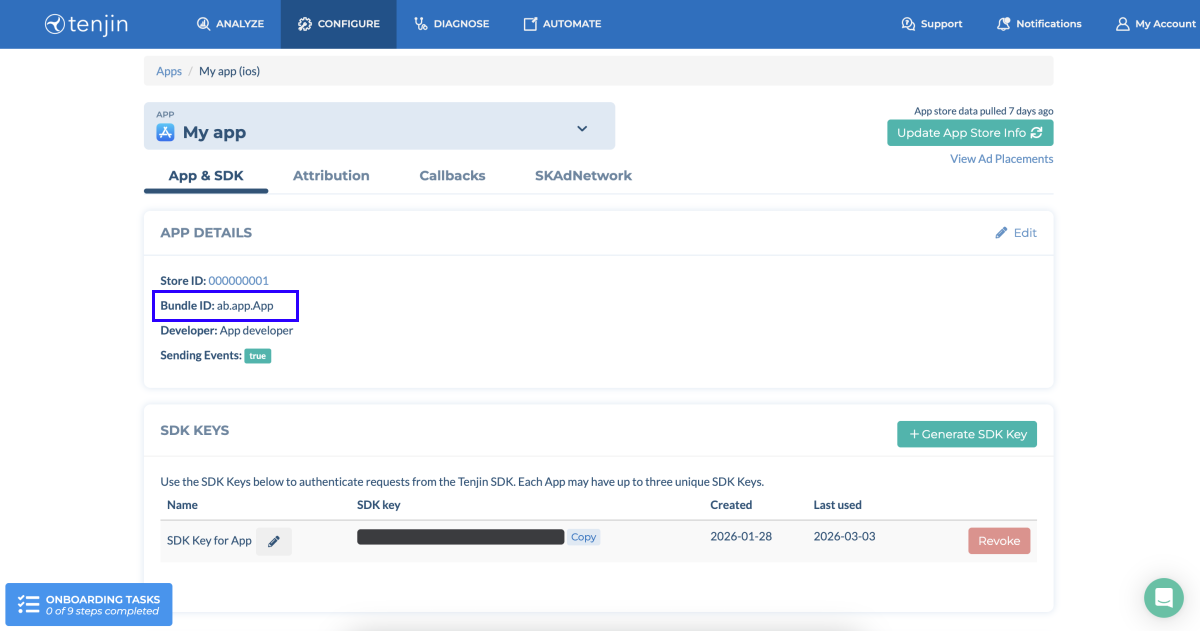
アプリケーションID
Tenjinにアプリケーションを追加した際に自動生成される、モバイルアプリケーションIDです。これは
- Tenjinのアカウントにログインし、
Configure > All apps セクションに移動します。 - 対象のアプリケーションのページを開きます。
Add details セクションでBundle ID をコピーします。
SDKキー
Tenjinにアプリケーションを追加した際に自動生成される、モバイルアプリケーションIDです。これは
- Tenjinのアカウントにログインし、
Configure > All apps セクションに移動します。 - 対象のアプリケーションのページを開きます。
Add details セクションでBundle ID をコピーします。
アカウントレベルキー
アプリケーションがiOSとAndroidの両方で公開されている場合に、サーバー間(S2S)のAPIコールを認証するために使用されるトークンです。このキーはTenjin側で手動発行されます。取得をご希望の場合は、Tenjinの担当マネージャーにご連絡ください。
バンドルIDは各プラットフォームごとに固有であることに注意してください。
Tenjin ID
analytics_installation_id)。生涯価値(LTV)
広告費用対効果(ROAS)
投資利益率(ROI)
アプリ内イベント
ユーザー獲得
顧客ユーザーID(CUID)
ユーザー登録時にアプリケーション所有者によって生成・設定されるユーザーIDです。CUIDはウェブショップとTenjinで同じである必要があります。このパラメータにより、ユーザーの照合とアトリビューションが可能になります。
コールバック
統合シナリオ
Tenjinとエクソーラは、モバイルアプリケーションのS2S統合をサポートしており、アプリケーション内やウェブショップでの購入について、完全なLTV(顧客生涯価値)、ROAS(広告費用対効果)、ROI(投資利益率)の測定を可能にします。エクソーラは、ウェブショップでの購入情報をモバイルのアプリ内イベントとしてTenjinに送信し、Tenjinはこれをモバイルアプリケーションのインストール数、ユーザー獲得キャンペーンに関連付けます。
モバイルアプリケーションの統合を構成することで、以下の場合に高度なイベントアナリティクスを取得できます:
エクソーラとTenjin S2Sの統合により、次のイベントを利用できます:
| イベント | 説明 |
|---|---|
| xsolla-billing-payment | アイテム購入。イベントパラメータには購入に関する情報が含まれます。 |
仕組み
この統合には、エクソーラとTenjin間の双方向のデータフローが含まれます。以下に、ユーザーが購入を行った際のシステム統合シナリオを示します。
  sequenceDiagram
    participant User
    participant Mobile App
    participant Web Shop
    participant Xsolla Backend
    participant Tenjin
    User->>Mobile App: 1. Logs in
    Mobile App->>Tenjin: 2. Sends CUID
    Tenjin-->>Xsolla Backend: 3. Sends callback
    User->>Web Shop: 4. Logs in using CUID
    User->>Web Shop: 5. Makes a purchase
    Web Shop->>Xsolla Backend: 6. Sends purchase event
    Xsolla Backend->>Tenjin: 7. Sends xsolla-billing-payment event
- ユーザーがモバイルアプリケーションに新規登録またはログインします。
- アプリケーションは、CUIDを含むアプリ内イベントをTenjinへ送信します。
- Tenjinは、アプリケーションストアID、Tenjin ID、CUID、およびその他の[関連するデータパラメータを含むコールバックをエクソーラに送信します。
- ユーザーはCUIDを使用してウェブショップにログインします。
- ユーザーはウェブショップで購入します。
- 購入イベントはエクソーラバックエンドに送信され、Tenjinから受け取った情報と一致します。
- エクソーラのサーバーが、Tenjin ID、アプリケーションID、およびTenjinから受け取ったその他のパラメータを含むS2S(サーバー間)アプリ内イベントをTenjinへ送信します。
Tenjinは、新しいイベント、購入、収益をメディアソースに帰属させます。
パブリッシャーアカウントでのセットアップ方法
- パブリッシャーアカウントでプロジェクトを開き、統合セクションに移動します。
- 「Tenjin」ペインをクリックします。
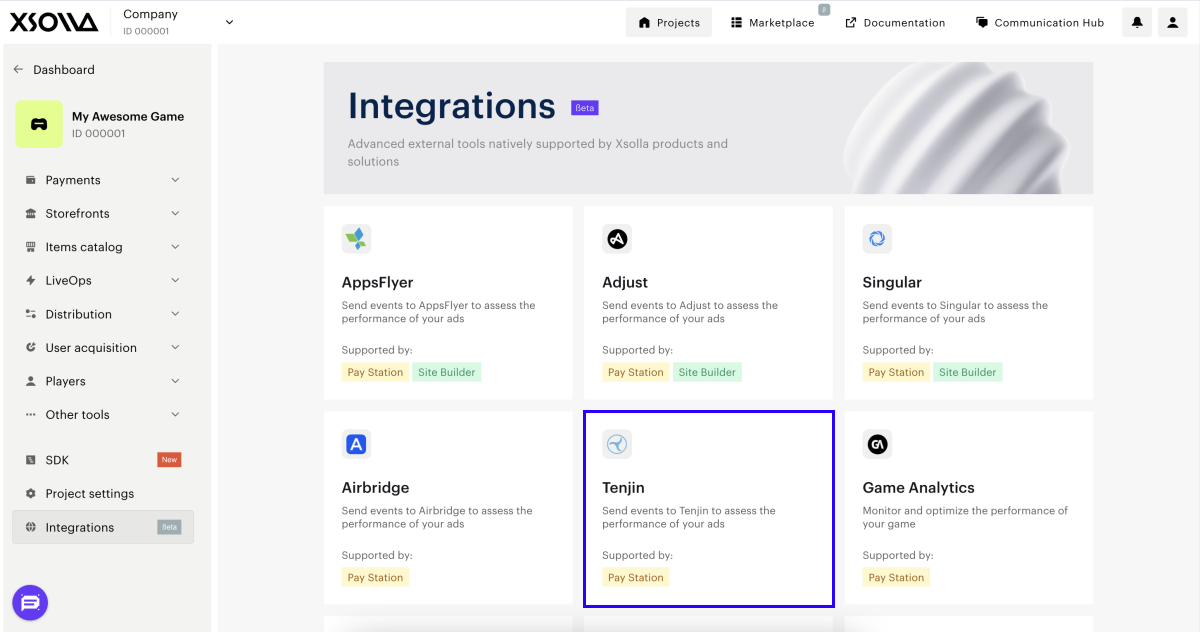
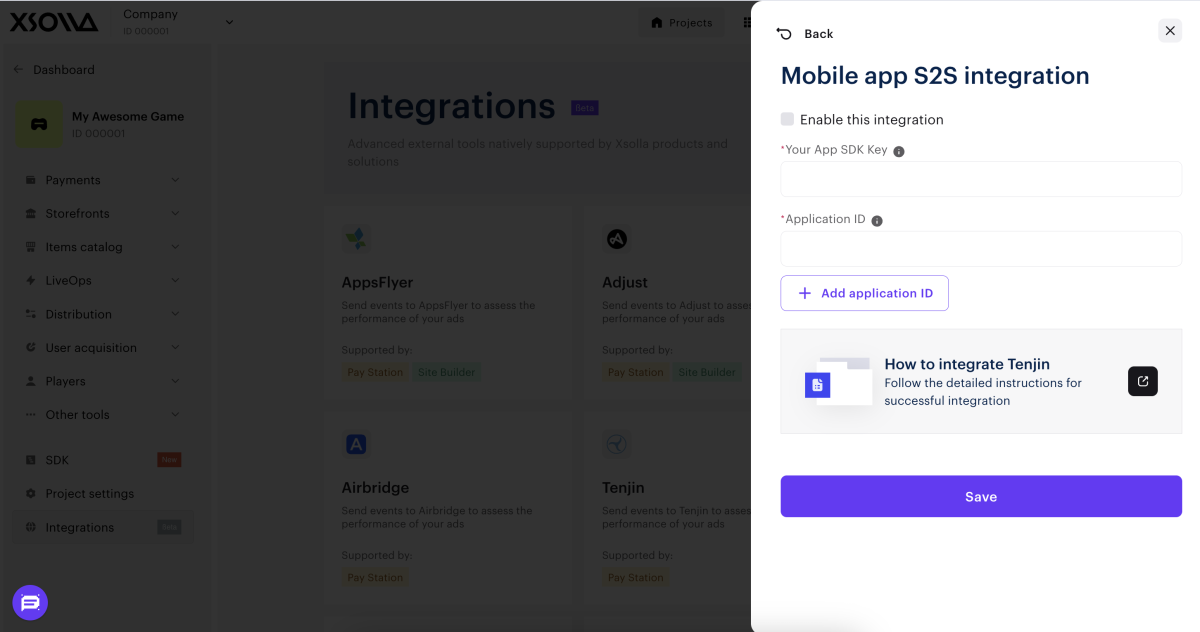
- モバイルアプリS2S統合ペインで、「設定」をクリックします。
- この統合を有効にするボックスをチェックします。
- 以下のデータを入力してください:
- SDKキーはTenjin側でプラットフォームごとに生成されます。アプリケーションをiOSとAndroidの両方のプラットフォームで公開する場合は、Tenjinから取得したアカウントレベルのキーを指定する必要があります。
- アプリケーションID。
- 「保存」をクリックします。
- Tenjinで統合を有効にします。
設定を保存すると、S2S統合のペインに緑色のインジケーターが表示されます。
アクティブな統合を変更するには:
- 「Tenjin」ペインをクリックします。
- 開いたウィンドウで必要な変更を行います。
- 「保存」をクリックします。
Tenjinでのセットアップ方法
Tenjinでは、次の設定を行う必要があります:
CUIDを渡す
setCustomerUserIdメソッドを呼び出して、モバイルアプリケーションからTenjinへのCUID転送を設定します。
java
- java
- swift
- C#
1TenjinSDK instance = TenjinSDK.getInstance(this, "<TENJIN_SDK_KEY>");
2instance.setCustomerUserId(cuid);   // CUID generated by your backend
3instance.connect();
1TenjinSDK.initialize("<TENJIN_SDK_KEY>")
2TenjinSDK.setCustomerUserId(userId: cuid);  // CUID used for Web Shop
3TenjinSDK.connect();
1BaseTenjin instance = Tenjin.getInstance("<TENJIN_SDK_KEY>");
2instance.SetCustomerUserId(cuid);   // CUID used for Web Shop
3instance.Connect();
チャンネル追加としてエクソーラを追加する
- Tenjinアカウントにログインします。
Configure > Channels セクションに移動します。Add a channel をクリックします。
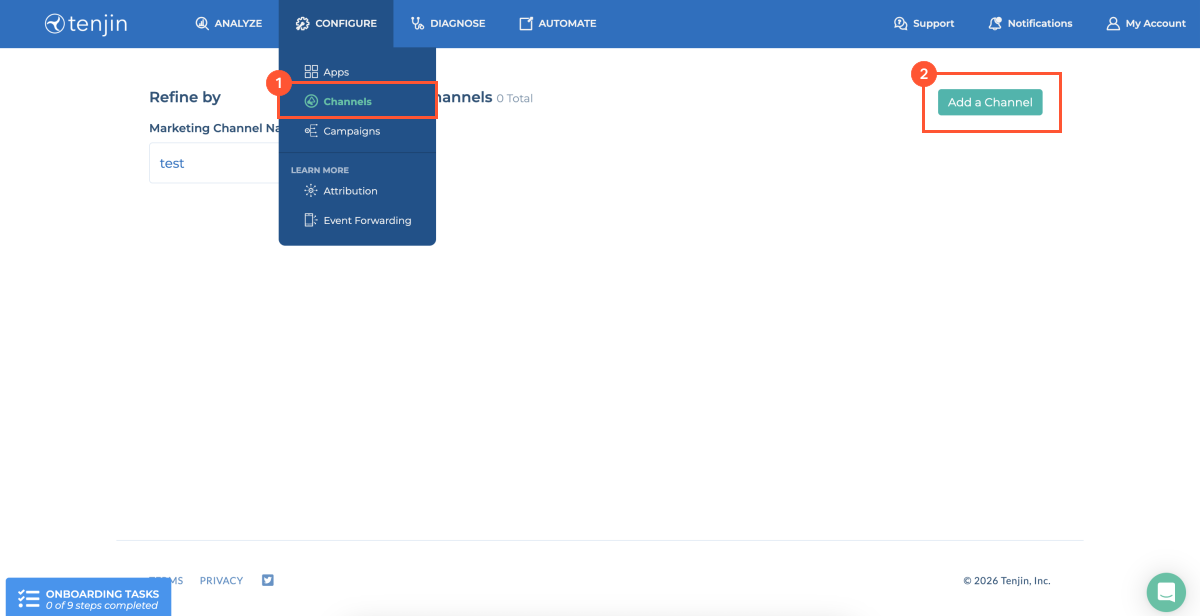
- 検索バーに「エクソーラ」と入力して選択します。
- 「
Xsolla 」ペインをクリックします。
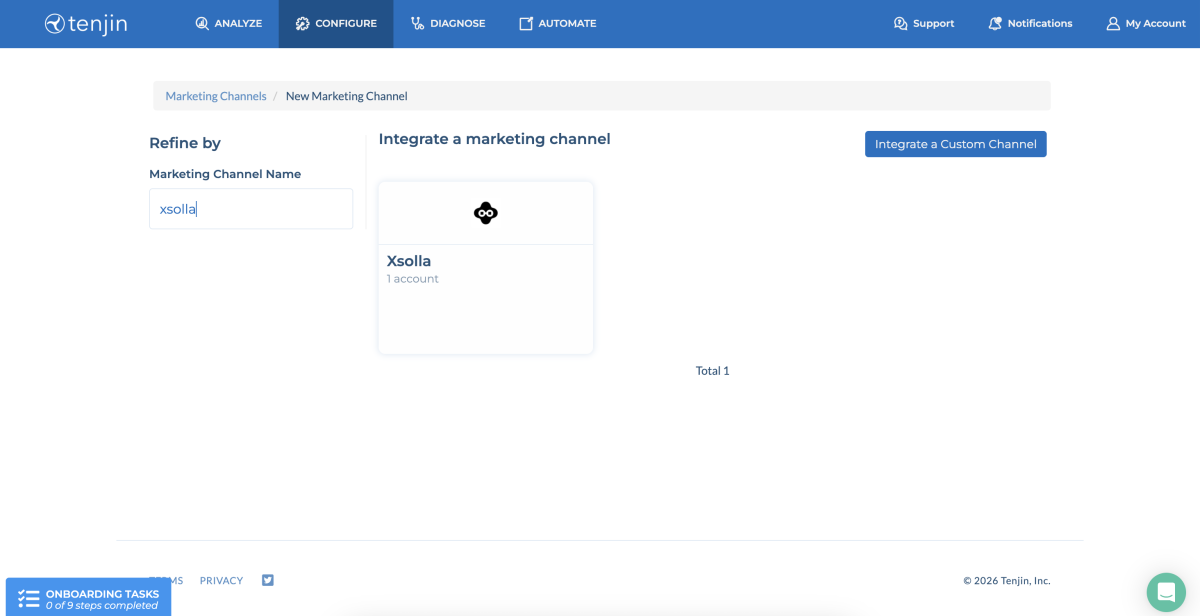
- 「
Add a channel 」をクリックします。
コールバックを設定する
- Tenjinアカウントにログインします。
Configure > Channels セクションに移動します。- 必要なアプリケーションのページに移動します。
Callbacks タブに移動します。- 広告チャンネルのドロップダウンリストで、
Xsolla を選択します。
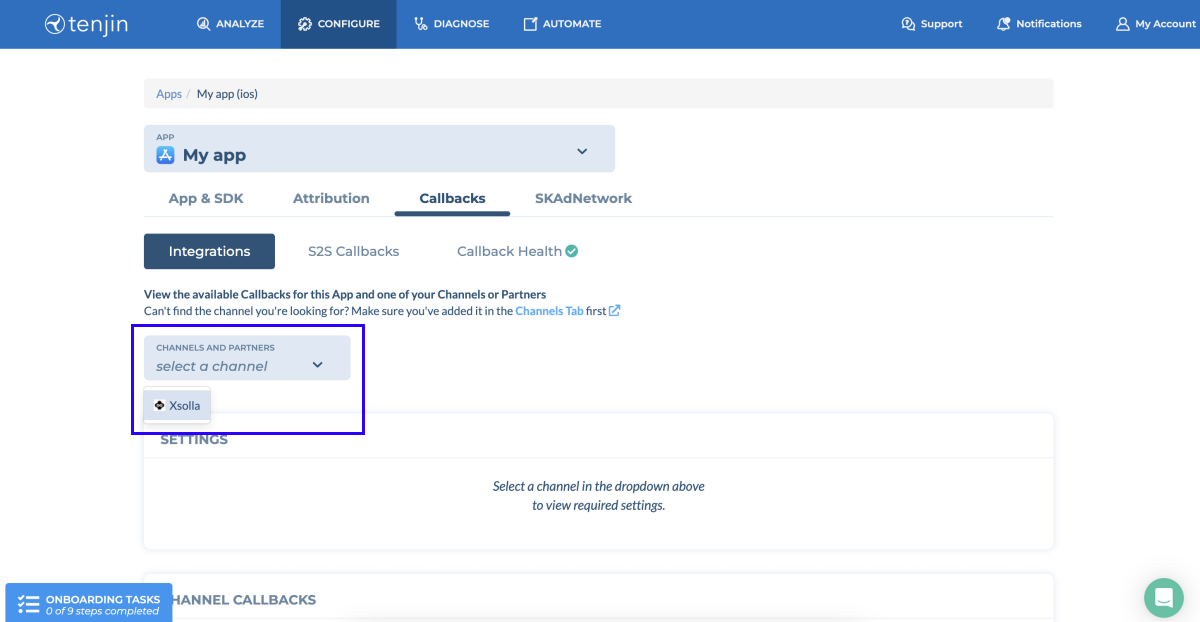
Channel callbacks セクションで、「Add events 」をクリックてXsolla login を選択します。
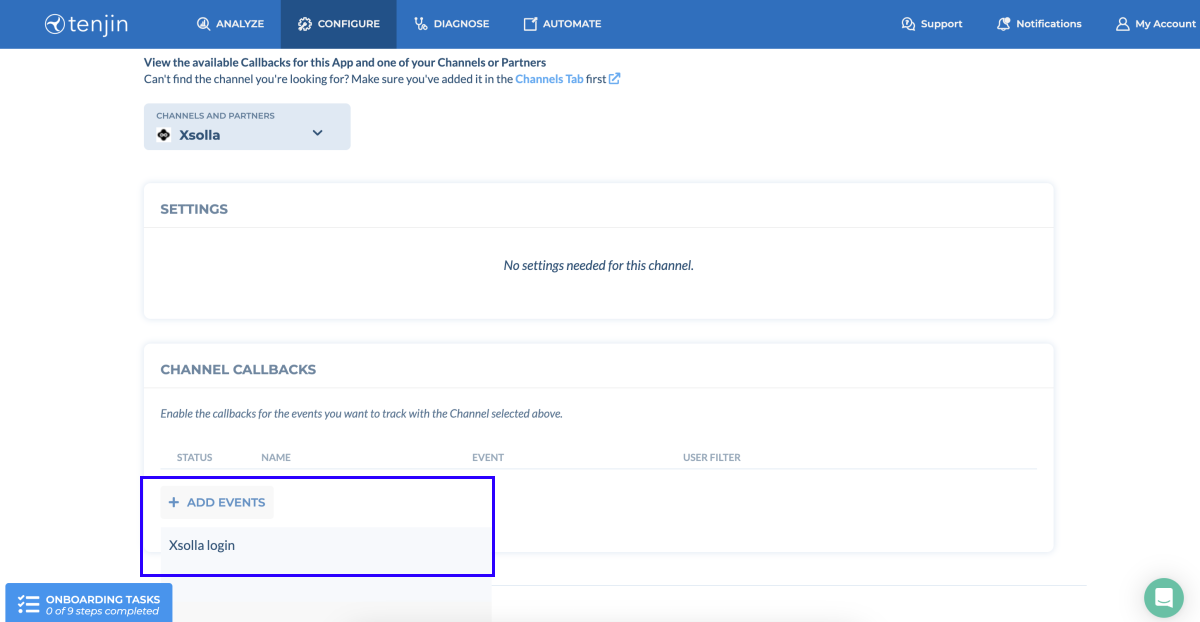
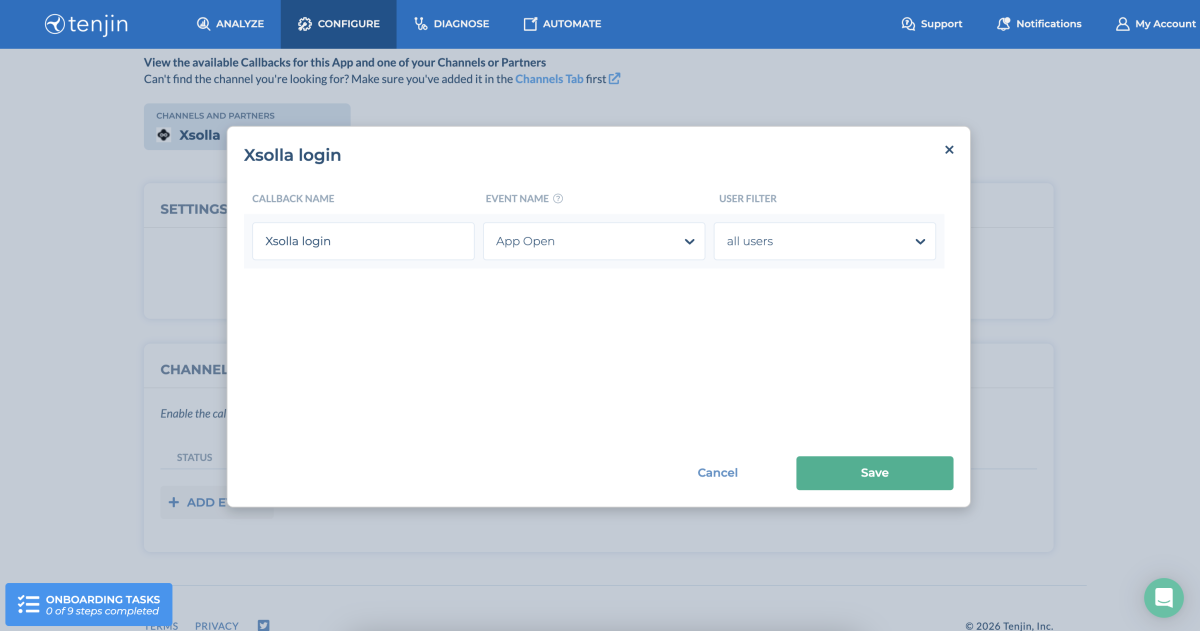
- モーダルウィンドウで、CUIDを含むイベントを選択し、「
Save 」をクリックします。
イベント値の構造
特定のイベントを設定したい場合、または現在の統合オプションで要件を満たせない場合は、カスタマーサクセスマネージャーに連絡するか、csm@xsolla.comまでメールしてください。
アイテム購入
ユーザーがウェブショップで購入すると、エクソーラはxsolla-billing-paymentイベントをTenjinに送信します。以下の購入情報がイベントパラメータに渡されます:
| パラメータ | 説明 |
|---|---|
| date_payment | 支払日。 |
| invoice_id | トランザクションID。 |
| payment_amount | ユーザーが実際に支払った金額。 Tenjin側では、ユーザーが支払った通貨に関係なく、金額はUSDに変換されます。 |
| payment_currency | コンバージョン後または決済方法選択後、ユーザーが実際に購入を支払った通貨(決済通貨)。 |
| payout_amount | 手数料と税金を差し引いた後にマーチャント(ゲーム)が受け取る購入金額。 |
| purchase_amount | 割引を含み、手数料と税金を差し引く前の購入金額。 |
| purchase_currency | ウェブショップでアイテム価格が表示される通貨(購入通貨)。 |
| skus | 単一のSKUまたはSKUの配列。 |
| dry_run | テスト支払いインジケーター。決済がサンドボックスモードで行われた場合、パラメータは1に設定されます。実際の支払いでは省略されます。 |
追加データ
さらに、コールバックで以下のパラメータを渡すことができます:
| パラメータ | 説明 |
|---|---|
| os_version | デバイスのオペレーティングシステムのバージョン。 |
| app_version | アプリケーションバージョン。 |
| idfa | App Storeにおける広告主ID。 |
| idfv | Apple側のベンダーID。 |
| gps_adid | Google Playにおける広告主ID。 |
| sdk_version | Tenjin SDKバージョン。 |
| platform | アプリケーションプラットフォーム。 |
誤字脱字などのテキストエラーを見つけましたか? テキストを選択し、Ctrl+Enterを押します。
