カタログAPI (2.0.0)
- バージョン: 2.0.0
- サーバー:
https://store.xsolla.com/api - メールでのお問い合わせ
- お問い合わせURL: https://xsolla.com/
- 必要なTLSバージョン: 1.2
カタログAPIを使用すると、ゲーム内アイテムのカタログをエクソーラ側で設定し、そのカタログをストア内でユーザーに表示することができます。
本APIでは、以下のカタログエンティティを管理できます:
- 仮想アイテム — 武器、スキン、ブースターなどのゲーム内アイテム。
- 仮想通貨 — 仮想商品の購入に使用される仮想通貨。
- 仮想通貨パッケージ — 事前定義された仮想通貨のバンドル。
- バンドル — 仮想アイテム、通貨、またはゲームキーを1つのSKUとしてまとめたパッケージ。
- ゲームキー — Steamやその他のDRMプロバイダーを通じて配布される、ゲームおよびDLCのキー。
- グループ — カタログ内のアイテムを整理または並べ替えするための論理的なグループ分け。
本APIは、以下のグループに分かれています:
Admin — カタログアイテムやグループの作成、更新、削除、および設定を行うためのコール。マーチャントまたはプロジェクトの認証情報による基本アクセス認証で認証されます。ストアフロントでの使用は想定されていません。Catalog — アイテムの取得や、エンドユーザー向けのカスタムストアフロントを構築するためのコール。高負荷なシナリオに対応できるよう設計されています。ユーザー個別の制限事項や実施中のプロモーションなど、パーソナライズされたデータを返すための、ユーザーJWTによる任意認証をサポートしています。
ユーザーのJWTを使用した認証は、ブラウザ、モバイルアプリケーション、またはゲームからリクエストが送信される場合に使用されます。デフォルトでは、XsollaLoginUserJWTスキームが適用されます。トークンの作成方法の詳細については、エクソーラログインAPIに関するドキュメントを参照してください。
トークンはAuthorizationヘッダーに次の形式で渡されます:Authorization: Bearer <user_JWT>。ここで<user_JWT>はユーザートークンです。このトークンによってユーザーが特定され、パーソナライズされたデータへのアクセスが可能になります。
別の方法として、決済UIを開くためのトークンを使用することも可能です。
基本HTTP認証は、ユーザーのブラウザやモバイルアプリケーションからではなく、サーバーから直接APIコールが送信される場合のサーバー間のやり取りに使用されます。通常、APIキーを使用したHTTP基本認証が使用されます。
APIキーは機密性高いため、クライアントアプリケーション側での保存および使用は厳禁とします。
基本的なサーバーサイド認証では、すべてのAPIリクエストに以下のヘッダーを含める必要があります:
basicAuthの場合 —Authorization: Basic <your_authorization_basic_key>。ここでyour_authorization_basic_keyは、Base64でエンコードされたproject_id:api_keyペアです。basicMerchantAuthの場合 —Authorization: Basic <your_authorization_basic_key>。ここでyour_authorization_basic_keyは、Base64でエンコードされたmerchant_id:api_keyペアです。
パラメータの値はパブリッシャーアカウントで確認できます:
merchant_idは次の場所に表示されます:- 会社設定 > 会社。
- パブリッシャーアカウントの任意のページのブラウザアドレスバーのURLに。URLの形式は以下の通りです:
https://publisher.xsolla.com/<merchant_id>。
project_idは次の場所に表示されます:- パブリッシャーアカウントのプロジェクト名の横に。
- パブリッシャーアカウントでプロジェクトを操作しているときのブラウザアドレスバーのURLに。URLの形式は以下の通りです:
https://publisher.xsolla.com/<merchant_id>/projects/<project_id>。
api_keyは作成時にのみパブリッシャーアカウントに表示され、あなたの側で安全に保管する必要があります。APIキーは次のセクションで作成できます:
必要なAPIコールに
project_idパスパラメータが含まれていない場合、認証を行うには、会社のすべてのプロジェクト共通で有効なAPIキーを使用してください。APIキーの操作に関する詳細は、APIリファレンスを参照してください。
AuthForCart認証スキームはカートでの購入用であり、以下の2つのモードに対応しています:
ユーザーのJWTを使用した認証。 トークンは、次の形式で
Authorizationヘッダーに渡されます:Authorization: Bearer <user_JWT>。ここで<user_JWT>はユーザートークンです。このトークンはユーザーを識別し、パーソナライズされたデータへのアクセスを提供します。 または、決済UIを開くためのトークンを使用することもできます。認証ヘッダーを使用しない簡易モード。 このモードは未認証ユーザーにのみ使用され、ゲームキー販売にのみ適用できます。リクエストにはトークンの代わりに、以下のヘッダーを含める必要があります:
- リクエストIDを含む
x-unauthorized-id - Base64でエンコードされたユーザーのメールアドレスを含む
x-user
- リクエストIDを含む
すべてのタイプ(仮想アイテム、バンドル、仮想通貨、キー)のアイテムは、同様のデータ構造を使用しています。この基本構造を理解することで、APIの利用が簡素化され、ドキュメントをよりスムーズに読み進められるようになります。
一部のコールには追加のフィールドが含まれる場合がありますが、基本構造が変わることはありません。
識別
merchant_id— パブリッシャーアカウントにおける会社IDproject_id— パブリッシャーアカウントにおけるプロジェクトIDsku— アイテムSKU、プロジェクト内で一意です
ストア表示
name— アイテム名description— アイテム説明image_url— 画像URLis_enabled— アイテムの可用性is_show_in_store— アイテムがカタログに表示されるかどうか
カタログ内のアイテムの可用性管理に関する詳細は、ドキュメントを参照してください。
組織
type— アイテムタイプ、例:仮想アイテム(virtual_item)またはバンドル(bundle)groups— アイテムが属するグループorder— カタログ内の表示順序
販売条件
prices— 実際通貨または仮想通貨での価格limits— 購入制限periods— 可用期間regions— 地域別制限
主要なエンティティ構造の例:
{
  "attributes": [],
  "bundle_type": "virtual_currency_package",
  "content": [
    {
      "description": {
        "en": "Main in-game currency"
      },
      "image_url": "https://.../image.png",
      "name": {
        "en": "Crystals",
        "de": "Kristalle"
      },
      "quantity": 500,
      "sku": "com.xsolla.crystal_2",
      "type": "virtual_currency"
    }
  ],
  "description": {
    "en": "Crystals x500"
  },
  "groups": [],
  "image_url": "https://.../image.png",
  "is_enabled": true,
  "is_free": false,
  "is_show_in_store": true,
  "limits": {
    "per_item": null,
    "per_user": null,
    "recurrent_schedule": null
  },
  "long_description": null,
  "media_list": [],
  "name": {
    "en": "Medium crystal pack"
  },
  "order": 1,
  "periods": [
    {
      "date_from": null,
      "date_until": "2020-08-11T20:00:00+03:00"
    }
  ],
  "prices": [
    {
      "amount": 20,
      "country_iso": "US",
      "currency": "USD",
      "is_default": true,
      "is_enabled": true
    }
  ],
  "regions": [],
  "sku": "com.xsolla.crystal_pack_2",
  "type": "bundle",
  "vc_prices": []
}エクソーラAPIを使用すると、ゲーム内ストアのロジックを実装でき、アイテムカタログの取得、カートの管理、注文の作成、そのステータスの追跡が可能です。統合シナリオに応じて、APIコールは管理者とカタログのサブセクションに分かれ、異なる認証スキームを使用します。
以下の例は、アイテムの作成から購入に至るまで、ストアのセットアップおよび運用の基本フローを示しています。
割引、ボーナス、デイリー報酬、またはオファーチェーンなど、ユーザー獲得および収益化のためのツールを設定します。
APIコールの例:
アプリケーション内でのアイテム表示を設定します。
APIコールの例:
デフォルトでは、カタログAPIコールはリクエスト時にストアで現在利用可能なアイテムを返します。まだ利用可能でない、または利用できなくなったアイテムを取得するには、カタログリクエストにパラメータ
"show_inactive_time_limited_items": 1を含めてください。
アイテムは以下の方法で販売できます:
- 迅速な購入 — 1つのSKUを複数回販売します。
- カート購入 — ユーザーがアイテムをカートに追加し、アイテムを削除し、単一の注文内で数量を更新します。
アイテムが実際のお金ではなく仮想通貨で購入された場合は、仮想通貨で購入した指定アイテムで注文を作成するAPIコールを使用してください。当該APIコールの実行時に課金処理が行われるため、決済UIを表示する必要はありません。
無料アイテムの購入には、指定した無料アイテムで注文を作成するAPIコールまたは無料カートで注文を作成するAPIコールを使用してください。決済UIを表示する必要はありません。注文は即時にdoneステータスに設定されます。
クライアント側のAPIコールを使用して、指定したアイテムで注文を作成します。このコールは、決済UIを開くために使用するトークンを返します。
割引情報は決済UIでのみユーザーに提供されます。プロモーションコードはサポートされていません。
カートの設定と購入は、クライアントまたはサーバー側で実行できます。
クライアント側でのカートのセットアップと購入
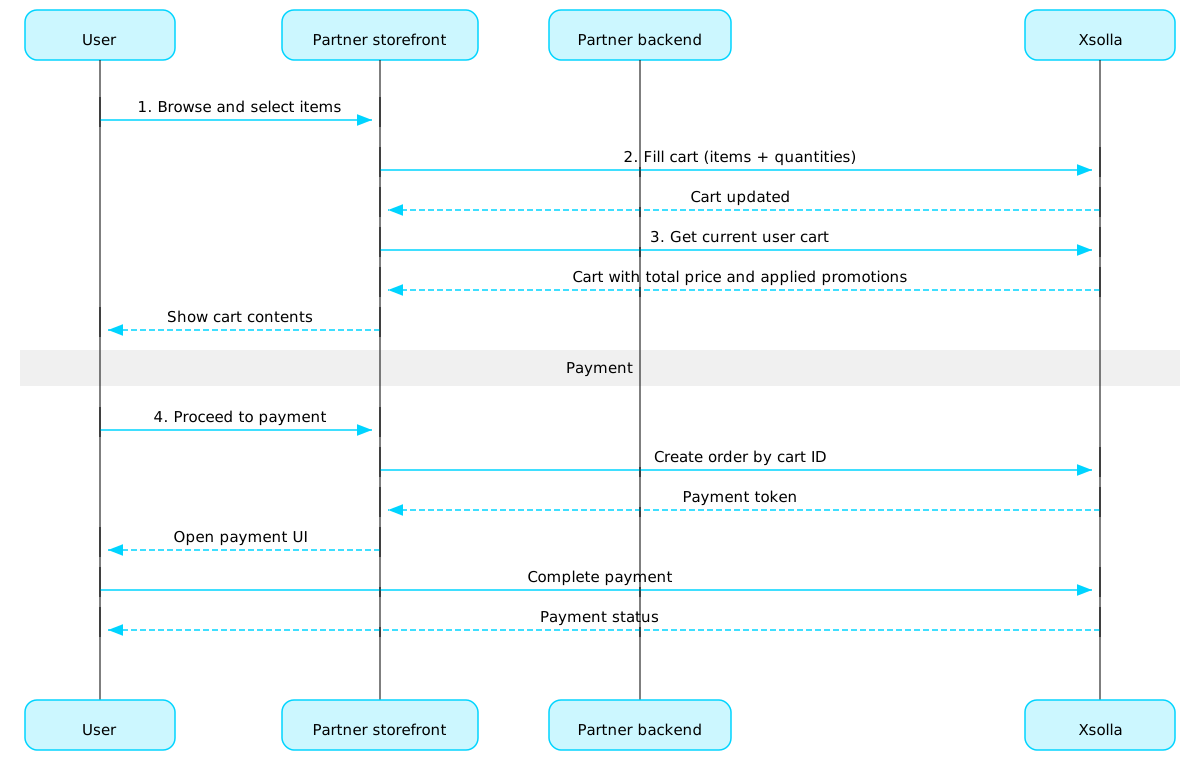
アイテムの追加および削除のロジックは、独自に実装してください。カートを設定するためのAPIを呼び出す前は、購入にどのプロモーションが適用されるかに関する情報は取得できません。つまり、合計金額や、追加されるボーナスアイテムの詳細を事前に知ることはできません。
以下のカートロジックを実装します:
- プレイヤーがカートにアイテムを入れた後、カートにアイテムを入れるAPIコールを使用します。このコールは、選択されたアイテムに関する現在の情報(割引前後の価格、ボーナスアイテム)を返します。
- ユーザーのアクションに基づいてカートの内容を更新します:
- アイテムの追加または数量の変更を行うには、カートIDでカートアイテムを更新するAPIコールを使用します。
- アイテムを削除するには、カートIDでカートアイテムを削除するAPIコールを使用します。
カートの現在のステータスを取得するには、現在のユーザーのカートを取得するAPIコールを使用してください。
- 現在のカートからすべてのアイテムで注文を作成するAPIコールを使用します。このコールは注文IDと決済トークンを返します。新しく作成された注文はデフォルトで
newステータスに設定されます。
サーバー側でのカートのセットアップと購入
カートへの変更ごとにAPIコールを伴う必要があるため、この設定オプションではカートの設定に時間がかかる場合があります。
以下のカートロジックを実装します:
- プレイヤーがカートにアイテムを入れた後、カートにアイテムを入れるAPIコールを使用します。このコールは、選択されたアイテムに関する現在の情報(割引前後の価格、ボーナスアイテム)を返します。
- 現在のカートのすべてのアイテムで注文を作成するAPIコールを使用します。このコールは、注文IDと支払いトークンを返します。新しく作成された注文は、デフォルトで
newステータスに設定されます。
返されたトークンを使用して、新しいウィンドウで決済UIを開きます。決済UIを開くその他の方法は、ドキュメントに記載されています。
| アクション | エンドポイント |
|---|---|
| 本番環境で開きます。 | https://secure.xsolla.com/paystation4/?token={token} |
| サンドボックスモードで開きます。 | https://sandbox-secure.xsolla.com/paystation4/?token={token} |
開発およびテスト中はサンドボックスモードを使用してください。テスト購入では実際のアカウントに料金は発生しません。テスト用銀行カードを使用できます。
最初の実際の支払いが行われた後、厳格なサンドボックス決済ポリシーが適用されます。サンドボックスモードでの支払いは、パブリッシャーアカウント > 会社設定 > ユーザーで指定されたユーザーのみが利用可能です。
実際通貨で仮想通貨やアイテムを購入するには、エクソーラとのライセンス契約を締結する必要があります。これを行うには、パブリッシャーアカウントで契約と税金 > 契約に移動し、契約フォームを記入して確認を待ちます。契約の審査には最大3営業日かかる場合があります。
サンドボックスモードを有効または無効にするには、迅速な購入およびカート購入のリクエストでsandboxパラメータの値を変更します。サンドボックスモードはデフォルトでオフになっています。
可能な注文状況:
new— 注文作成済みpaid— 支払い受領済みdone— アイテム付与完了canceled— 注文キャンセル済みexpired— 注文期限切れ
以下のいずれかの方法を使用して、注文ステータスを追跡します:
大規模なレコードセットを返すAPIコール(カタログを構築する場合など)では、データがページ分割されて返されます。ページネーションは、単一のAPI応答で返されるアイテム数を制限し、下一ページのデータを順次取得できるようにするための仕組みです。
返されるアイテム数を制御するには、以下のパラメータを使用します:
limit— 1ページあたりのアイテム件数offset— ページ上の最初のアイテムのインデックス(番号付けは0から始まります)has_more— 次のページが利用可能かどうかを示しますtotal_items_count— アイテムの総数
リクエスト例:
GET /items?limit=20&offset=40応答例:
{
  "items": [...],
  "has_more": true,
  "total_items_count": 135
}応答がhas_more = falseを返すまで、後続のリクエストを送信することをお勧めします。
日付と時間の値は、ISO 8601フォーマットで渡されます。
以下がサポートされています:
- UTCオフセット
- アイテムの表示に時間制限がない場合は
null値 - 一部のフィールドで使用されるUnixタイムスタンプ(秒単位)
フォーマット:YYYY-MM-DDTHH:MM:SS±HH:MM
例:2026-03-16T10:00:00+03:00
エクソーラは、アイテム名や説明などのユーザー向けフィールドのローカライズをサポートしています。ローカライズされた値は、言語コードをキーとするオブジェクトとして渡されます。サポートされている言語の完全なリストは、ドキュメントで確認できます。
サポートされているフィールド
次のパラメータに対してローカリゼーションを指定できます:
namedescriptionlong_description
ロケール形式
ロケールキーは、以下のいずれかのフォーマットで指定できます:
- 2文字の言語コード:
en、ru - 5文字の言語コード:
en-US、ru-RU、de-DE
例
2文字の言語コードの例:
{
  "name": {
    "en": "Starter Pack",
    "ru": "Стартовый набор"
  }
}
5文字の言語コードの例:
{
  "description": {
    "en-US": "Premium bundle",
    "de-DE": "Premium-Paket"
  }
}ユーザーの国は、カタログの価格、決済通貨、および決済UIで利用可能な決済方法を決定します。 APIコールによって、国は次のように判定されます:
- クライアント側のAPIコールでは、 リクエストのIPアドレスによって国が判定されます。
- サーバー側のAPIコールでは、
user.country.valueパラメータの値、またはX-User-IpヘッダーのユーザーIPアドレスによって国が判定されます。両方が渡される場合は、user.country.valueパラメータが優先されます。
エラーが発生した場合、APIはHTTPステータスとJSON応答本文を返します。ストア関連のエラーの全リストはドキュメントで確認できます。
応答例:
{
  "errorCode": 1102,
  "errorMessage": "Validation error",
  "statusCode": 422,
  "transactionId": "c9e1a..."
}errorCode— エラーコード。errorMessage— エラーの簡潔な説明。statusCode— HTTPレスポンスステータス。transactionId— リクエストID。一部の場合にのみ返されます。errorMessageExtended— リクエストパラメータなどの追加エラー詳細。一部の場合にのみ返されます。
拡張応答例:
{
  "errorCode": 7001,
  "errorMessage": "Chain not found",
  "errorMessageExtended": {
    "chain_id": "test_chain_id",
    "project_id": "test_project_id",
    "step_number": 2
  },
  "statusCode": 404
}
共通のHTTPステータスコード
400— 無効なリクエスト401— 認証エラー403— 権限不足404— リソースが見つかりません422— 検証エラー429— レート制限超過
推奨事項
- HTTPステータスと応答本文を一緒に処理します。
errorCodeを使用してアプリケーションロジックに関連するエラーを処理します。transactionIdを使用して、エラーを分析する際にリクエストをより迅速に特定します。
概要
仮想アイテムと仮想通貨を使用してインゲームストアを構築し、ユーザーへの表示方法を設定できます。以下のアイテムタイプが利用可能です:
- 仮想アイテム — 武器、スキン、ブースターなどのゲーム内アイテム。実際のお金または仮想通貨で販売できます。
- 仮想通貨 — 仮想アイテムの購入に使用されるゲーム内通貨。実際のお金または仮想通貨で販売できます。
- 仮想通貨パッケージ — 仮想通貨の固定数量パック。実際のお金または仮想通貨で販売できます。
グループは、カタログ内のアイテムを整理するために使用されます。アイテムを論理的にグループ化し、表示方法を管理することができます。
管理者サブセクションのAPIコールを使用して、アイテムの作成、更新、削除を行います。
カタログサブセクションのAPIコールを使用して、アイテムのリストを取得し、ユーザーに表示します。
管理者サブセクションのAPIコールを使用してストアカタログを構築しないでください。
仮想アイテムリストを取得するAPIコールは、価格や属性を含む詳細なアイテムデータを返し、ページネーションをサポートします。ストアフロントでカタログページを表示するために使用してください。
すべての仮想アイテムリストを取得するAPIコールは、ページネーションなしでアイテムSKU、名前、説明、グループIDと名前を返します。クライアント側の検索やインデックス作成に使用してください。
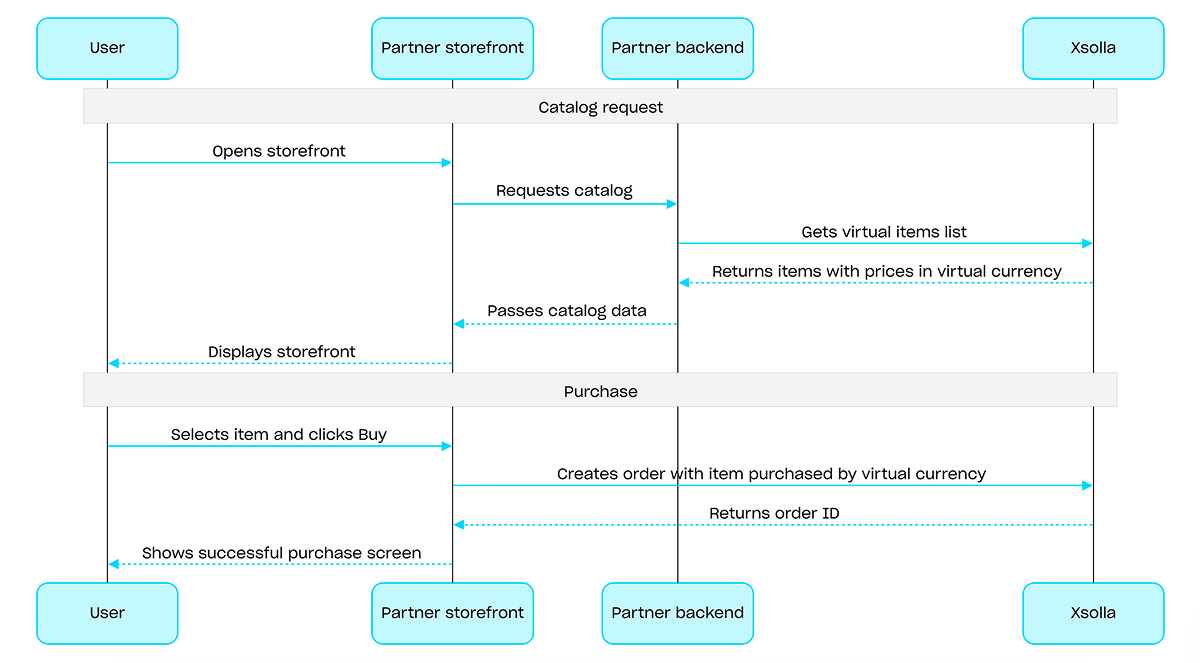
仮想通貨で購入する場合、仮想通貨で購入された指定アイテムで注文を作成するAPIコールを使用してください。当該APIコールの実行時に課金処理が行われるため、決済UIを表示する必要はありません。
仮想通貨での購入フローの例:
概要
ゲームキーは、ユーザーがゲームプラットフォーム上でゲームやDLCにアクセスできるようにするための、使い切りのユニークな半角英数字コードです。ゲームキーは、ダイレクトリンク、ストアUI、またはウィジェットを介して販売することができます。また、特定の国でゲームキーを販売するために、地域別制限を設定することも可能です。詳細については、ゲームキーパッケージセクションを参照してください。
ゲームキーを販売する際、ユーザー認証は必須ではありません。キーは、ユーザーがチェックアウト時に指定したメールアドレス宛に送信されます。また、認証を設定することで、個人用設定、購入制限、エンタイトルメントシステムといった追加のシナリオを有効にすることも可能です。詳細については、ゲームキー販売時の認証設定方法セクションを参照してください。
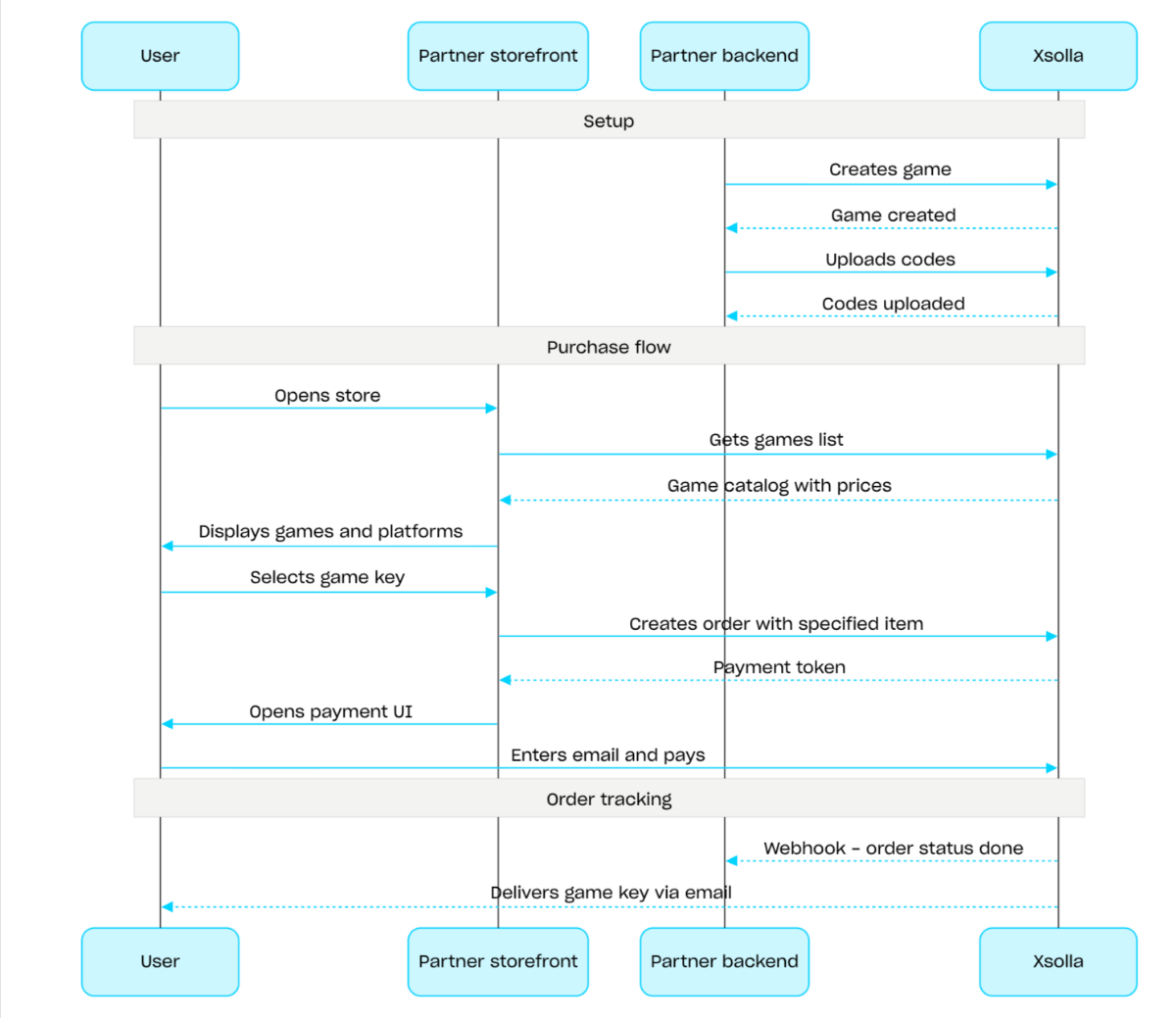
ゲームキーの販売フロー:
- ゲームを作成するAPIコールを使用して、ゲームを作成します。
- 地域制限を設定します。
- コードをアップロードするAPIコールを使用してゲームキーパッケージにキーをアップロードし、購入可能な状態にします。
- ゲームリストを取得するAPIコールを使用して、ユーザーの地域に応じた価格とともにゲームカタログを表示します。
- 注文を作成します。素早く購入できるようにするには、ゲームキーのSKUを渡し、現在のカート内の全アイテムを含む注文を作成するAPIコールを使用できます。レスポンスとして、決済UIを開くためのトークンが返されます。
- 注文の支払いを行うために、決済UIを開く処理を実装します。
決済完了の通知をタイムリーに受け取り、ユーザーにアイテムを付与するには、たとえば、ウェブフックを使用して注文ステータスのトラッキングを設定してください。キーは、ユーザーがチェックアウト時に指定したメールアドレス宛に送信され、注文ステータスはdoneに移行します。
概要
バンドルとは、複数のアイテムを1つの単位としてセット販売するものです。バンドルには、仮想アイテム、仮想通貨、仮想通貨パッケージ、ゲームキー、および他のバンドルを含めることができます。バンドルを活用することで、スターターパック、季節限定オファー、特別セールなどを作成できます。
バンドルを操作するには、以下のAPIコールグループを使用します:
- バンドルの作成、更新、削除、およびそれらの公開状態を管理するには、管理者サブセクションのAPIコールを使用します。
- バンドルの情報取得には、カタログサブセクションのAPIコールを使用します。
購入制限は、バンドルの作成または更新時にlimitsオブジェクトを介して設定します。詳細については、制限の概要を参照してください。また、特定の国でアイテムを販売するために、地域制限を設定することも可能です。
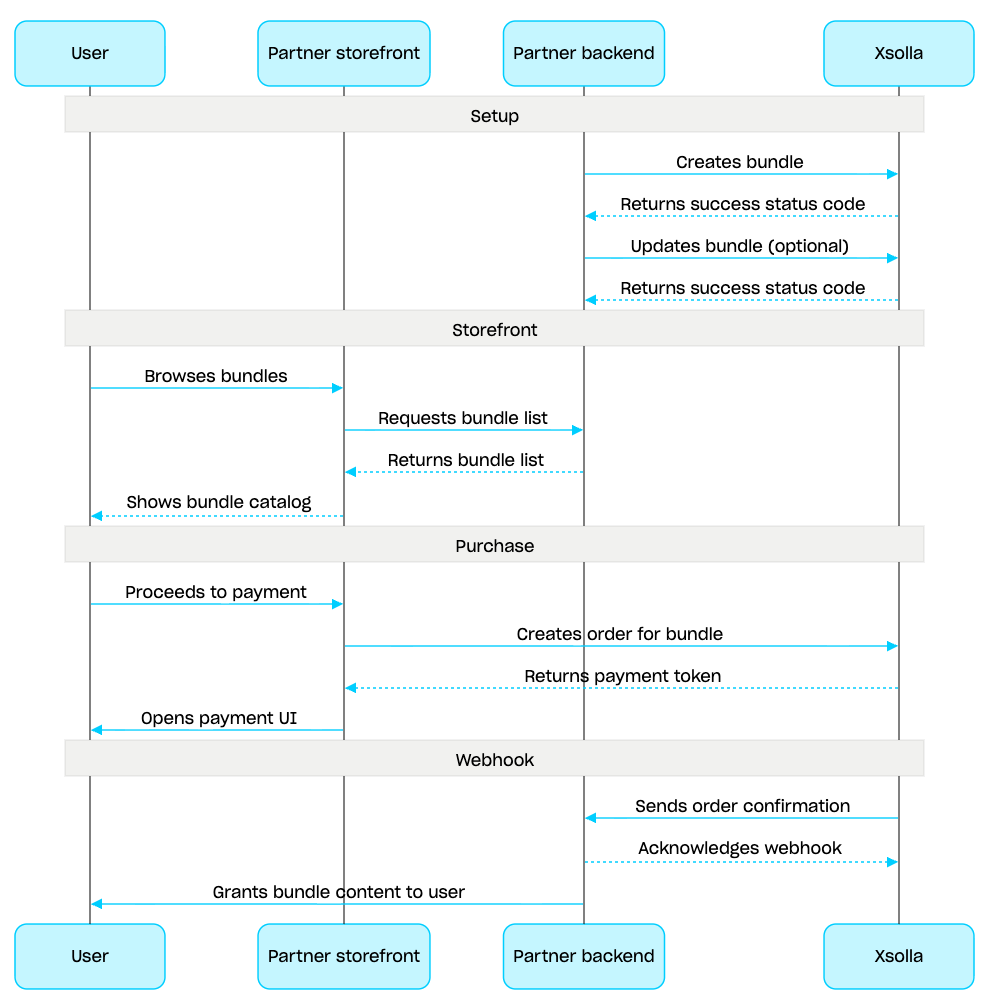
バンドル管理のシナリオ:
- バンドルを作成する APIコールを使用して、バンドルを作成します。作成したバンドルを検証するには、バンドルを取得するAPIコールを使用します。プロジェクト内のすべてのバンドルを取得するには、バンドルリストを取得するAPIコールを使用します。
- 必要に応じて、バンドルを更新するAPIコールを使用し、バンドルの内容や設定を変更します。
- バンドルリストを取得する、指定したバンドルを取得する、または指定したグループのバンドルリストを取得するAPIコールを使用して、ストアフロントにバンドルの表示ロジックを実装します。
- カートと決済セクションを使用して注文を作成します。たとえば、素早く購入できるようにするには、バンドルのSKUを渡し、指定したアイテムを含む注文を作成するAPIコールを使用できます。応答には、決済UIを開くためのトークンが含まれています。
- 注文の支払いを行うために、決済UIを開く処理を実装します。
- 決済が完了したアイテムのデータをタイムリーに受け取り、ユーザーにそれらを付与するために、たとえばウェブフックを使用して注文ステータスのトラッキングを設定します。
概要
カートは、複数のアイテムを1つの注文にまとめることができる購入メカニズムです。ユーザーは、任意のタイプのアイテムを任意の数量で実際通貨で購入でき、プロモーションコードも使用できます。
カートはエクソーラ側で保存されます。セッションをまたいでカートを保存できるかどうかは、ユーザーが認証されているかによって異なります。
認証されたユーザーの場合、カートは特定のユーザーに紐付けられ、同じユーザーとしてリクエストが送信される限り、セッションをまたいで保存されます。
未認証ユーザーの場合、カートの保存は
x-unauthorized-idヘッダーの成否に依存します。未認証ユーザーのカートをセッション間で保持するには、すべてのリクエストで同じx-unauthorized-idを渡してください。なお、このオプションはゲームキーの販売時のみ利用可能です。
カートを特定する方法は2つあります。ユーザーのJWTによる自動特定、またはカートID(cart_id)による特定です。
カート管理は、クライアント側とサーバー側の両方で利用可能です。
サーバー側では、ユーザーセッションを復元する場合などに、カートにアイテムを入れることができます。クライアント側では、以下の操作が利用可能です:
- 現在のユーザーのカートまたはIDによるカートを取得する
- カートにアイテムを追加する
- カート内のアイテムを更新する
- カートからアイテムを削除する
カートからアイテムを購入するには、注文作成のためのクライアントとサーバーのコールが使用されます。
カートの有効期限(TTL)は、デフォルトで72時間です。新しいアイテムが追加されるなど、カートの内容が変更されると、TTLは延長されます。
決済が成功した後も、カートは自動的にはクリアされません。カートをクリアするには、クライアントサイドの以下のAPIコールを使用してください:
カートIDによるカートアイテムを削除するおよび 現在のカートからのカートアイテムを削除する:カート内の最後のアイテムを削除すると、カートはクリアされます。
カート使用シナリオ:
ユーザーがアイテムを選択するストアUIを実装します。
ユーザーがストアでアイテムを選択した際、たとえば カートへアイテムを追加するコールを使用してアイテムをカートに追加します。アイテム配列には、SKUと必要なアイテムの数量を渡す必要があります。
カート表示UIを実装します。ユーザーがカートに移動した際、現在のユーザーのカートを取得するコールを使用してカートの内容を表示します。応答には、割引や適用されたプロモーションを含むアイテムの最終価格に関する情報が返されます。
注文の支払いを行うために、決済UIを開く処理を実装します。たとえば、特定のカートの全アイテムを含む注文を作成するコールを使用できます。応答には、決済UIを開くためのトークンが返されます。
決済が完了したアイテムのデータをタイムリーに受け取り、ユーザーにそれらを付与するために、たとえばウェブフックを使用して注文状況の追跡を設定します。
注意
ゲーム内およびオンラインでのアイテム販売を実装するには、統合ガイドを参照してください。
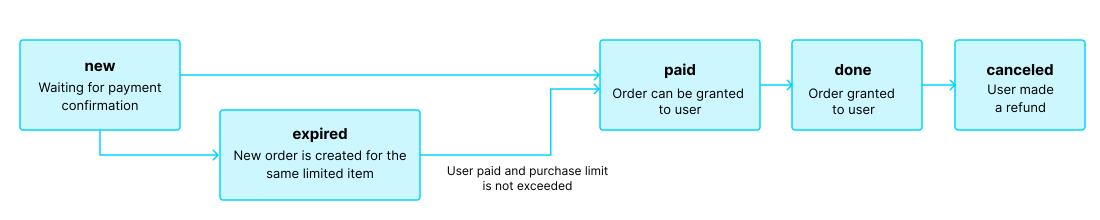
注文のライフサイクル
注文のライフサイクルを理解することは、注文の追跡や、アイテムの付与といった購入後ロジックの正確な実装に役立ちます。
注文は以下のステータスを遷移します:
| ステータス | 説明 | 備考 |
new | 注文が作成されました。システムは支払い完了の確認を待っています。 | トランザクションステータスの説明は、ペイステーションAPIに関するドキュメントで確認できます。 |
paid | 注文の支払いが完了し(トランザクションがdoneステータスに移行)、ユーザーにアイテムを付与できる状態です | 支払いが確認されるまで、注文はnewステータスのままとなります。 |
done | アイテムがユーザーに付与されました。 | — |
canceled | 支払いが返金されました。 | トランザクションステータスがrefundedに変更されると、注文はこのステータスに移行します。 |
expired | 制限 付きアイテム、プロモーションコード、またはプロモーションに対して新しい注文を作成すると、そのアイテムを含む過去の未払いの注文はすべてexpiredステータスに移行します。支払いが可能なのは最新の注文のみです。 | ユーザーが有効期限切れの注文に対して支払いを試みた場合、支払いUIに 2002 エラーが表示され、決済は失敗します。 |
注意
ユーザーが支払いを完了する間に注文がexpiredステータスに移行した場合でも、決済自体が成功したときは、注文はexpiredからpaidステータスに移行します。ただし、これが適用されるのは、決済時にその注文アイテムの購入制限数を超えない場合に限られます。
リクエスト
注文とその支払いトークンを生成します。注文はリクエスト本文に渡されたアイテムに基づいて生成されます。
決済UIを新しいウィンドウで開くには、以下のリンクをご利用ください:https://secure.xsolla.com/paystation4/?token={token}で{token}受信したトークン。
テスト目的には、以下のリンクを使用してください:https://sandbox-secure.xsolla.com/paystation4/?token={token}。
正しく動作させるためには、
user.country.valueパラメータ(国名コード)、
またはX-User-Ipヘッダー(国が不明な場合のユーザーのIPv4アドレス)のいずれかを渡してください。渡されたデータは決済通貨を決定するために使用されます。IPv6アドレスはサポートされていません。選択された通貨は、エクソーラの決済UIでの決済方法に使用されます。
プロジェクトID。このパラメータは、パブリッシャーアカウントのプロジェクト名の横、またはプロジェクトの作業中にブラウザのアドレスバーで確認できます。URLの形式は以下の通りです:https://publisher.xsolla.com/<merchant_id>/projects/<project_id>。
ユーザーID。テストでは、任意の値を渡すことができます。実際の支払いを受け入れるには、システムのユーザーID値を使用する必要があります。このIDはユーザー認証ウェブフックで渡されます。
ISO 3166-1 alpha-2に従った2文字の大文字の国名コード。X-User-IpヘッダーにIPアドレスが渡されない場合は必須です。エクソーラがサポートする国の詳細情報については、ドキュメントを確認してください。
例:country=US
法人情報の詳細を含むオブジェクト。user.is_legalがtrueの場合、このオブジェクトおよびそのすべてのパラメータが必須となります。
設立国。ISO 3166-1 alpha-2に従って大文字2文字の国コードを使用します。
ユーザーの支払いプロセスと決済UIを構成するための設定。
インターフェイス設定。
決済UIのテーマ。ライトテーマ(デフォルト)の場合は63295a9a2e47fab76f7708e1、ダークテーマの場合は63295aab2e47fab76f7708e3を指定できます。カスタムテーマを作成して、そのIDをこのパラメータに渡すこともできます。
デスクトップ版のインターフェース設定。
ヘッダー設定。
trueの場合、ロゴはヘッダーに表示されます。画像をアップロードするには、パブリッシャーアカウントでプロジェクトを開き、ペイステーション > 設定セクションにアクセスしてください。
ヘッダーに購入説明(purchase.description.value)を表示するか示します。デフォルトはtrueです。
ヘッダーを表示する方法。compact(プロジェクト名とユーザーIDを隠す)またはnormal(デフォルト)に指定できます。
決済UIのインターフェースモード。user_accountのみに指定できます:ヘッダーにはユーザーアカウントのナビゲーションメニューのみが含まれています。ユーザーは商品を選択したり、決済を行うことはできません。このモードは、デスクトップ上でのみ使用できます。
ユーザーアカウントの詳細。
お客様の決済アカウント サブメニュー。
私のアカウント ページ。
リンクを外部リソースにリダイレクトするかどうかを無効にします。外部リンクをクリックすると、external-link-openイベントがpostMessageメカニズムを介して送信されます。urlパラメータには、リダイレクト先のリンクのアドレスが渡されます。
決済UIを開く際に、ユーザーの国で利用可能な決済方法のリストを表示するかどうか。falseの場合(デフォルト)、settings.payment_methodパラメータで渡された決済方法、またはPayRankアルゴリズムで選択された方法が表示されます。
埋め込みランチャーのブラウザ(WebView)から、ユーザーのデフォルトのブラウザにリダイレクトして購入させるかどうか。
codeに設定すると、決済UIに3 文字のISO 4217通貨コードが表示されます。 デフォルトでは、3文字の通貨コードの代わりに通貨記号が表示されます。
支払いページを閉じる前に、×アイコンの上にカーソルを置いたときに取引処理に関する警告を表示するかどうか。falseが渡された場合、またはパラメータが渡されなかった場合、警告は表示されません。
決済UIの主要要素の位置。ゲーム内で決済UIを開いたり、注文や決済方法に関する情報の列を入れ替えたりすることができます。詳細については、カスタマイズに関する説明を参照してください。
3-Dセキュア検証が新しいブラウザウィンドウで開くかどうか。セットアップでコンテンツセキュリティポリシー(CSP)が適用される場合は、trueに設定します。
ご希望の決済通貨。ISO 4217に従った3文字の通貨コード。エクソーラがサポートする通貨の詳細については、ドキュメントを参照してください。
インターフェース言語。小文字の2文字言語コード。
決済完了後にユーザーがリダイレクトされるページ。リンクにはuser_id、foreigninvoice、invoice_id、およびstatusパラメータが自動的に追加されます。
ユーザーがリターンURLにリダイレクトする引き金となる決済状態。
ユーザーをリターンURLにリダイレクトしてボタンクリックの表示をトリガーする決済状態。
キーと値のペアの有効なJSONセットとして表されたカスタムパラメータ。
このフィールドを通じて追加のパラメータを渡すことで、不正対策フィルターを設定することができます。ペイステーションに関するドキュメントンをご覧ください。
- https://store.xsolla.com/api/v3/project/{project_id}/admin/payment/token
- Mock serverhttps://xsolla.redocly.app/_mock/ja/api/catalog/v3/project/{project_id}/admin/payment/token
- curl
- JavaScript
- Node.js
- Python
- Java
- C#
- PHP
- Go
- Ruby
- R
- Payload
curl -i -X POST \
  -u <username>:<password> \
  https://store.xsolla.com/api/v3/project/44056/admin/payment/token \
  -H 'Content-Type: application/json' \
  -d '{
    "user": {
      "id": {
        "value": "user-id"
      },
      "name": {
        "value": "user-name"
      },
      "email": {
        "value": "[email protected]"
      },
      "country": {
        "value": "US",
        "allow_modify": false
      }
    },
    "purchase": {
      "items": [
        {
          "sku": "com.xsolla.cup01",
          "quantity": 2
        },
        {
          "sku": "com.xsolla.t-shirt01",
          "quantity": 1
        },
        {
          "sku": "com.xsolla.cup02",
          "quantity": 1
        },
        {
          "sku": "com.xsolla.hat01",
          "quantity": 1
        }
      ]
    },
    "settings": {
      "language": "de",
      "external_id": "AABBCCDD01",
      "currency": "USD",
      "payment_method": 1380,
      "return_url": "https://developers.xsolla.com/ja/",
      "ui": {
        "theme": "63295aab2e47fab76f7708e3"
      }
    }
}'{ "token": "huooAqbXBSJxB8Q4dYBqJp4ybiInqsPb", "order_id": 12345 }
無料アイテム
ユーザーに無料アイテムを付与するには、このセクションのコールを使用してください。
概要
購入制限を使用すると、単一のユーザーまたはすべてのユーザーが購入できるアイテム数量を制限できます。スケジュールされた制限リセットを設定することもできます。
制限はエクソーラ側に保存され、パブリッシャーアカウントで個々のアイテムレベルで設定されるか、以下のAPIコールのlimitsオブジェクトを介して設定されます:
制限情報は、アイテムカタログを取得するための以下のAPIコールでitems.limitsオブジェクトに返されます:
制限グループの管理サブセクションに属するAPIコールにより、制限の現在状態の取得、および指定したユーザーに対する制限値の更新が可能となります(例:クエスト完了時におけるカウンターのリセット、残存数量の手動調整など)。
共通地域
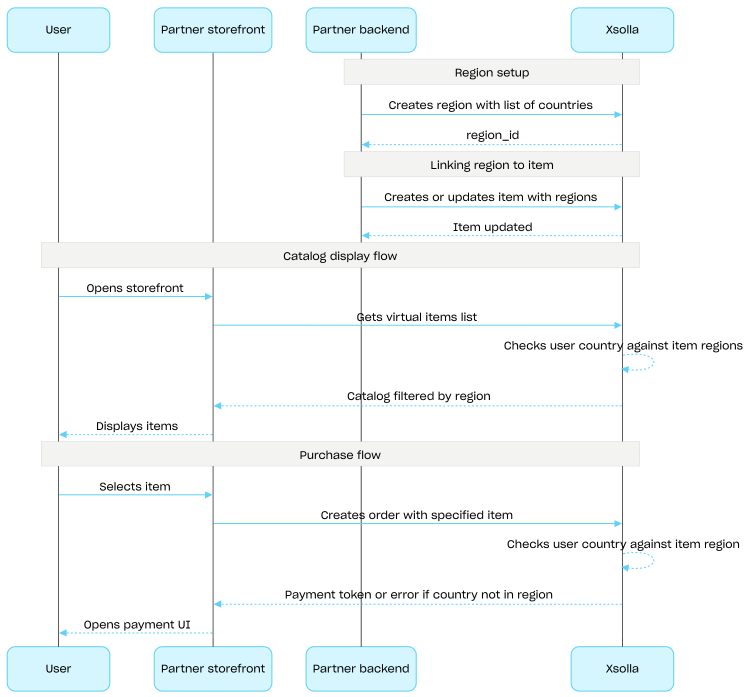
地域別の販売制限を使用すると、特定の国または国グループにおけるアイテムの可用性を管理できます。例えば、ライセンスの制約により、特定の国だけでゲームを販売するといったことが可能です。
制限の設定には「地域」を使用します。各地域は、1つ以上の国を単一のregion_idでまとめたものです。アイテムを1つ以上の地域に関連付けることができます。
アイテムの可用性は、以下のように判定されます:
- アイテムに地域の指定がない場合、すべての国で購入可能です。
- アイテムに地域が指定されており、ユーザーの国がそのいずれかに含まれている場合、そのユーザーはアイテムを購入できます。
- アイテムに地域が指定されており、ユーザーの国がどの地域にも含まれていない場合、そのユーザーはアイテムを購入できません。
ユーザーの国は、カタログセクションからのAPIコールを通じてカタログをリクエストする際、countryパラメータとして渡されます。このパラメータが渡されない場合は、ユーザーのIPアドレスに基づいて国が判定されます。
ユーザーの国とアイテムの地域との照合は、カタログのリクエスト時と注文作成時の2回行われます。購入不可のアイテムはカタログのレスポンスには含まれず、そのようなアイテムを含む注文が作成されることはありません。
地域の作成、更新、および削除には、共通地域グループのAPIコールを使用します。
地域別の販売制限のセットアップフロー:
- 地域を作成するAPIコールを使用して、対象となる国のリストを指定して地域を作成します。レスポンスには、次のステップで必要となる
region_idが返されます。 - アイテムを作成する際、または更新する際に、
regions配列にそのregion_idを渡すことで、仮想アイテムを地域に関連付けます。 - カタログセクションのAPIコール(例:仮想アイテムリストを取得するAPIコール)を使用して、ユーザーにカタログを表示します。ユーザーの国は
countryパラメータによって決定されます。このパラメータが提供されない場合は、ユーザーのIPアドレスに基づいて判定されます。ユーザーの国で利用不可のアイテムは、カタログの応答には含まれません。 - ユーザーがアイテムまたはカートの決済に進む際に、注文を作成します:
- アイテムをカートに追加している場合 — 特定のカートの全アイテムを対象とした注文を作成するまたは現在のカートの全アイテムを対象とした注文を作成するAPIコールを使用します。
- 単一アイテムの迅速な購入の場合 — アイテムのSKUを渡して指定したアイテムで注文を作成するAPIコールを使用します。
レスポンスには、決済UIを開くためのトークンが含まれています。
エクソーラは、ユーザーの国がアイテムに指定された地域に含まれているかを確認します。国がアイテムの地域に含まれていない場合、注文を作成することはできません。
- 注文を支払うための決済UIを開く処理を実装します。