QUICK START
Quick Start - iOS
Get the Xsolla Mobile SDK integrated and process your first test payment. We'll use pre-configured test credentials so you can start in minutes.
⚡ DMA-ready & revenue-boosting: leverage direct IPA distribution alongside in-app compliance with DMA — unlocking access to 1,000+ global payment methods and bypassing app-store fees to maximize your margins.
Getting Started
iOS: In the U.S., Japan, and Brazil, Apple now lets developers direct players to external web payments. The Xsolla SDK aligns with Apple's updated guidelines.
Add the Xsolla Mobile SDK to your project using Swift Package Manager:
- In Xcode, go to File → Add Package Dependencies…
- Enter the repository URL:
https://github.com/xsolla/xsolla-sdk-ios - Set the dependency rule to Up to Next Major Version and click Add Package.
- Select XsollaMobileSDK and add it to your target.
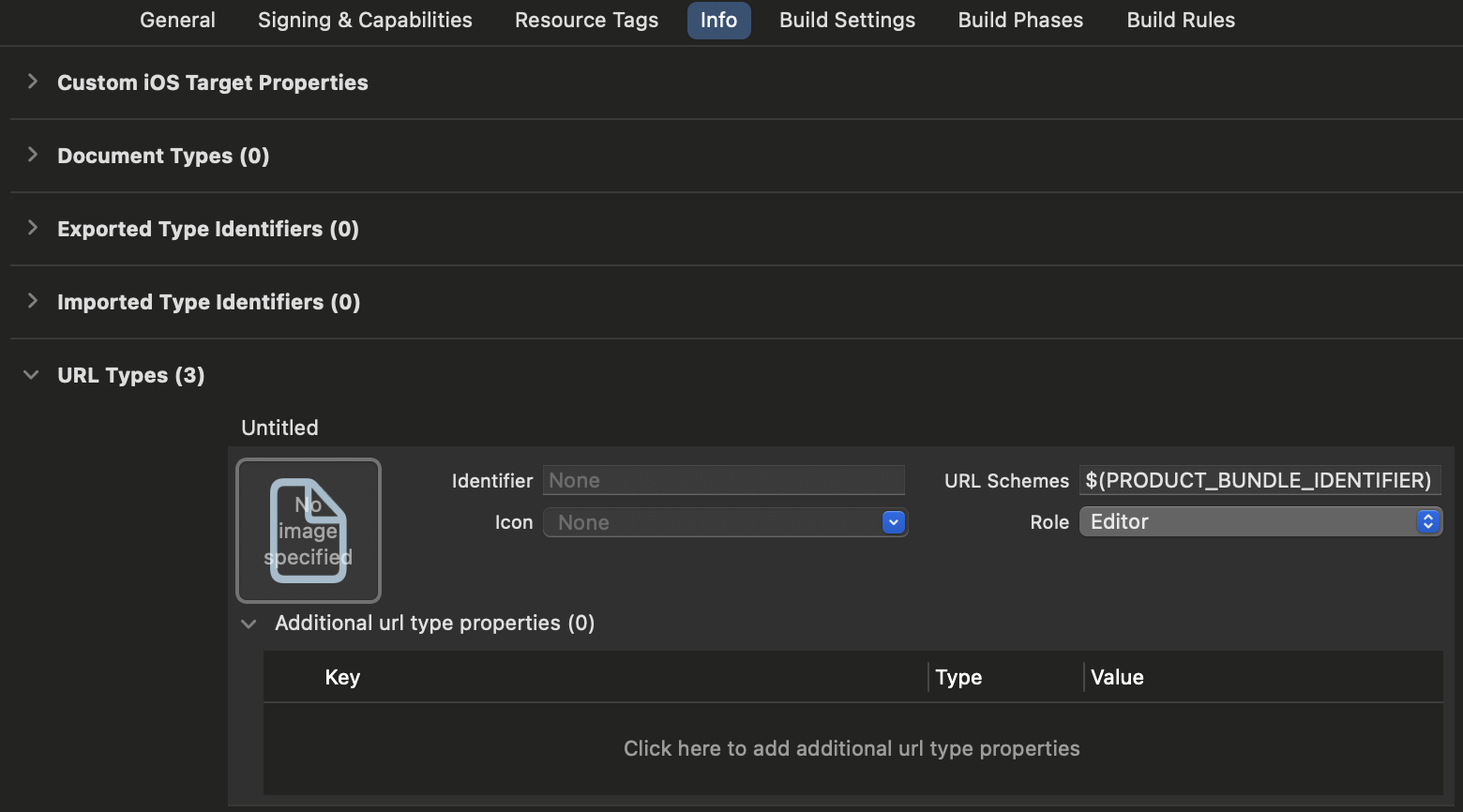
Then set up a URL scheme for your target:
- Select your target and open the Info tab.
- Click ➕ in the URL Types section.
- Set the URL Scheme to
$(PRODUCT_BUNDLE_IDENTIFIER).
See installation details for more configuration options.
Authenticate
Configure the SDK with test credentials, start the payment queue, and register a transaction observer:
- Swift
- Objective-C
import XsollaMobileSDK

let settings = SKPaymentSettings(projectId: 301871,
                                 loginProjectId: "dfcb133b-6d0b-4937-b8d2-c4f4d58fb53a",
                                 platform: .standalone)

settings.useSandbox = true
settings.openExternalBrowser = true  // External web payment (US, Japan, Brazil); either is allowed in the EU

SKPaymentQueue.default().start(settings)
SKPaymentQueue.default().add(self)  // Handle purchase completion — see Finalize Purchase
#import <XsollaMobileSDK/StoreKitWrapper.h>

SKPaymentSettings* settings = [[SKPaymentSettings alloc] initWithProjectId: 301871
                                                    loginProjectId:@"dfcb133b-6d0b-4937-b8d2-c4f4d58fb53a"
                                                    platform: SKPaymentPlatformStandalone
                                                    paystationUIThemeId: SKPaystationThemeDark
                                                    paystationUISize: SKPaystationSizeMedium];

settings.useSandbox = YES;
settings.openExternalBrowser = YES;  // External web payment (US, Japan, Brazil); either is allowed in the EU

SKPaymentQueue* queue = [SKPaymentQueue defaultQueue];
[queue startWithSettings: settings];
[queue addTransactionObserver: self];  // Handle purchase completion — see Finalize Purchase
This creates your settings with sandbox mode and test credentials, then starts the SKPaymentQueue and registers a transaction observer. For production, replace the test project ID and login ID with your own from Publisher Account. See configuration docs for advanced options including storefront detection.
If you are using your own Project/Login IDs, make sure to enable Device ID login in your Project. Learn how to enable it here: https://developers.xsolla.com/sdk/publisher-account/login#enable-device-id-login-in-publisher-account
Load Catalog
Query your product catalog once connected:
- Swift
- Objective-C
let skus: Set<String> = ["money.100", "ticket.10"]
let req = SKProductsRequest(productIdentifiers: skus)

req.delegate = self
req.start()

// Conform your class to SKProductsRequestDelegate
extension YourClass: SKProductsRequestDelegate {
    func productsRequest(_ request: SKProductsRequest, didReceive response: SKProductsResponse) {
        self.products = response.products
        // Launch purchase — see Purchase Product
    }
}
NSSet *skus = [NSSet setWithArray:@[@"money.100", @"ticket.10"]];
SKProductsRequest* req = [[SKProductsRequest alloc] initWithProductIdentifiers:skus];

req.delegate = self;
[req start];

// Conform your class to SKProductsRequestDelegate
@interface YourClass (SKProductsRequestDelegate) <SKProductsRequestDelegate>
@end

@implementation YourClass (SKProductsRequestDelegate)

- (void)productsRequest:(SKProductsRequest *)request didReceiveResponse:(SKProductsResponse *)response {
    self.products = response.products;
    // Launch purchase — see Purchase Product
}

@end
This loads your products by SKU. See initialization docs for reconnection handling and advanced options.
Purchase Product
Use the product details from your catalog query to launch a purchase:
- Swift
- Objective-C
let product = products.first!  // Previously fetched product
let payment = SKPayment(product: product)
SKPaymentQueue.default().add(payment)
SKProduct *product = ...;  // Previously fetched product
SKPayment *payment = [SKPayment paymentWithProduct:product];
[[SKPaymentQueue defaultQueue] addPayment:payment];
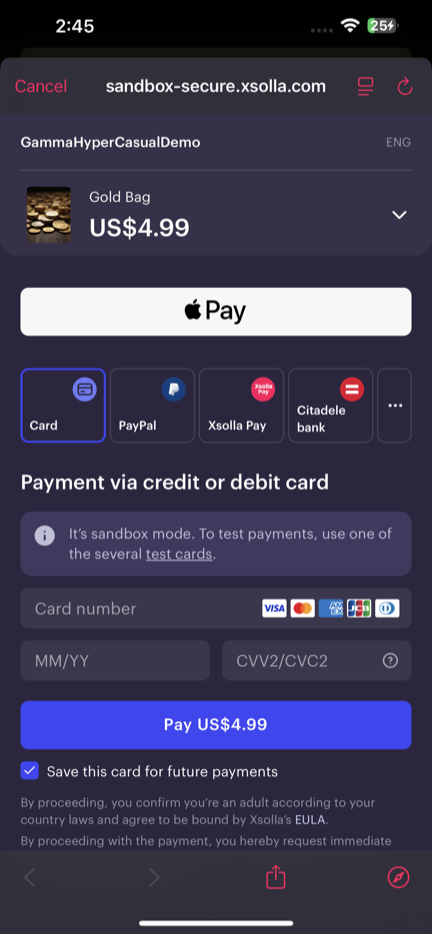
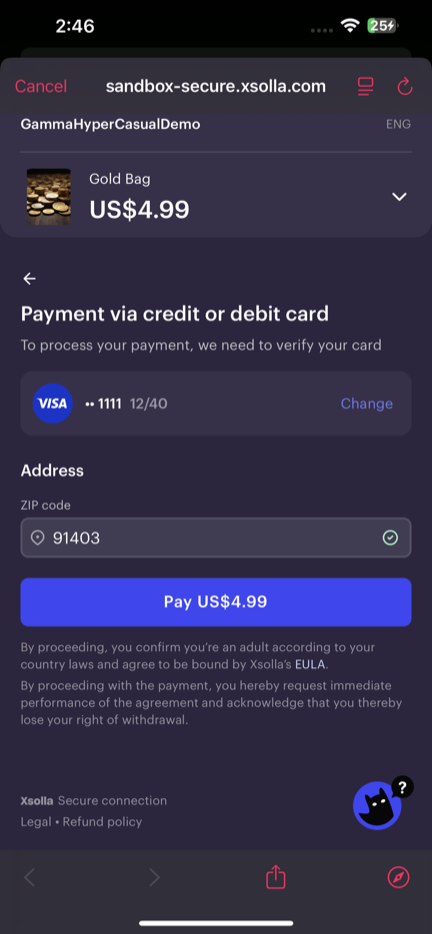
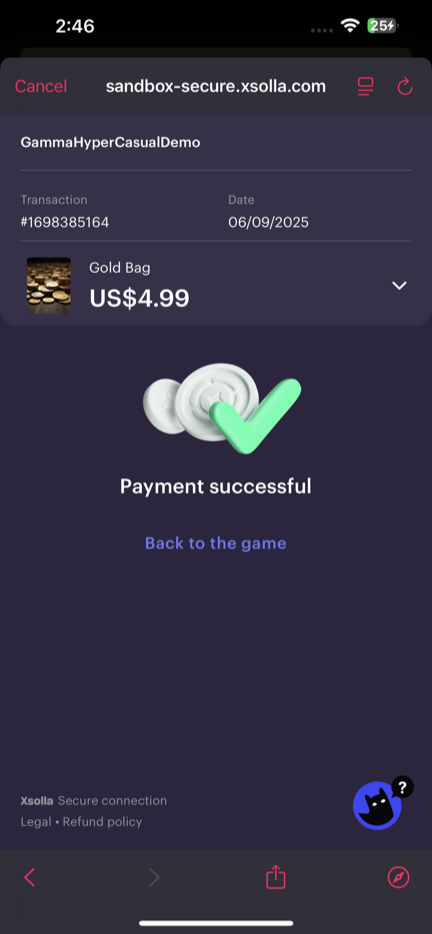
This opens Xsolla Pay Station where users complete payment. For testing, use a test card ↗:
Finalize Purchase
Handle completed transactions in your SKPaymentTransactionObserver and finish each one:
- Swift
- Objective-C
extension YourClass: SKPaymentTransactionObserver {
    func paymentQueue(_: SKPaymentQueue, updatedTransactions: [SKPaymentTransaction]) {
        for transaction in updatedTransactions {
            switch transaction.transactionState {
            case .purchased:
                // Award the product (virtual item) to the user here
                SKPaymentQueue.default().finishTransaction(transaction)
            case .failed:
                // Handle error
                SKPaymentQueue.default().finishTransaction(transaction)
            default:
                break
            }
        }
    }
}
- (void)paymentQueue:(SKPaymentQueue *)queue updatedTransactions:(NSArray *)transactions {
    for(SKPaymentTransaction *transaction in transactions) {
        switch (transaction.transactionState) {
            case SKPaymentTransactionStatePurchased:
                // Award the product (virtual item) to the user here
                [[SKPaymentQueue defaultQueue] finishTransaction:transaction];
                break;
            case SKPaymentTransactionStateFailed:
                // Handle error
                [[SKPaymentQueue defaultQueue] finishTransaction:transaction];
                break;
            default: break;
        }
    }
}
This processes purchase results and finishes transactions. Always call finishTransaction to acknowledge each transaction. See purchase flow docs for error scenarios and advanced options.
What's next?
You've built a complete payment integration: authentication, catalog loading, purchase flow, and fulfillment. Your app now has access to 1,000+ payment methods across 200+ countries.
- Set up your project — create your Publisher Account and replace the sandbox test credentials with production ones
- Buy Button — fastest path to external payments
- Full SDK docs — advanced features, configuration, custom UI