PUBLISHER ACCOUNT
Setting Up Authentication
Configure an authentication method for your Xsolla Login project — choose the approach that fits your app's complexity.
AUTHENTICATION METHODS
Login with Device ID
This is required if you are using Xsolla SDK and you don't have existing Xsolla Login integration.
Best suited for casual apps that don't need advanced features (e.g. server validation, explicit authentication with Xsolla, etc).
Enable Device ID Login in Publisher Account
- In the Login methods block, choose any option and click Configure.
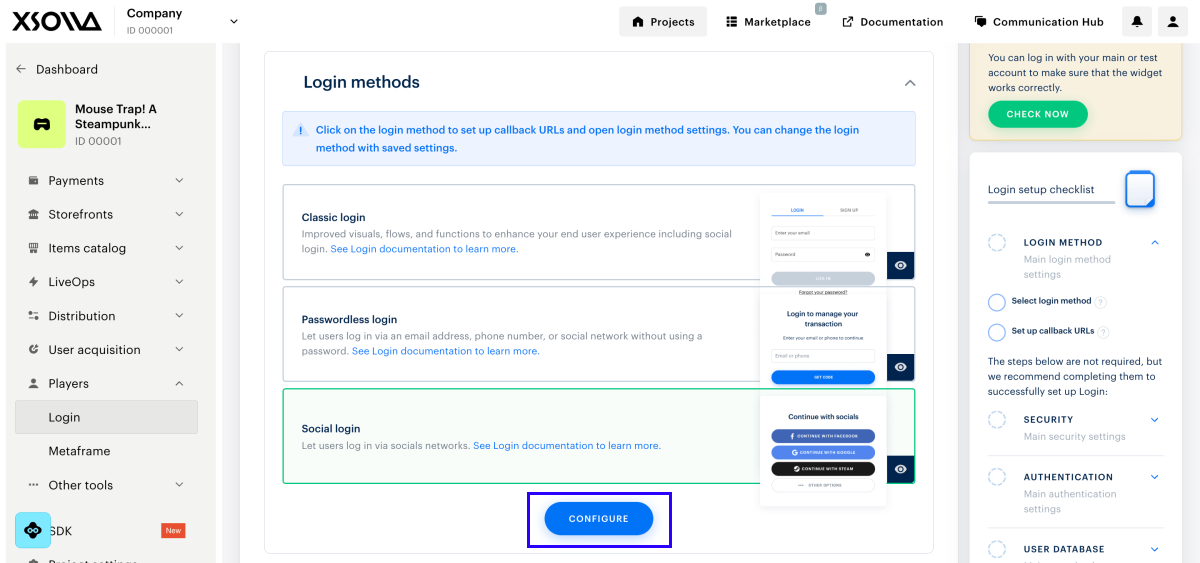
- In the top settings block, click Login API integration.
- Set the Login with device ID toggle to ON.
- Click Save changes.
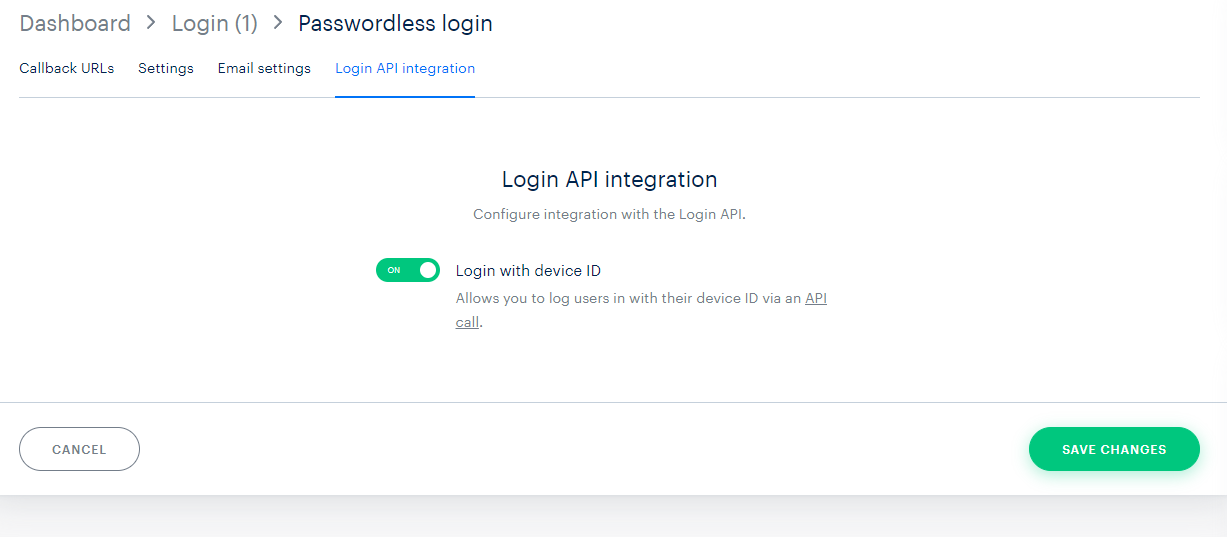
For more information, see Device ID authentication ↗ (https://developers.xsolla.com/doc/login/authentication-options/device-id).
Login on Game Server
The most advanced method — relies on your project's backend to authenticate and validate users. Makes extensive use of webhooks for communication between the backend and Xsolla services. For more information, see the Auth by custom ID ↗ (https://developers.xsolla.com/api/login/server-custom-id/auth-by-custom-id) API reference.