MOBILE
Xsolla SDK for Unity - Mobile
iOS: In the U.S., Japan, and Brazil, Apple now lets developers direct players to external web payments. The Xsolla SDK aligns with Apple's updated guidelines.
Android — Effective Oct 29, 2025: Following the Epic v. Google injunction, U.S. Google Play apps may guide users to external payment methods via link-outs, use alternative billing solutions, and are no longer subject to anti-steering restrictions.
For both platforms, the fastest recommended non-SDK approach is the Buy Button via link-outs to Web Shop ↗ (https://developers.xsolla.com/solutions/web-shop/other/instant-purchase).
⚡ Seamless mobile commerce: Integrate DMA-compliant billing, out-of-store distribution, and access to over 1,000 local payment methods—all within your Unity mobile builds.
This guide helps you integrate the Xsolla SDK for Unity to start accepting payments in your Unity game on Android and iOS. By the end, you'll have a fully functioning payment system in your game and experience firsthand how Xsolla streamlines monetization.
Let's dive in and get your game ready to accept payments in just a few easy steps!
Quick start
This quick start guide makes it simple to integrate the Xsolla SDK for Unity and start accepting payments in your Unity game. We'll use a pre-configured test project to cover all the essentials: setting up basic user authentication, importing your products (SKUs), and processing a test payment.
For detailed instructions, please refer to the Quick start.
Setting up a Publisher Account
Before you begin integrating Xsolla SDK into your game, you'll need to register a Publisher Account.
The Publisher Account is the primary tool for configuring Xsolla features, working with analytics and transactions similar to Google Play Console and App Store Connect for SKU management.
You'll need to have an active Publisher Account to obtain a Project ID you'd use throughout the whole SDK integration process.
For detailed instructions, please refer to Setting up a Publisher Account.
Install the SDK
Now that you've set up your Publisher Account, the next step is to install the Xsolla SDK for Unity plugin in your Unity project.
For general installation instructions, see the Installation Guide.
Platform-specific Details
For platform-specific instructions, follow the links below:
- Android
- iOS
The SDK installation process on Android requires resolving project dependencies.
To learn how to do that, see Resolving Android dependencies ↗
No additional steps required for iOS
Configure the SDK
Once you've installed the SDK, the next step is configuration.
For detailed instructions, please refer to the Configuration Guide.
Platform-specific Details
For platform-specific instructions, follow the links below:
- Android
- iOS
Buy Button Solution or Web Shop Link-outs (Recommended)
To enable U.S.-only link-outs effective October 29, 2025, first detect the Google Play storefront country code using the guide provided here.
For details on configuring the Buy Button solution or Web Shop Link-outs, see here.
Standard
When distributing your app through alternative channels outside of Google Play Store, you may need to detect where your app was installed from.
To learn how to do that, see How to detect store installation.
For directing players to external web payments in the U.S., Japan, and Brazil, and/or in-app payment compliance in Europe under the DMA, see:
Initialize the SDK
With configuration complete, you're now ready to initialize the SDK in your Unity project.
For detailed steps and best practices, refer to Initialization.
Make a Purchase
Now that the SDK is initialized, your app is ready to start processing payments.
For detailed instructions, please refer to Make Purchase.
Collect Payment
The SDK leverages Xsolla Pay Station for secure payment collection.
These steps will guide you through a test payment collection flow:
- Android
- iOS
-
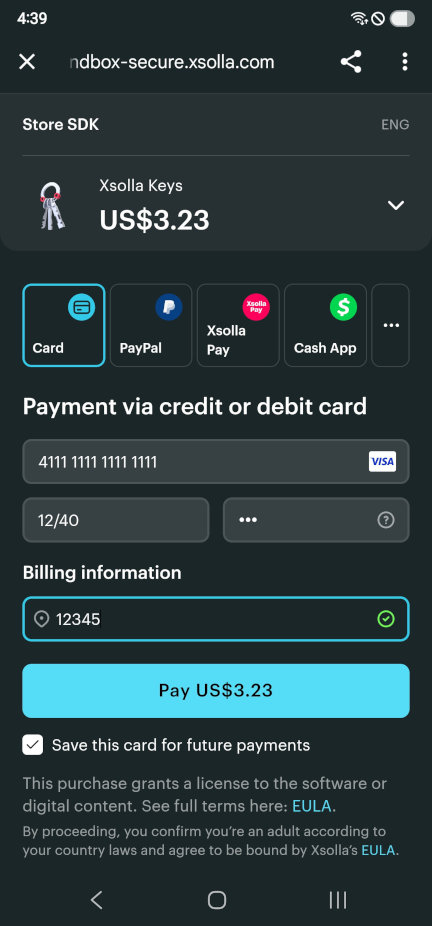
Choose the Card payment method (use one of the test cards listed here ↗ (https://developers.xsolla.com/doc/pay-station/testing/test-cards)) and click Pay to initiate the payment:
-
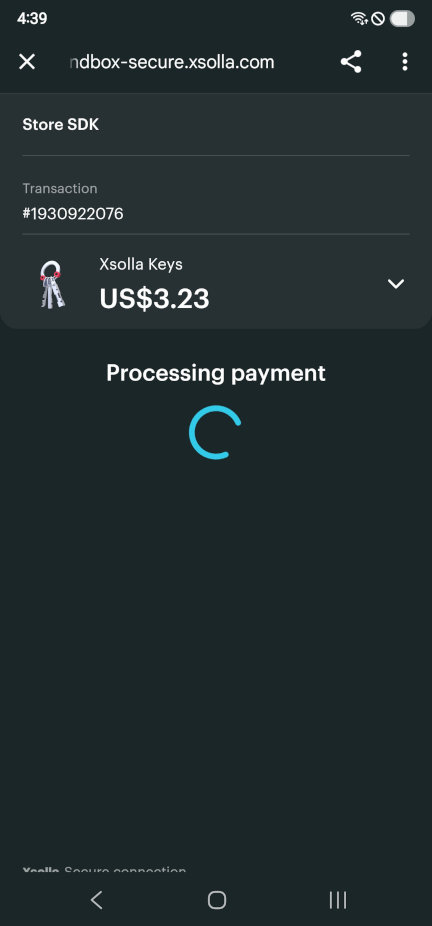
Wait for the payment to go through:
-
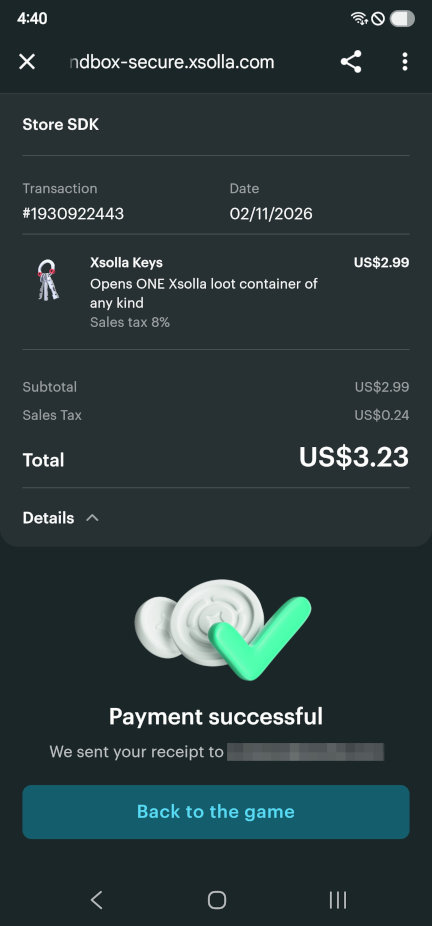
Once the payment is completed, you'll see a confirmation:
-
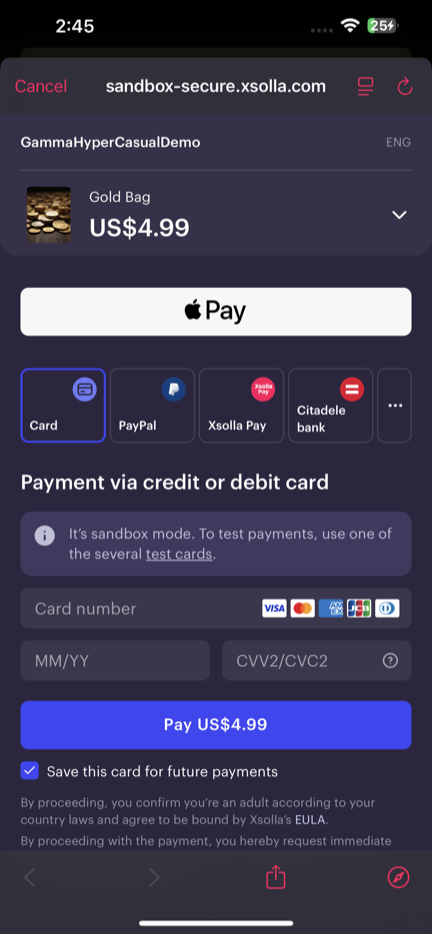
Choose the Card payment method:
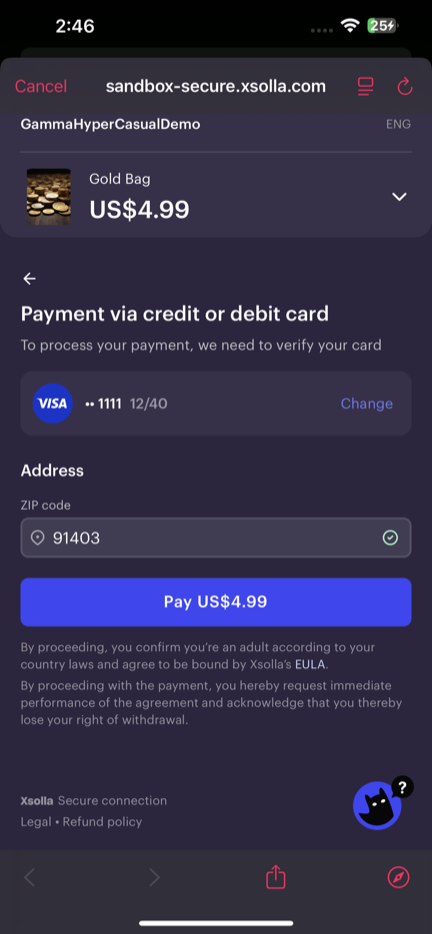
-
Use one of the test cards listed here ↗ (https://developers.xsolla.com/doc/pay-station/testing/test-cards) and click Pay to confirm the payment:
-
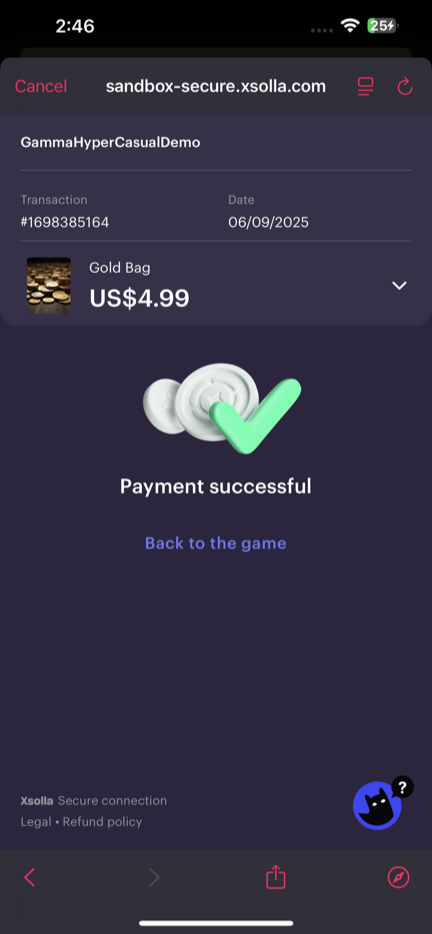
Once the payment goes through, you'll see a confirmation:
Purchase Validation
After setting up payments, you might want to validate your purchase to ensure transaction security and reliability.
For detailed instructions, please refer to Purchase Validation.
Testing & Sandbox
As a final step, use the sandbox environment to safely test your entire payment integration without real transactions.
For detailed instructions, please refer to the Testing & Sandbox.
What's next?
Congratulations! 🎉 You've successfully integrated Xsolla SDK for Unity!
This achievement unlocks access to over 1000 global payment methods and sets the foundation for integrating more Xsolla solutions, including our powerful Web Shop.