PUBLISHER ACCOUNT
Configuring Xsolla Catalog
Set up your Virtual Items (IAPs) — the purchasable products in your Xsolla Catalog, equivalent to in-app purchases from Google Play Billing or StoreKit.
Your Xsolla Catalog consists of Virtual Items ↗ (https://developers.xsolla.com/doc/shop-builder/features/virtual-items). Each Virtual Item has a name, description, SKU (product identifier), and a price.
- Import from App Store
- Import from Google Play
- Manual
- Import from File
- REST API
Import in-app purchases (IAPs) from App Store Connect and synchronize them as Virtual Items in your Xsolla Catalog by following this guide ↗ (https://developers.xsolla.com/doc/shop-builder/how-to/import-catalog/?_xm=383621481969483790#shop_builder_how_to_import_appstore_catalog).
Make sure to perform this action after every App Store in-app purchase catalog update.
Import in-app products (IAPs) from Google Play and synchronize them as Virtual Items in your Xsolla Catalog by following this guide ↗ (https://developers.xsolla.com/doc/shop-builder/how-to/import-catalog/?_xm=383621481969483790#shop_builder_how_to_import_google_catalog).
Make sure to perform this action after every Google Play product catalog update.
Use this method to manually manage your Xsolla Catalog (IAPs) through the Publisher Account interface.
Add a Virtual Item with Basic Settings to the Catalog
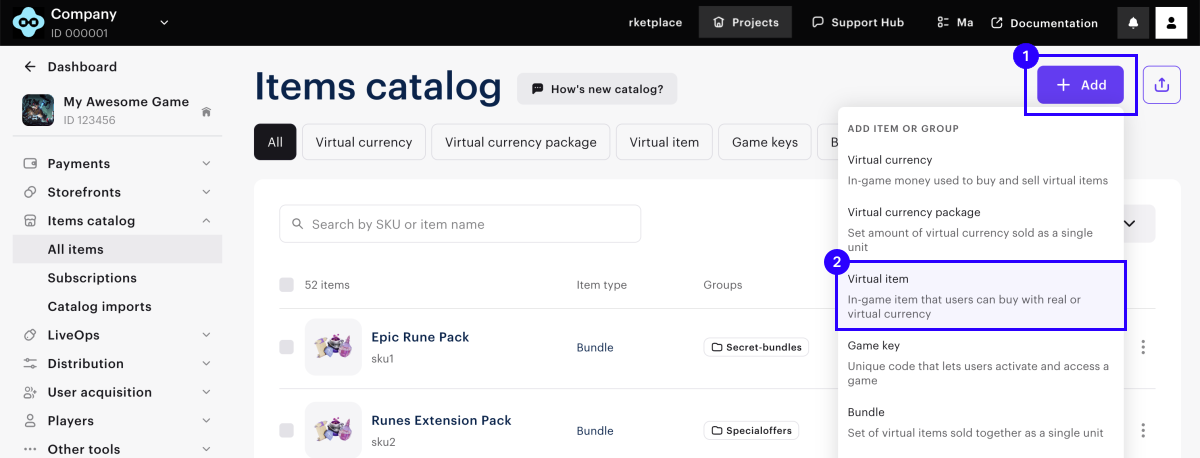
- Open your project in Publisher Account and go to Items catalog > All items section.
- Click Add and select Virtual item from the drop-down list.
-
Configure the basic settings. Specify the following:
- image (optional)
- SKU
- one or multiple groups
- item name
- item description (optional)
Leave the item type set to the default one — Consumable (recommended).
-
Set up virtual item pricing:
- To create a free virtual item, in the Paid or free field, select Free item.
- To create a paid virtual item, in the Paid or free field, select Paid item, and specify the price in one or more currencies.
noteTo ensure that the API calls for getting the catalog work correctly, make sure that the default currency and the list of currencies in which prices are specified match for all items.
-
Change the item status to Available.
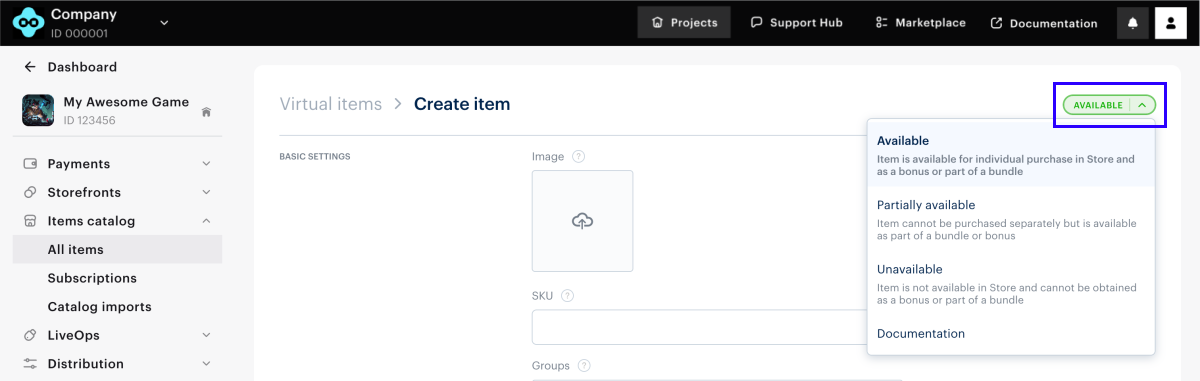
- Click Create item.
For advanced catalog features (virtual currency, bundles, item groups, and more), see the catalog creation guide ↗ (https://developers.xsolla.com/doc/shop-builder/features/virtual-items/?_xm=383621481969483790#shop_builder_virtual_items_set_up_in_pa).
There is a file size limit of 7MB (~1000 records).
No public documentation is available at this moment. Please contact your Account Manager for more details and manual import/sync.
You can use Rest API to manage Virtual Items (IAPs) in the Publisher Account. This will allow you to set up inventory sync between your game server product catalog and Xsolla Catalog.
-
Get Items
GET /v2/project/{project_id}/admin/items/virtual_itemsDocumentation can be found here ↗ (https://developers.xsolla.com/api/igs-bb/operation/admin-get-virtual-items-list/)
-
Create Item
POST /v2/project/{project_id}/admin/items/virtual_itemsDocumentation can be found here ↗ (https://developers.xsolla.com/api/igs-bb/operation/admin-create-virtual-item/)
-
Update Item
PUT /v2/project/{project_id}/admin/items/virtual_items/sku/{item_sku}Documentation can be found here ↗ (https://developers.xsolla.com/api/igs-bb/operation/admin-update-virtual-item/)
-
Delete Item
DELETE
/v2/project/{project_id}/admin/items/virtual_items/sku/{item_sku}
Documentation can be found here ↗ (https://developers.xsolla.com/api/igs-bb/operation/admin-delete-virtual-item/)