Warenkorb-ID.
- Bestellung mit angegebenem kostenlosen Artikel anlegen
Bestellung mit einem kostenlosen Warenkorb anlegen
Bestellung mit einem bestimmten kostenlosen Warenkorb anlegen
Bestellung mit angegebene...
Katalog-API (2.0.0)
- Version: 2.0.0
- Servers:
https://store.xsolla.com/api - Contact Us by Email
- Contact URL: https://xsolla.com/
- Required TLS version: 1.2
The Catalog API allows you to configure a catalog of in-game items on the Xsolla side and display the catalog to users in your store.
The API allows you to manage the following catalog entities:
- Virtual items — in-game items such as weapons, skins, boosters.
- Virtual currency — virtual money used to purchase virtual goods.
- Virtual currency packages — predefined bundles of virtual currency.
- Bundles — combined packages of virtual items, currency, or game keys sold as a single SKU.
- Game keys — keys for games and DLCs distributed via platforms like Steam or other DRM providers.
- Groups — logical groupings for organizing and sorting items within the catalog.
The API is divided into the following groups:
Admin — calls for creating, updating, deleting, and configuring catalog items and groups. Authenticated via basic access authentication with your merchant or project credentials. Not intended for storefront use.Catalog — calls for retrieving items and building custom storefronts for end users. Designed to handle high-load scenarios. Support optional user JWT authorization to return personalized data such as user-specific limits and active promotions.
API calls require authentication either on behalf of a user or on behalf of a project. The authentication scheme used is specified in the Security section in the description of each call.
User's JWT authentication is used when a request is sent from a browser, mobile application, or game. By default, the XsollaLoginUserJWT scheme is applied. For details on how to create a token, see the Xsolla Login API documentation.
The token is passed in the Authorization header in the following format: Authorization: Bearer <user_JWT>, where <user_JWT> is the user token. The token identifies the user and provides access to personalized data.
Alternativ können Sie einen Token zum Öffnen des Zahlungsportals verwenden.
Basic HTTP authentication is used for server-to-server interactions, when an API call is sent directly from your server rather than from a user's browser or mobile application. HTTP Basic authentication with an API key is typically used.
Note
The API key is confidential and must not be stored or used in client applications.
The API key is confidential and must not be stored or used in client applications.
With basic server-side authentication, all API requests must include the following header:
- for
basicAuth—Authorization: Basic <your_authorization_basic_key>, whereyour_authorization_basic_keyis theproject_id:api_keypair encoded in Base64 - for
basicMerchantAuth—Authorization: Basic <your_authorization_basic_key>, whereyour_authorization_basic_keyis themerchant_id:api_keypair encoded in Base64
You can find the parameter values in Publisher Account:
merchant_idis displayed:- In Company settings > Company.
- In the URL in the browser address bar on any Publisher Account page. The URL has the following format:
https://publisher.xsolla.com/<merchant_id>.
project_idis displayed:- Next to the project name in Publisher Account.
- In the URL in the browser address bar when working on a project in Publisher Account. The URL has the following format:
https://publisher.xsolla.com/<merchant_id>/projects/<project_id>.
api_keyis shown in Publisher Account only at the time of creation and must be stored securely on your side. You can create an API key in the following sections:
Notice
If a required API call doesn't include the
If a required API call doesn't include the
project_id path parameter, use an API key that is valid across all company projects for authorization.For more information about working with API keys, see the API references.
Das Authentifizierungsschema AuthForCart wird für Warenkorbkäufe verwendet und unterstützt zwei Modi:
Authentication with a user's JWT. The token is passed in the
Authorizationheader in the following format:Authorization: Bearer <user_JWT>, where<user_JWT>is the user token. The token identifies the user and provides access to personalized data. Alternatively, you can use a token for opening the payment UI.Simplified mode without Authorization header. This mode is used only for unauthorized users and can be applied only for game key sales. Instead of a token, the request must include the following headers:
x-unauthorized-idwith a request IDx-userwith the user's email address encoded in Base64
Items of all types (virtual items, bundles, virtual currency, and keys) use a similar data structure. Understanding the basic structure simplifies working with the API and helps you navigate the documentation more easily.
Note
Some calls may include additional fields but they don't change the basic structure.
Some calls may include additional fields but they don't change the basic structure.
Identification
merchant_id— company ID in Publisher Accountproject_id— project ID in Publisher Accountsku— item SKU, unique within the project
Store display
name— item namedescription— item descriptionimage_url— image URLis_enabled— item availabilityis_show_in_store— whether the item is displayed in the catalog
For more information about managing item availability in the catalog, see the documentation.
Organization
type— item type, for example, a virtual item (virtual_item) or bundle (bundle)groups— groups the item belongs toorder— display order in the catalog
Sale conditions
prices— prices in real or virtual currencylimits— purchase limitsperiods— availability periodsregions— regional restrictions
Example of core entity structure:
{
  "attributes": [],
  "bundle_type": "virtual_currency_package",
  "content": [
    {
      "description": {
        "en": "Main in-game currency"
      },
      "image_url": "https://.../image.png",
      "name": {
        "en": "Crystals",
        "de": "Kristalle"
      },
      "quantity": 500,
      "sku": "com.xsolla.crystal_2",
      "type": "virtual_currency"
    }
  ],
  "description": {
    "en": "Crystals x500"
  },
  "groups": [],
  "image_url": "https://.../image.png",
  "is_enabled": true,
  "is_free": false,
  "is_show_in_store": true,
  "limits": {
    "per_item": null,
    "per_user": null,
    "recurrent_schedule": null
  },
  "long_description": null,
  "media_list": [],
  "name": {
    "en": "Medium crystal pack"
  },
  "order": 1,
  "periods": [
    {
      "date_from": null,
      "date_until": "2020-08-11T20:00:00+03:00"
    }
  ],
  "prices": [
    {
      "amount": 20,
      "country_iso": "US",
      "currency": "USD",
      "is_default": true,
      "is_enabled": true
    }
  ],
  "regions": [],
  "sku": "com.xsolla.crystal_pack_2",
  "type": "bundle",
  "vc_prices": []
}The Xsolla API allows you to implement in-game store logic, including retrieving the item catalog, managing the cart, creating orders, and tracking their status. Depending on the integration scenario, API calls are divided into Admin and Catalog subsections, which use different authentication schemes.
The following example shows a basic flow for setting up and operating a store, from item creation to purchase.
Create an item catalog for your store, such as virtual items, bundles, or virtual currency.
Example API calls:
Configure user acquisition and monetization tools, such as discounts, bonuses, daily rewards, or offer chains.
Example API calls:
Configure item display in your application.
Notice
Do not use API calls from the Admin subsection to build a user catalog. These API calls have rate limits and aren't intended for user traffic.
Do not use API calls from the Admin subsection to build a user catalog. These API calls have rate limits and aren't intended for user traffic.
Example API calls:
Note
By default, catalog API calls return items that are currently available in the store at the time of the request. To retrieve items that are not yet available or are no longer available, include the parameter
By default, catalog API calls return items that are currently available in the store at the time of the request. To retrieve items that are not yet available or are no longer available, include the parameter
"show_inactive_time_limited_items": 1 in the catalog request.
You can sell items using the following methods:
- Fast purchase — sell one SKU multiple times.
- Cart purchase — the user adds items to the cart, removes items, and updates quantities within a single order.
If an item is purchased using virtual currency instead of real money, use the Create order with specified item purchased by virtual currency API call. The payment UI is not required, as the charge is processed when the API call is executed.
For free item purchase, use the Create order with specified free item API call or the Create order with free cart API call. The payment UI is not required — the order is immediately set to the done status.
Use the client-side API call to create an order with a specified item. The call returns a token used to open the payment UI.
Note
Discount information is available to the user only in the payment UI. Promo codes are not supported.
Discount information is available to the user only in the payment UI. Promo codes are not supported.
Cart setup and purchase can be performed on the client or on the server side.
Set up and purchase a cart on the client
Implement the logic of adding and removing items by yourself. Before calling the API for setting up a cart, you will not have information about which promotions will be applied to the purchase. This means that the total cost and details of the added bonus items will not be known.
Implement the following cart logic:
- After the player has filled a cart, use the Fill cart with items API call. The call returns the current information about the selected items (prices before and after discounts, bonus items).
- Update the cart contents based on user actions:
- To add an item or change item quantity, use the Update cart item by cart ID API call.
- To remove an item, use the Delete cart item by cart ID API call.
Note
To get the current status of the cart, use the Get current user's cart API call.
To get the current status of the cart, use the Get current user's cart API call.
- Use the Create order with all items from current cart API call. The call returns the order ID and payment token. The newly created order is set to
newstatus by default.
Set up and purchase a cart on the server
This setup option may take longer for setting the cart up, since each change to the cart must be accompanied by API calls.
Implement the following cart logic:
- After the player has filled a cart, use the Fill cart with items API call. The call returns current information about the selected items (prices before and after discounts, bonus items).
- Use the Create order with all items from current cart API call. The call returns the order ID and payment token. The newly created order is set to
newstatus by default.
Use the returned token to open the payment UI in a new window. Other ways to open the payment UI are described in the documentation.
| Action | Endpoint |
|---|---|
| Open in production environment. | https://secure.xsolla.com/paystation4/?token={token} |
| Open in sandbox mode. | https://sandbox-secure.xsolla.com/paystation4/?token={token} |
Note
Use sandbox mode during development and testing. Test purchases don't charge real accounts. You can use test bank cards.
Use sandbox mode during development and testing. Test purchases don't charge real accounts. You can use test bank cards.
After the first real payment is made, a strict sandbox payment policy takes effect. A payment in sandbox mode is available only to users specified in Publisher Account > Company settings > Users.
Buying virtual currency and items for real currency is possible only after signing a license agreement with Xsolla. To do this, in Publisher Account, go to Agreements & Taxes > Agreements, complete the agreement form, and wait for confirmation. It may take up to 3 business days to review the agreement.
To enable or disable sandbox mode, change the value of the sandbox parameter in the request for fast purchase and cart purchase. Sandbox mode is off by default.
Possible order statuses:
new— order createdpaid— payment receiveddone— item deliveredcanceled— order canceledexpired— order expired
Track order status using one of the following methods:
API calls that return large sets of records (for example, when building a catalog) return data in pages. Pagination is a mechanism that limits the number of items returned in a single API response and allows you to retrieve subsequent pages sequentially.
Use the following parameters to control the number of returned items:
limit— number of items per pageoffset— index of the first item on the page (numbering starts from 0)has_more— indicates whether another page is availabletotal_items_count— total number of items
Example request:
GET /items?limit=20&offset=40Response example:
{
  "items": [...],
  "has_more": true,
  "total_items_count": 135
}
It is recommended to send subsequent requests until the response returns has_more = false.
Dates and time values are passed in the ISO 8601 format.
The following are supported:
- UTC offset
nullvalue when there is no time restriction for displaying an item- Unix timestamp (in seconds) used in some fields
Format: YYYY-MM-DDTHH:MM:SS±HH:MM
Example: 2026-03-16T10:00:00+03:00
Xsolla supports localization of user-facing fields such as item name and description. Localized values are passed as an object where the language code is used as the key. The full list of supported languages is available in the documentation.
Supported fields
Localization can be specified for the following parameters:
namedescriptionlong_description
Locale format
The locale key can be specified in one of the following formats:
- Two-letter language code:
en,ru - Five-letter language code:
en-US,ru-RU,de-DE
Examples
Example with a two-letter language code:
{
  "name": {
    "en": "Starter Pack",
    "ru": "Стартовый набор"
  }
}
Example with a five-letter language code:
{
  "description": {
    "en-US": "Premium bundle",
    "de-DE": "Premium-Paket"
  }
}The user's country determines catalog prices, the payment currency, and available payment methods in the payment UI. Depending on the API call, the country is determined as follows:
- In client-side API calls, the country is determined by the IP address of the request.
- In server-side API calls,
the country is determined by the value of the
user.country.valueparameter or by the user's IP address from theX-User-Ipheader. If both are passed, theuser.country.valueparameter takes precedence.
If an error occurs, the API returns an HTTP status and a JSON response body. The full list of store-related errors is available in the documentation.
Response example:
{
  "errorCode": 1102,
  "errorMessage": "Validation error",
  "statusCode": 422,
  "transactionId": "c9e1a..."
}errorCode— error code.errorMessage— short error description.statusCode— HTTP response status.transactionId— request ID. Returned only in some cases.errorMessageExtended— additional error details, such as request parameters. Returned only in some cases.
Extended response example:
{
  "errorCode": 7001,
  "errorMessage": "Chain not found",
  "errorMessageExtended": {
    "chain_id": "test_chain_id",
    "project_id": "test_project_id",
    "step_number": 2
  },
  "statusCode": 404
}
Common HTTP status codes
400— invalid request401— authentication error403— insufficient permissions404— resource not found422— validation error429— rate limit exceeded
Recommendations
- Handle the HTTP status and the response body together.
- Use
errorCodeto process errors related to application logic. - Use
transactionIdto identify requests more quickly when analyzing errors.
OpenAPI-Beschreibung herunterladen
Sprachen
Server
https://store.xsolla.com/api/
Mock server
https://xsolla.redocly.app/_mock/de/api/catalog/
Übersicht
Sie können einen Ingame-Shop mit virtuellen Gegenständen und virtueller Währung einrichten und festlegen, wie dieser Shop den Nutzern angezeigt wird. Folgende Artikeltypen stehen zur Verfügung:
- virtuelle Gegenstände – Ingame-Items wie Waffen, Skins oder Booster. Können gegen echtes Geld oder virtuelle Währung verkauft werden.
- virtuelle Währung – Ingame-Währung für den Kauf virtueller Gegenstände. Kann gegen echtes Geld oder virtuelle Währung verkauft werden.
- virtuelle Währungspakete – eine festgelegte Menge virtueller Währung. Können gegen echtes Geld oder virtuelle Währung verkauft werden.
Gruppen dienen dazu, Artikel im Katalog zu organisieren, logisch zu gruppieren und zu steuern, wie Artikel angezeigt werden.
Mit API-Aufrufen aus dem Unterabschnitt Verwaltung können Sie Artikel erstellen, aktualisieren und löschen.
Mit API-Aufrufen aus dem Unterabschnitt Katalog können Sie Artikellisten abrufen und sie den Nutzern anzeigen.
Hinweis
Verwenden Sie keine API-Aufrufe aus dem Unterabschnitt Verwaltung,0 um einen Shopkatalog zu erstellen.
Verwenden Sie keine API-Aufrufe aus dem Unterabschnitt Verwaltung,0 um einen Shopkatalog zu erstellen.
Hinweis
Der API-Aufruf Liste virtueller Gegenstände abrufen gibt detaillierte Artikeldaten zurück (einschließlich Preise und Attribute) und unterstützt Paginierung. Mit dem Aufruf können Sie Katalogseiten im Storefront anzeigen.
Der API-Aufruf Liste aller virtuellen Gegenstände abrufen gibt Artikel-SKU, Namen, Beschreibung sowie Gruppen-ID und Namen ohne Paginierung zurück. Verwenden Sie den Aufruf für die clientseitige Suche oder Indexierung.
Der API-Aufruf Liste virtueller Gegenstände abrufen gibt detaillierte Artikeldaten zurück (einschließlich Preise und Attribute) und unterstützt Paginierung. Mit dem Aufruf können Sie Katalogseiten im Storefront anzeigen.
Der API-Aufruf Liste aller virtuellen Gegenstände abrufen gibt Artikel-SKU, Namen, Beschreibung sowie Gruppen-ID und Namen ohne Paginierung zurück. Verwenden Sie den Aufruf für die clientseitige Suche oder Indexierung.
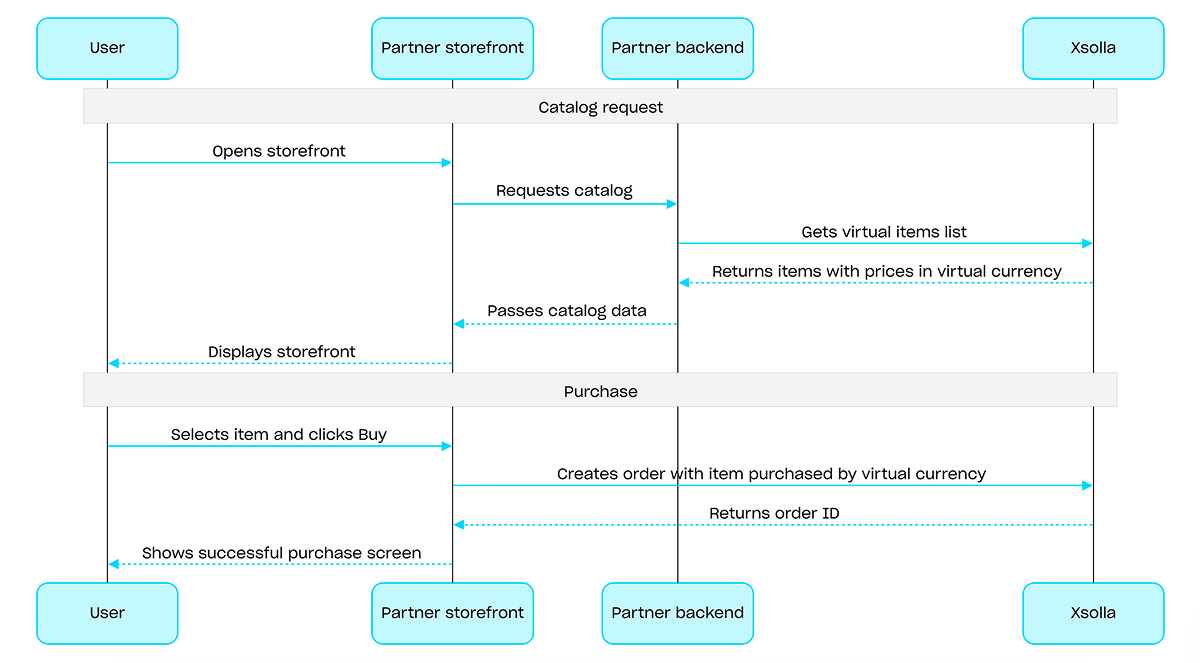
Wird ein Artikel mit virtueller Währung gekauft, müssen Sie den API-Aufruf Bestellung mit einem angegebenen, in virtueller Währung gekauften Artikel anlegen verwenden. Das Zahlungsportal muss nicht aufgerufen werden – die Zahlungsabwicklung erfolgt bei Ausführung des API-Aufrufs.
Kaufvorgang mit virtueller Währung (Beispiel):
Übersicht
Spielschlüssel sind einmalig verwendbare, eindeutige alphanumerische Codes, mit denen Nutzer Zugriff auf ein Spiel oder einen DLC erhalten. Sie können Spielschlüssel über einen Direktlink, über den Shop oder über ein Widget verkaufen. Außerdem können Sie regionale Beschränkungen konfigurieren und so den Verkauf von Spielschlüsseln auf bestimmte Ländern beschränken. Ausführliche Informationen finden Sie im Abschnitt Spielschlüsselpakete.
Für den Verkauf von Spielschlüsseln ist keine Benutzerauthentifizierung erforderlich – die Schlüssel werden an die E-Mail-Adresse gesendet, die der Nutzer beim Bezahlvorgang angegeben hat. Sie können jedoch die Authentifizierung konfigurieren und dadurch zusätzliche Szenarien umsetzen: Personalisierung, Kaufbeschränkungen oder Berechtigungssystem. Ausführliche Informationen finden Sie im Abschnitt So richten Sie die Authentifizierung beim Verkauf von Spielschlüsseln ein.
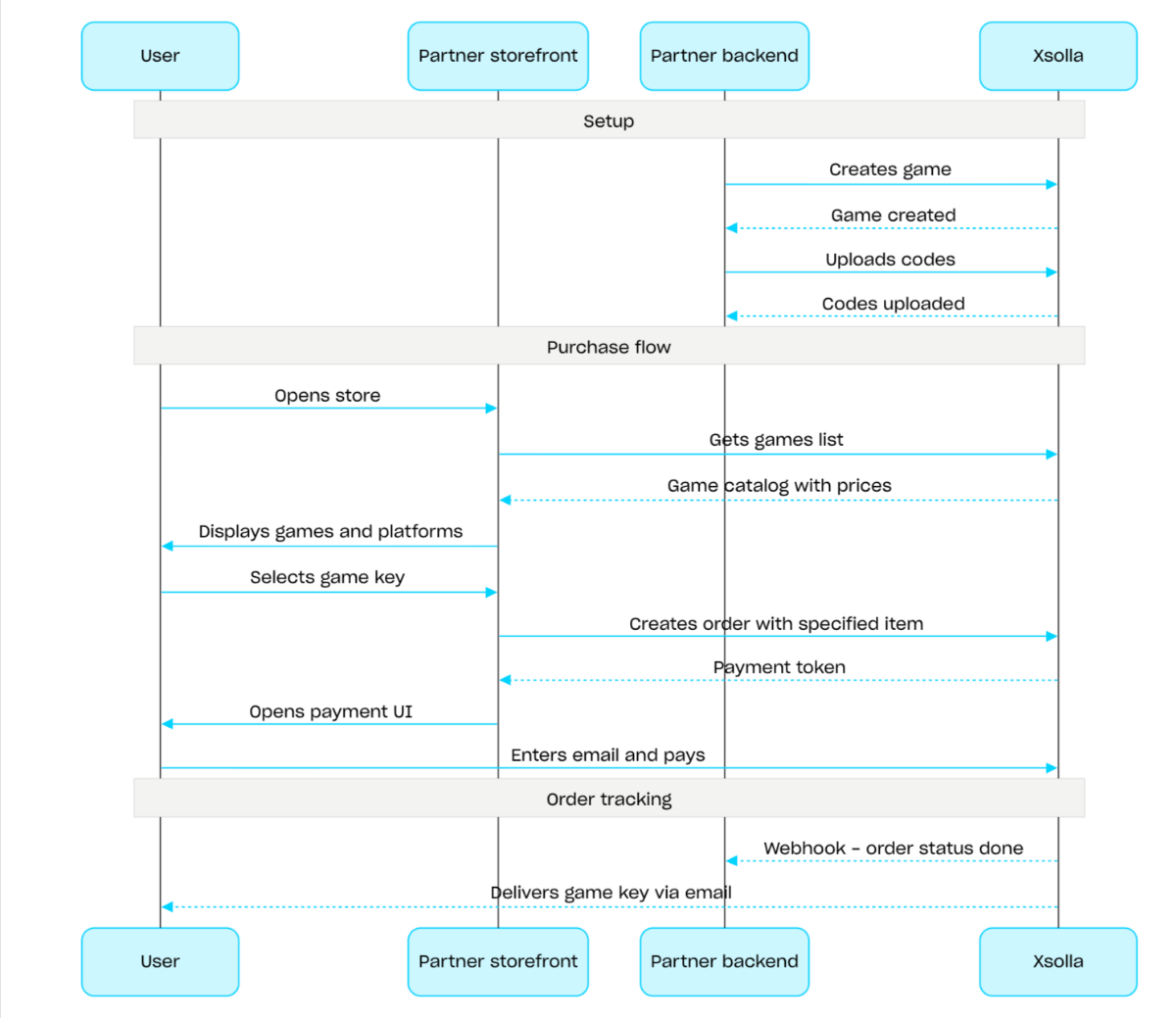
Ablauf beim Verkauf von Spielschlüsseln:
- Erstellen Sie ein Spiel mit dem API-Aufruf Spiel erstellen.
- Konfigurieren Sie regionale Beschränkungen.
- Laden Sie Spielschlüssel mithilfe des API-Aufrufs Codes hochladen in ein Spielschlüsselpaket hoch, um sie zum Kauf bereitzustellen.
- Zeigen Sie den Spielekatalog mitsamt den Preisen für die Region des Nutzers mithilfe des API-Aufrufs Spieleliste abrufen an.
- Legen Sie eine Bestellung an. Verwenden Sie bei einem Schnellkauf den API-Aufruf Bestellung mit allen Artikeln aus dem aktuellen Warenkorb anlegen und übermitteln Sie dabei die SKU des Spielschlüssels. In der Antwort wird ein Token zum Öffnen des Zahlungsportals zurückgegeben.
- Implementieren Sie das Öffnen des Zahlungsportals, damit die Bestellung bezahlt werden kann.
Damit Sie zeitnah Benachrichtigungen über erfolgreiche Zahlungen erhalten und die Artikel den Nutzern übertragen können, sollten Sie das Bestellstatus-Tracking einrichten, beispielsweise mithilfe von Webhooks. Die Schlüssel werden an die E-Mail-Adresse gesendet, die der Nutzer beim Bezahlvorgang angegeben hat, und der Bestellstatus wechselt in done.
Übersicht
Bundles sind eine Zusammenstellung von Artikeln, die als eine Einheit verkauft werden. Ein Bundle kann virtuelle Gegenstände, virtuelle Währung, virtuelle Währungspakete, Spielschlüssel und andere Bundles enthalten. So lassen sich Starterpakete, saisonale Angebote und Sonderaktionen zusammenstellen und anbieten.
Verwenden Sie die folgenden Gruppen von API-Aufrufen, um mit Bundles zu arbeiten:
- Mit den API-Aufrufen aus dem Unterabschnitt Verwaltung können Sie Bundles erstellen, aktualisieren, löschen und deren Sichtbarkeit steuern.
- Mit den API-Aufrufen aus dem Unterabschnitt Katalog können Sie Bundles abrufen.
Kauflimits lassen sich beim Erstellen oder Aktualisieren eines Bundles über das limits-Objekt konfigurieren. Weitere Informationen finden Sie in der Übersicht unter Limits. Sie können zudem regionale Beschränkungen festlegen und so den Verkauf von Artikeln auf bestimmte Länder beschränken.
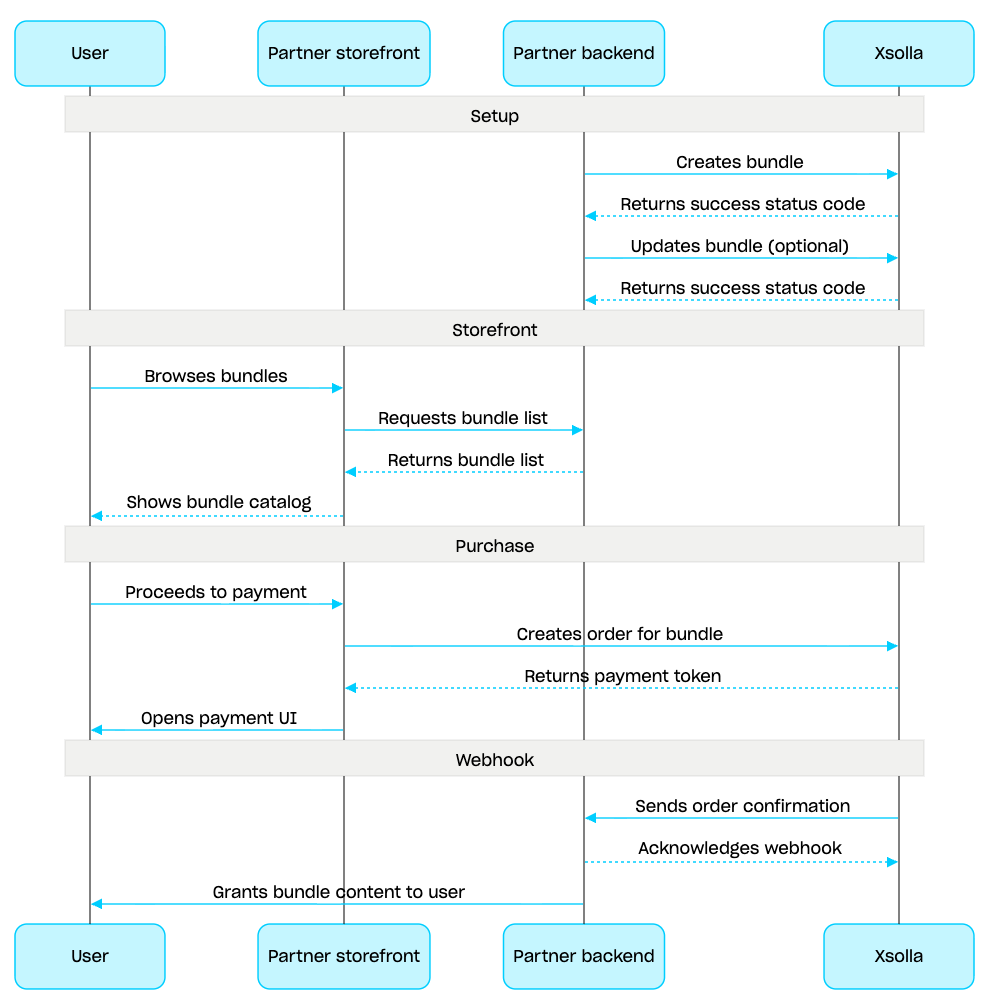
Bundle verwalten (Szenario):
- Erstellen Sie ein Bundle mithilfe des API-Aufrufs Bundle erstellen. Verwenden Sie den API-Aufruf Bundle abrufen, um das erstellte Bundle zu überprüfen. Mit dem API-Aufruf Liste der Bundles abrufen können Sie alle Bundles im Projekt abrufen.
- Verwenden Sie bei Bedarf den API-Aufruf Bundle aktualisieren, um den Bundle-Inhalt oder die ‑Einstellungen zu ändern.
- Implementieren Sie die Logik, gemäß der Bundles in Ihrem Storefront angezeigt werden, mithilfe des API-Aufrufs Liste der Bundles abrufen, Angegebenes Bundle abrufen oder Liste der Bundles anhand der angegebenen Gruppe abrufen.
- Legen Sie eine Berstellung mit einem der API-Aufrufe aus dem Abschnitt Warenkorb und Zahlung an. Bei einem Schnellkauf können Sie beispielsweise den API-Aufruf Bestellung mit angegebenem Artikel anlegen verwenden und dabei die Bundle-SKU übermitteln. In der Antwort wird ein Token zum Öffnen des Zahlungsportals zurückgegeben.
- Implementieren Sie das Öffnen des Zahlungsportals, damit die Bestellung bezahlt werden kann.
- Richten Sie das Bestellstatus-Tracking ein, beispielsweise mithilfe von Webhooks, um zeitnah Daten zu erfolgreich bezahlten Artikeln zu erhalten und diese dem Nutzer zu übertragen.
Übersicht
Der Warenkorb ermöglicht es, mehrere Artikel in einer einzelnen Bestellung zusammenzufassen. Ein Nutzer kann Artikel jeglichen Typs in beliebiger Menge gegen echte Währung kaufen sowie Promocodes einlösen.
Der Warenkorb wird aufseiten von Xsolla gespeichert. Ob der Warenkorb sitzungsübergreifend gespeichert wird, hängt davon ab, ob der Nutzer autorisiert ist:
Bei autorisierten Nutzern ist der Warenkorb mit dem jeweiligen Nutzer verknüpft und wird sitzungsübergreifend gespeichert, solange Anfragen im Namen desselben Nutzers gesendet werden.
Bei nicht autorisierten Nutzern hängt es davon ab, ob der Header
x-unauthorized-idübermittelt wird. Um den Warenkorb eines nicht autorisierten Nutzers sitzungsübergreifend zu speichern, müssen Sie dieselbex-unauthorized-idin jeder Anfrage übermitteln. Diese Option ist nur beim Verkauf von Spielschlüsseln verfügbar.
Sie können den Warenkorb auf zwei Arten identifizieren: automatisch anhand des JWT des Nutzers oder anhand der Warenkorb-ID (cart_id).
Der Warenkorb lässt sich sowohl clientseitig als auch serverseitig verwalten.
Serverseitig können Sie den Warenkorb mit Artikeln befüllen, z. B. beim Wiederherstellen einer Sitzung eines Nutzers. Clientseitig stehen Ihnen folgende Aktionen zur Verfügung:
- den aktuellen Warenkorb des Nutzers oder einen Warenkorb anhand einer ID abrufen
- den Warenkorb befüllen
- Artikel im Warenkorb aktualisieren
- Artikel aus dem Warenkorb löschen
Um Artikel aus dem Warenkorb zu kaufen, werden client- und serverseitige Aufrufe zur Bestellanlegung verwendet.
Die Lebensdauer des Warenkorbs beträgt standardmäßig 72 Stunden. Ändert sich der Inhalt (z. B. wenn ein neuer Artikel in den Warenkorb gelegt wird) verlängert sich die Lebensdauer.
Nach erfolgreicher Zahlung wird der Warenkorb nicht automatisch geleert. Um den Warenkorb zu leeren, müsse Sie die folgenden clientseitigen API-Aufrufe verwenden:
Warenkorbartikel anhand der Warenkorb-ID löschen und Warenkorbartikel aus aktuellem Warenkorb löschen – dder Warenkorb wird geleert, sobald Sie den letzten Artikel daraus löschen.
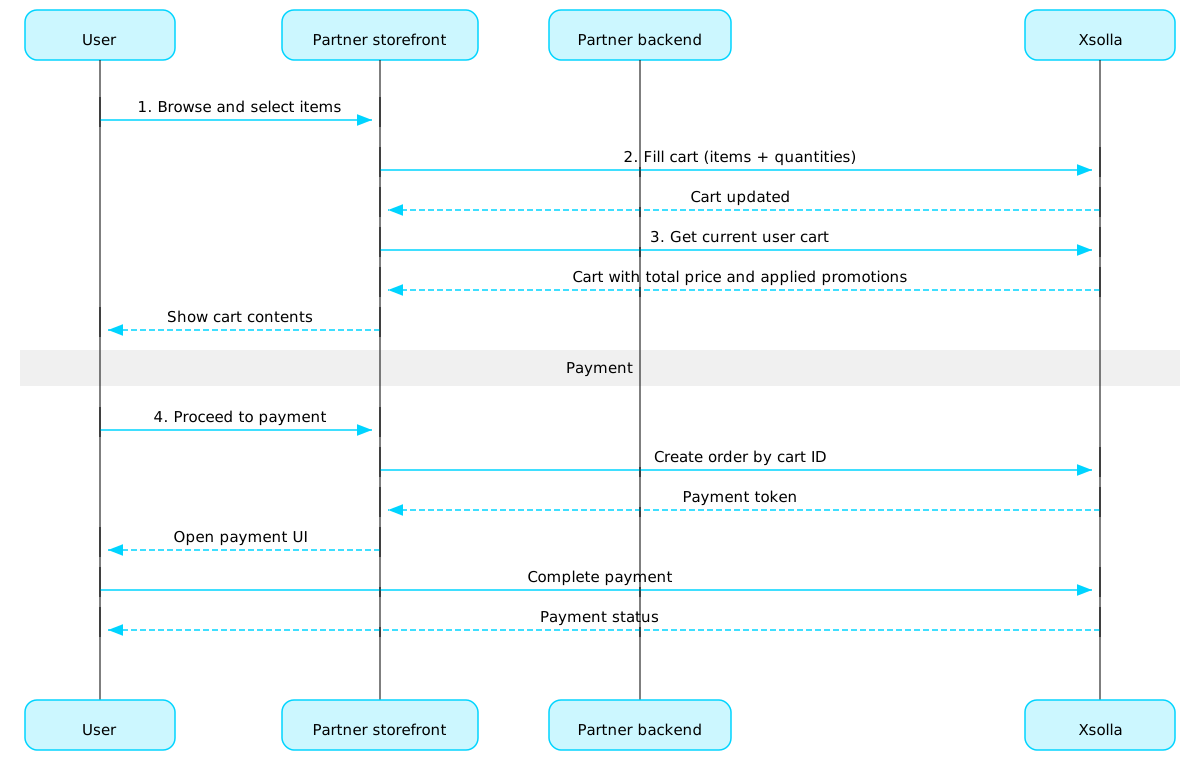
Anwendungsszenario für den Warenkorb:
Implementieren Sie eine Shopoberfläche, auf der der Nutzer Artikel auswählen kann.
Wenn der Nutzer Artikel im Shop auswählt, müssen Sie diese in den Warenkorb legen, z. B. mithilfe des Aufrufs Artikel in den Warenkorb legen. Im Array "items" müssen Sie die SKUs und die gewünschte Stückzahl des jeweiligen Artikels übermitteln.
Implementieren Sie die Warenkorbansicht. Wenn der Nutzer zum Warenkorb navigiert, müssen Sie den Warenkorbinhalt mithilfe des Aufrufs Warenkorb des aktuellen Benutzers abrufen anzeigen. In der Antwort werden Informationen zum finalen Preis der Artikel (einschließlich Rabatten und angewendeten Werbeaktionen) zurückgegeben.
Implementieren Sie das Öffnen des Zahlungsportals, damit die Bestellung bezahlt werden kann. Sie können beispielsweise den Aufruf Bestellung mit allen Artikeln aus einem angegebenen Warenkorb anlegen verwenden. In der Antwort ist ein Token zum Öffnen des Zahlungsportals enthalten.
Richten Sie das Bestellstatus-Tracking ein, beispielsweise mithilfe von Webhooks, um zeitnah Daten zu erfolgreich bezahlten Artikeln zu erhalten und diese dem Nutzer zu übertragen.
Hinweis
Wie Sie den Verkauf von Artikeln im Spiel und online implementieren, erfahren Sie im Integrationsleitfaden.
Lebenszyklus von Bestellungen
Den Lebenszyklus von Bestellungen zu verstehen, hilft Ihnen dabei, Bestellungen nachzuverfolgen und die Logik nach dem Kauf (z. B. die Lieferung der Artikel) korrekt umzusetzen.
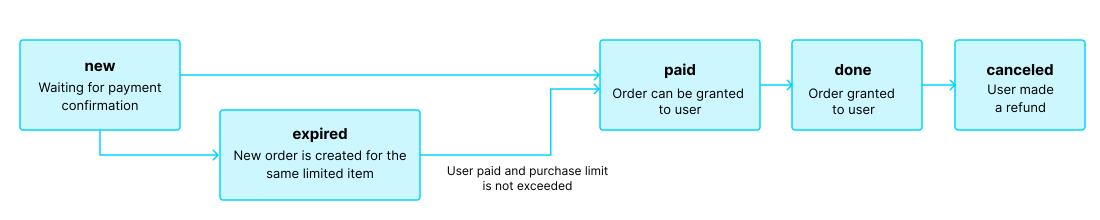
Der Auftrag durchläuft die folgenden Status:
| Status | Beschreibung | Hinweise |
new | Die Bestellung wurde angelegt. Das System wartet auf die Zahlungsbestätigung. | Erläuterungen zum Transaktionsstatus finden Sie in der Pay-Station-API-Dokumentation. |
paid | Bestellung wurde bezahlt (die Transaktion wurde in den Status done versetzt), und der Artikel kann dem Nutzer gewährt werden. | Die Bestellung verbleibt im Status new, bis die Zahlung bestätigt wurd. |
done | Artikel wurde dem Nutzer gewährt. | — |
canceled | Die Zahlung wurder erstattet. | Die Bestellung wechselt in diesen Status, sobald sich der Transaktionsstatus in refunded ändert. |
expired | Wird eine neue Bestellung für einen begrenzten Artikel, einen Promocode oder eine Werbeaktion angelegt, wird jede bisherige, noch nicht bezahlte Bestellung, in der dieser Artikel enthalten ist, in den Status expired versetzt. | Sollte ein Nutzer versuchen, eine abgelaufene Bestellung zu bezahlen, wird im Zahlungsportal der Fehlercode 2002 angezeigt, und die Zahlung schlägt fehl. |
Hinweis
Wenn die Bestellung während des Bezahlvorgangs in den Status expired wechselt, die Zahlung jedoch erfolgreich ist, ändert sich der Status der Bestellung von expired in paid. Dies gilt nur, wenn das Kauflimit für den bestellten Artikel bei der Zahlung nicht überschritten wird.
Kostenlose Artikel
Use calls from this section to grant free items to users.
Operationen
Pfad
Bodyapplication/jsonProjekt-ID. Dieser Parameter wird im Kundenportal neben dem Projektnamen angezeigt sowie in der Adressleiste des Browsers, wenn Sie im Kundenportal ein Projekt geöffnet haben. Die URL hat das folgende Format: https://publisher.xsolla.com/<merchant_id>/projects/<project_id>.
Beispiel: 44056
Währung des Bestellpreises. Dreistelliger Währungscode pro ISO 4217. Detaillierte Informationen zu Von Xsolla unterstützte Währungen.
Legt eine Bestellung in der Testumgebung an. Die Option steht den Nutzern offen, die in der Liste der Firmennutzer aufgeführt sind.
Standard false
Einstellungen zum Konfigurieren des Bezahlvorgangs und des Zahlungsportals für einen Nutzer.
Benutzeroberflächeneinstellungen.
Zahlungsportal-Theme. Möglich sind "63295a9a2e47fab76f7708e1" (helles Theme – voreingestellt) oder "63295aab2e47fab76f7708e3" (dunkles Theme). Sie können außerdem ein individuelles Theme erstellen und dessen ID im Parameter übermitteln.
Standard "63295a9a2e47fab76f7708e1"
Enum"63295a9a2e47fab76f7708e1""63295aab2e47fab76f7708e3"
Benutzeroberflächeneinstellungen für die Desktopversion.
Header-Einstellungen.
Wenn true wird das Logo im Header angezeigt. Um das Bild hochzuladen, öffnen Sie Ihr Projekt im Kundenportal, und navigieren Sie zu Pay Station > Einstellungen.
Ob die Kaufbeschreibung (purchase.description.value) im Header angezeigt wird. true ist voreingestellt.
Standard true
Wie der Header angezeigt wird. Möglich sind compact (Projektname und Benutzer-ID sind ausgeblendet) oder normal (Standard).
Standard "normal"
Enum"compact""normal"
Ob in der Desktop-Version des Zahlungsportals eine Schließen-Schaltfläche angezeigt werden soll. Die Schaltfläche schließt das Zahlungsportal und leitet den Nutzer zu der im Parameter settings.return_url angegebenen URL weiter. Standardmäßig ist false voreingestellt.
Standard false
Benutzeroberflächen-Modus im Zahlungsportal. Nur user_account ist möglich. Der Header enthält nur das Navigationsmenü, und der Nutzer kann kein Produkt auswählen oder eine Zahlung vornehmen. Dieser Modus ist nur für die Desktop-Version verfügbar.
Wert"user_account"
Benutzerkontodetails.
Untermenü Meine Zahlungskonten.
Seite Mein Konto.
Untermenü Abonnements verwalten.
Ob in der mobilgeräteoptimierten Version des Zahlungsportals eine Schließen-Schaltfläche angezeigt werden soll. Die Schaltfläche schließt das Zahlungsportal und leitet den Nutzer zu der im Parameter settings.return_url angegebenen URL weiter.
Standard false
Ob die Weiterleitung per Link zu einer externen Ressource deaktiviert ist oder nicht. Wenn Sie auf einen externen Link klicken, wird das Ereignis external-link-open über den postMessage-Mechanismus gesendet. Die Adresse für den Weiterleitungs-Link wird im Parameter url übermittelt.
Standard false
Ob die Liste der im Land des Nutzers verfügbaren Zahlungsmethoden beim Öffnen des Zahlungsportals angezeigt wird. Ist false festgelegt (Standard), wird die im Parameter settings.payment_method übermittelte Zahlungsmethode oder die vom PayRank-Algorithmus ausgewählte Zahlungsmethode angezeigt.
Standard false
Ob Nutzer zum Bezahlen vom im Launcher eingebetteten Browser (WebView) zu ihrem Standardbrowser weitergeleitet werden sollen.
Standard false
Damit ein Währungscode bestehend aus drei Buchstaben gemäß ISO 4217 im Zahlungsportal angezeigt wird, müssen Sie code als Wert festlegen. Standardmäßig wird das Währungssymbol anstelle des Währungscodes angezeigt.
Ob während der Transaktionsverarbeitung eine Warnmeldung angezeigt werden soll, wenn der Mauszeiger über das Schließen-Symbol (×) bewegt wird. Wird false oder kein Parameter übermittelt, wird die Warnmeldung nicht angezeigt.
Standard true
Position der Hauptelemente des Zahlungsportals. Sie können das Zahlungsportal im Spiel öffnen und/oder die Spalte mit den Bestellinformationen und den Angaben zu den Zahlungsmethoden vertauschen. Ausführliche Informationen finden Sie in den Anpassungsanweisungen.
Enum"embed""column_reverse""embed_column_reverse"
Ob die "3-D Secure"-Prüfung in einem neuen Browserfenster geöffnet wird. Legen Sie true fest, wenn Ihr Setup eine Content Security Policy (CSP) vorschreibt.
Standard false
Wie die Artikelliste im Warenkorb beim Öffnen der mobilen Zahlungsportal-Version angezeigt wird. Wenn true festgelegt ist, wird die Liste ausgeklappt angezeigt. Wenn false (Standard) festgelegt ist oder der Parameter nicht übermittelt wird, wird die Liste zusammengeklappt angezeigt.
Standard false
Zahlungsmethoden-ID. Die ID steuert die Anzeige der Währung im Zahlungsportal, da einige Zahlungsmethoden möglicherweise nur bestimmte Währungen unterstützen.
Seite, auf die der Nutzer nach der Zahlung weitergeleitet wird. Die folgenden Parameter werden dem Link automatisch hinzugefügt: user_id, foreigninvoice, invoice_id, status.
Zahlungsstatus, der eine Benutzerweiterleitung zur Rückgabe-URL auslöst.
Enum"none""successful""successful_or_canceled""any"
Beispiel: "none"
Verzögerung, nach der der Nutzer automatisch zur Rückgabe-URL weitergeleitet wird.
Beispiel: 0
Zahlungsstatus, der die Anzeige einer Schaltfläche auslöst, bei dessen Klick der Nutzer zur Rückgabe-URL weitergeleitet wird.
Enum"none""successful""successful_or_canceled""any"
Beispiel: "none"
- https://store.xsolla.com/api/v2/project/{project_id}/free/cart/{cart_id}
- Mock serverhttps://xsolla.redocly.app/_mock/de/api/catalog/v2/project/{project_id}/free/cart/{cart_id}
- curl
- JavaScript
- Node.js
- Python
- Java
- C#
- PHP
- Go
- Ruby
- R
- Payload
curl -i -X POST \
  https://store.xsolla.com/api/v2/project/44056/free/cart/custom_id \
  -H 'Authorization: Bearer <YOUR_TOKEN_HERE>' \
  -H 'Content-Type: application/json' \
  -d '{
    "sandbox": true,
    "settings": {
      "ui": {
        "theme": "63295a9a2e47fab76f7708e1",
        "desktop": {
          "header": {
            "is_visible": true,
            "visible_logo": true,
            "visible_name": true,
            "visible_purchase": true,
            "type": "normal",
            "close_button": false
          }
        }
      }
    },
    "custom_parameters": {
      "character_id": "ingameUsername"
    }
}'Antwort
application/json
{
  "order_id": 641
}
Anfrage
Legt eine Bestellung mit einem angegebenen kostenlosen Artikel an. Der angelegten Bestellung wird der Bestellstatus done zugewiesen.
Hinweis
Dieser API-Aufruf gibt generische Katalogdaten zurück, wenn er ohne Autorisierung verwendet wird. Verwenden Sie die Autorisierung, um personalisierte Nutzerdaten abzurufen, wie z. B. mit dem Artikel verknüpfte Limits und Werbeaktionen. Dazu müssen Sie den Benutzer-JWT im
Dieser API-Aufruf gibt generische Katalogdaten zurück, wenn er ohne Autorisierung verwendet wird. Verwenden Sie die Autorisierung, um personalisierte Nutzerdaten abzurufen, wie z. B. mit dem Artikel verknüpfte Limits und Werbeaktionen. Dazu müssen Sie den Benutzer-JWT im
Authorization-Header übermitteln. Weitere Informationen zum Benutzer-JWT finden Sie im Block Sicherheit für diesen Aufruf.
Sicherheit
XsollaLoginUserJWT
Pfad
Bodyapplication/jsonProjekt-ID. Dieser Parameter wird im Kundenportal neben dem Projektnamen angezeigt sowie in der Adressleiste des Browsers, wenn Sie im Kundenportal ein Projekt geöffnet haben. Die URL hat das folgende Format: https://publisher.xsolla.com/<merchant_id>/projects/<project_id>.
Beispiel: 44056
Währung des Bestellpreises. Dreistelliger Währungscode pro ISO 4217. Detaillierte Informationen zu Von Xsolla unterstützte Währungen.
Legt eine Bestellung in der Testumgebung an. Die Option steht den Nutzern offen, die in der Liste der Firmennutzer aufgeführt sind.
Standard false
Einstellungen zum Konfigurieren des Bezahlvorgangs und des Zahlungsportals für einen Nutzer.
Benutzeroberflächeneinstellungen.
Zahlungsportal-Theme. Möglich sind "63295a9a2e47fab76f7708e1" (helles Theme – voreingestellt) oder "63295aab2e47fab76f7708e3" (dunkles Theme). Sie können außerdem ein individuelles Theme erstellen und dessen ID im Parameter übermitteln.
Standard "63295a9a2e47fab76f7708e1"
Enum"63295a9a2e47fab76f7708e1""63295aab2e47fab76f7708e3"
Benutzeroberflächeneinstellungen für die Desktopversion.
Header-Einstellungen.
Wenn true wird das Logo im Header angezeigt. Um das Bild hochzuladen, öffnen Sie Ihr Projekt im Kundenportal, und navigieren Sie zu Pay Station > Einstellungen.
Ob die Kaufbeschreibung (purchase.description.value) im Header angezeigt wird. true ist voreingestellt.
Standard true
Wie der Header angezeigt wird. Möglich sind compact (Projektname und Benutzer-ID sind ausgeblendet) oder normal (Standard).
Standard "normal"
Enum"compact""normal"
Ob in der Desktop-Version des Zahlungsportals eine Schließen-Schaltfläche angezeigt werden soll. Die Schaltfläche schließt das Zahlungsportal und leitet den Nutzer zu der im Parameter settings.return_url angegebenen URL weiter. Standardmäßig ist false voreingestellt.
Standard false
Benutzeroberflächen-Modus im Zahlungsportal. Nur user_account ist möglich. Der Header enthält nur das Navigationsmenü, und der Nutzer kann kein Produkt auswählen oder eine Zahlung vornehmen. Dieser Modus ist nur für die Desktop-Version verfügbar.
Wert"user_account"
Benutzerkontodetails.
Untermenü Meine Zahlungskonten.
Seite Mein Konto.
Untermenü Abonnements verwalten.
Ob in der mobilgeräteoptimierten Version des Zahlungsportals eine Schließen-Schaltfläche angezeigt werden soll. Die Schaltfläche schließt das Zahlungsportal und leitet den Nutzer zu der im Parameter settings.return_url angegebenen URL weiter.
Standard false
Ob die Weiterleitung per Link zu einer externen Ressource deaktiviert ist oder nicht. Wenn Sie auf einen externen Link klicken, wird das Ereignis external-link-open über den postMessage-Mechanismus gesendet. Die Adresse für den Weiterleitungs-Link wird im Parameter url übermittelt.
Standard false
Ob die Liste der im Land des Nutzers verfügbaren Zahlungsmethoden beim Öffnen des Zahlungsportals angezeigt wird. Ist false festgelegt (Standard), wird die im Parameter settings.payment_method übermittelte Zahlungsmethode oder die vom PayRank-Algorithmus ausgewählte Zahlungsmethode angezeigt.
Standard false
Ob Nutzer zum Bezahlen vom im Launcher eingebetteten Browser (WebView) zu ihrem Standardbrowser weitergeleitet werden sollen.
Standard false
Damit ein Währungscode bestehend aus drei Buchstaben gemäß ISO 4217 im Zahlungsportal angezeigt wird, müssen Sie code als Wert festlegen. Standardmäßig wird das Währungssymbol anstelle des Währungscodes angezeigt.
Ob während der Transaktionsverarbeitung eine Warnmeldung angezeigt werden soll, wenn der Mauszeiger über das Schließen-Symbol (×) bewegt wird. Wird false oder kein Parameter übermittelt, wird die Warnmeldung nicht angezeigt.
Standard true
Position der Hauptelemente des Zahlungsportals. Sie können das Zahlungsportal im Spiel öffnen und/oder die Spalte mit den Bestellinformationen und den Angaben zu den Zahlungsmethoden vertauschen. Ausführliche Informationen finden Sie in den Anpassungsanweisungen.
Enum"embed""column_reverse""embed_column_reverse"
Ob die "3-D Secure"-Prüfung in einem neuen Browserfenster geöffnet wird. Legen Sie true fest, wenn Ihr Setup eine Content Security Policy (CSP) vorschreibt.
Standard false
Wie die Artikelliste im Warenkorb beim Öffnen der mobilen Zahlungsportal-Version angezeigt wird. Wenn true festgelegt ist, wird die Liste ausgeklappt angezeigt. Wenn false (Standard) festgelegt ist oder der Parameter nicht übermittelt wird, wird die Liste zusammengeklappt angezeigt.
Standard false
Zahlungsmethoden-ID. Die ID steuert die Anzeige der Währung im Zahlungsportal, da einige Zahlungsmethoden möglicherweise nur bestimmte Währungen unterstützen.
Seite, auf die der Nutzer nach der Zahlung weitergeleitet wird. Die folgenden Parameter werden dem Link automatisch hinzugefügt: user_id, foreigninvoice, invoice_id, status.
Zahlungsstatus, der eine Benutzerweiterleitung zur Rückgabe-URL auslöst.
Enum"none""successful""successful_or_canceled""any"
Beispiel: "none"
Verzögerung, nach der der Nutzer automatisch zur Rückgabe-URL weitergeleitet wird.
Beispiel: 0
Zahlungsstatus, der die Anzeige einer Schaltfläche auslöst, bei dessen Klick der Nutzer zur Rückgabe-URL weitergeleitet wird.
Enum"none""successful""successful_or_canceled""any"
Beispiel: "none"
- https://store.xsolla.com/api/v2/project/{project_id}/free/item/{item_sku}
- Mock serverhttps://xsolla.redocly.app/_mock/de/api/catalog/v2/project/{project_id}/free/item/{item_sku}
- curl
- JavaScript
- Node.js
- Python
- Java
- C#
- PHP
- Go
- Ruby
- R
- Payload
curl -i -X POST \
  https://store.xsolla.com/api/v2/project/44056/free/item/booster_mega_1 \
  -H 'Authorization: Bearer <YOUR_JWT_HERE>' \
  -H 'Content-Type: application/json' \
  -d '{
    "sandbox": true,
    "quantity": 5,
    "promo_code": "discount_code",
    "settings": {
      "ui": {
        "theme": "63295a9a2e47fab76f7708e1",
        "desktop": {
          "header": {
            "is_visible": true,
            "visible_logo": true,
            "visible_name": true,
            "visible_purchase": true,
            "type": "normal",
            "close_button": false
          }
        }
      }
    },
    "custom_parameters": {
      "character_id": "ingameUsername"
    }
}'Antwort
application/json
{
  "order_id": 641
}
Übersicht
Mithilfe von Kauflimits können Sie begrenzen, wie viele Artikel ein einzelner Nutzer oder alle Nutzer erwerben können. Zudem können Sie festlegen, dass das Limit nach einer bestimmten Zeitspanne zurückgesetzt wird.
Limits werden aufseiten von Xsolla gespeichert und auf der Ebene der einzelnen Artikel im Kundenportal oder über das Objekt limits in den folgenden API-Aufrufen konfiguriert:
- Virtuellen Gegenstand erstellen
- Spiel erstellen
- Virtuelle Währung erstellen
- Virtuelles Währungspaket erstellen
- Bundle erstellen
Informationen zu den Limits werden in den folgenden API-Aufrufen zum Abrufen des Artikelkatalogs im Objekt items.limits zurückgegeben:
- Liste virtueller Gegenstände abrufen
- Liste virtueller Währungen abrufen
- Liste virtueller Währungspakete abrufen
- Liste der Bundles abrufen
- Spieleliste abrufen
Mit den API-Aufrufen im Unterabschnitt Verwaltung der Gruppe Limits können Sie den aktuellen Status der Limits abrufen und diese für einen bestimmten Nutzer aktualisieren – beispielsweise den Zähler nach Abschluss einer Quest zurücksetzen oder die verbleibende Menge manuell anpassen.
Hinweis
Ausführliche Informationen zur Konfiguration von Limits im Katalog finden Sie im Abschnitt Kauflimits für Artikel.
Ausführliche Informationen zur Konfiguration von Limits im Katalog finden Sie im Abschnitt Kauflimits für Artikel.
Gängige Regionen
Mithilfe regionaler Verkaufsbeschränkungen können Sie die Verfügbarkeit von Artikeln in bestimmten Ländern oder Ländergruppen steuern. So können Sie beispielsweise ein Spiel aufgrund von Lizenzbeschränkungen nur in bestimmten Ländern verkaufen.
Die Beschränkungen werden über Regionen definiert. Jede Region fasst ein oder mehrere Länder unter einer einzigen Kennung (region_id) zusammen. Sie können einen Artikel einer oder mehreren Regionen zuordnen.
Die Verfügbarkeit eines Artikels wird wie folgt bestimmt:
- Wenn für einen Artikel keine Regionen angegeben sind, ist der Artikel in allen Ländern erhältlich.
- Wenn für einen Artikel Regionen angegeben sind und das Land des Nutzers zu einer dieser Regionen gehört, ist der Artikel für diesen Nutzer verfügbar.
- Wenn für einen Artikel Regionen angegeben sind und das Land des Nutzers zu keiner dieser Regionen gehört, ist der Artikel für diesen Nutzer nicht verfügbar.
Das Land des Nutzers wird im Parameter country übermittelt, wenn der Katalog über API-Aufrufe aus dem Unterbereich Katalog angefordert wird. Wird der Parameter nicht übermittelt, wird das Land anhand der IP-Adresse des Nutzers ermittelt.
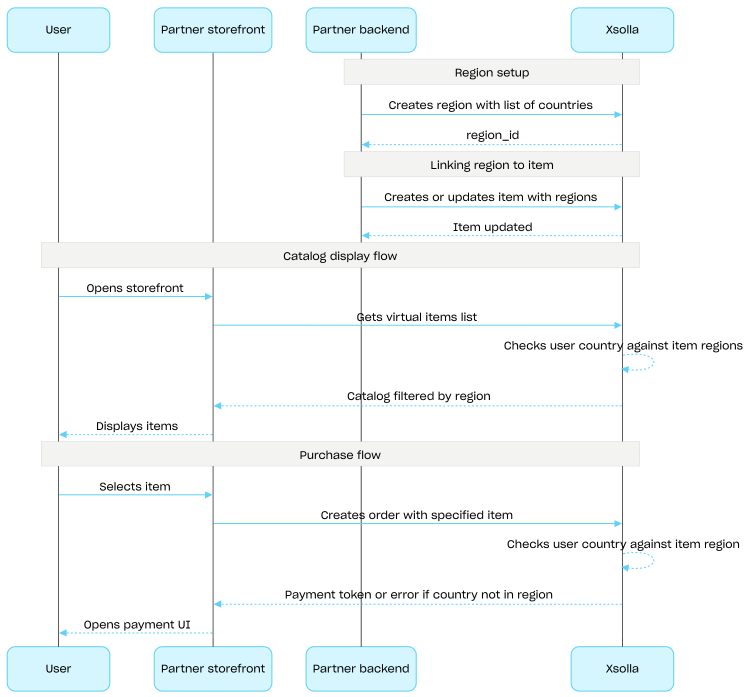
Das Land des Nutzers wird zweimal mit den Regionen des Artikels abgeglichen: beim Anfordern des Katalogs und beim Anlegen einer Bestellung. Nicht verfügbare Artikel werden nicht in die Katalogantwort aufgenommen, und eine Bestellung mit einem solchen Artikel wird nicht angelegt.
Mit API-Aufrufen aus dem Unterabschnitt Gängige Regionen können Sie Regionen erstellen, aktualisieren und löschen.
Einrichtung regionaler Verkaufsbeschränkungen (Ablauf):
- Erstellen Sie eine Region mithilfe des API-Aufrufs Region erstellen, geben Sie dabei die Liste der Länder an. In der Antwort ist eine
region_identhalten, die im nächsten Schritt benötigt wird. - Verknüpfen Sie einen virtuellen Gegenstand mit der Region, indem Sie beim Erstellen oder Aktualisieren des Artikels die
region_idimregions-Array übermitteln. - Zeigen Sie dem Nutzer den Katalog mithilfe von API-Aufrufen aus dem Unterabschnitt Katalog an, beispielsweise mit dem API-Aufruf Liste virtueller Gegenstände abrufen. Das Land des Nutzers wird anhand des Parameters
countryermittelt oder, falls dieser nicht angegeben ist, anhand der IP-Adresse des Nutzers. Artikel, die im Land des Nutzers nicht verfügbar sind, fehlen in der Katalogantwort. - Wenn der Nutzer zur Bezahlung eines Artikels oder des Warenkorbs übergeht, muss eine Bestellung angelegt werden:
- Wenn der Artikel in den Warenkorb gelegt wurde muss die Bestellung mithilfe des API-Aufrufs Bestellung mit allen Artikeln aus einem angegebenen Warenkorb anlegen oder Bestellung mit allen Artikeln aus dem aktuellen Warenkorb anlegen angelegt werden.
- Beim Schnellkauf eines einzelnen Artikels muss die Bestellung mithilfe des API-Aufrufs Bestellung mit angegebenem Artikel anlegen (unter Angabe der Artikel-SKU) angelegt werden.
In der Antwort ist ein Token zum Öffnen des Zahlungsportals enthalten.
Hinweis
Xsolla prüft, ob das Land des Nutzers in der für den Artikel festgelegten Region enthalten ist. Ist das Land nicht in der Region enthalten, kann die Bestellung nicht angelegt werden.
Xsolla prüft, ob das Land des Nutzers in der für den Artikel festgelegten Region enthalten ist. Ist das Land nicht in der Region enthalten, kann die Bestellung nicht angelegt werden.
- Implementieren Sie das Öffnen des Zahlungsportals, damit die Bestellung bezahlt werden kann.
Operationen